Overview
The current Milestone release contains updated versions of the following files:
- Heartland Restaurant POS
- Heartland Restaurant Admin Portal
- Heartland Restaurant Kiosk
If you have questions regarding the updates described in this document, please contact Heartland Restaurant's Support Department by email (Earlyaccess@heartland.us) or phone (1-833-844-HPOS).
New Enhancements
The following section includes detailed descriptions of the enhancements included in this Milestone. We have divided the updates by project area.
POS
The following release notes detail any enhancements we have made to the Point-of-Sale program for this release.
Location Address Added to Login Location Selector
Description: The address of the location is added to your location selector.
Details: To help resellers and support staff differentiate between like-named locations, we have added the address of the location to the Login screen’s location selector (below the location name). Previously, the program only displayed the location’s name, which may have caused confusion for a similarly named location.
Heartland Restaurant Now Supports Heartland Gift
Description: Heartland Gift direct integration is now supported.
Details: We have added an option under Payment Gateway, in the Gift Card list, to select Heartland. When you select Heartland, the program displays the following configuration settings:
- URL (The URL is default and certified for Heartland Gift: https://api2.chockstone.com/archer/v2),
- Username
- Password
- Domain (Should always remain “hps”, but can be changed if needed)
- Store
The information for these settings can be taken from the Heartland Gift VAR sheet.
Heartland Restaurant Now Supports Heartland Gift with eGift Purchases
Description: The direct Heartland Gift integration now supports eGift.
Details: Previously, eGift was supported only to use gift cards online if Monetary Gift was enabled. This update now enables you to directly integrate with Heartland Gift and have the eGift feature available.
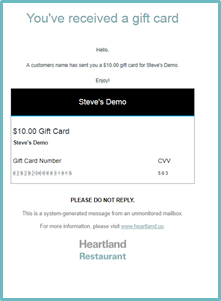
Here is an example of a completed eGift transaction sent to an email. The gift card number and CVV are created and stored for the customer to use then redeem at their convenience.
Now Supports Timed Items
Description: You can now create menu items that are charged by the duration of time they are use.
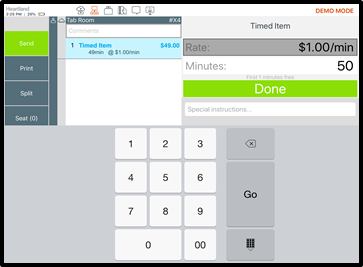
Details: Timed items could apply in pool halls and bowling alley settings, where tables or lanes are charged by the minute. In the New Menu Item screen, set the Measurement option to Per Minute. In the Tare box, enter the amount of any free time that can be set prior to the charged period beginning.
In the application, after selecting the item, you start the timer by sending the item. When you access the check again, the POS displays the message “Running…” under the item while its clock is ticking. You may also alternatively manually add time to the item.
Long-hold Press Required to Activate or Deactivate Online Ordering
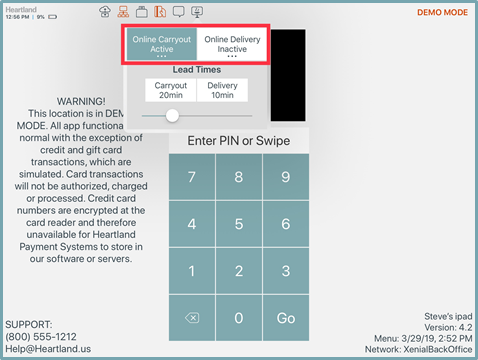
Description: The app now includes a long-hold press control to activate or deactivate Online Ordering carryout and delivery availability.
Details: Users were inadvertently tapping the buttons which caused online ordering to become unknowingly unavailable. To reduce this, we added a long-hold requirement to the Online Carryout Active and Online Delivery Active buttons. These buttons feature the “three dots” indicator, which we commonly use to label buttons with an available long-press action.
Sub Items Can Have a Distinct Taxability Status
Description: A sub item can now have a taxability status distinct from the main item it is linked to, providing more flexible taxing options.
Details: In previous versions, sub items always inherited the tax status of their parent items. In the Dashboard menu, click Location Setup, then click Settings. In the App Settings area, we have added the Tax Sub Items Separately check box. If you select this check box, the program will use each sub item’s tax status when calculating total taxes for a check.
For example: If you order a Jack and Coke, the Coke item may be a sub item with a tax exclusive Food tax while the Jack item has a tax inclusive Liquor tax. The program will therefore tax the price of Coke according to the Food tax and tax the remainder of the item total according to the Liquor tax.
Note: Prior to version 4.2, this setting only applied to a sub item’s tax rate. It now applies to a sub item’s tax rate and tax status.

Report Category Net Sales on the Server Checkout Reports
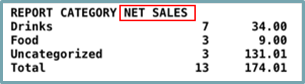
Description: You can now include Net Sales instead of default Gross Sales on the Server Checkout Reports.
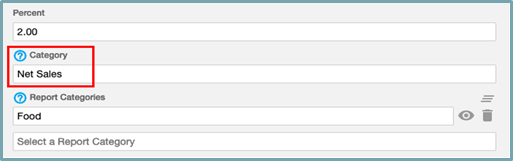
Details: Servers often tip out based on these report category check numbers. If it is Gross Sales, they must tip out on money they did not really get. Under Location Setup, tap Settings, then tap Cash Management. Here, you can now change Report Category Checkout Sales from Gross Sales (default) to Net Sales.
Automatic Tip Pooling and Tip Out Suggestions with Net Sales
Description: Similar to Server Checkout update with Net Sales, we have also updated Automatic Tip pooling and Tip Out suggestions based on report category with Net Sales.
Details: In previous versions, you could only define Tip Pooling and Tip Out suggestions for report categories based on the Gross Sales. Now that we can calculate item Net Sales within the POS, you can configure your Tip Out types to use item’s Net Sales.
PAX D210 Pay-At-The-Table
Description: You can now use the PAX D210 device with Pay-At-The-Table integration.
Details: The PAX D210 device is now supported with the Pay-At-The-Table feature. The PAX D210 payment terminal configuration on the Admin Portal remains the same as a PAX S300. For more in-depth configuration and setup procedures, please see the detailed PAX D210 Setup Guide.
California Payroll Double Time Reporting
Description: Heartland Restaurant calculates overtime for California according to this ca.gov doc: https://www.dir.ca.gov/dlse/FAQ_Overtime.htm
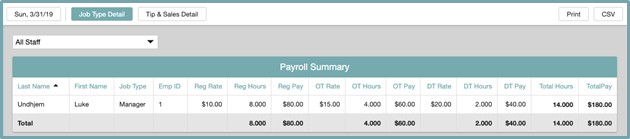
Details: With the correct setup, the calculations have always been compliant with Canadian law. But in the reports (Payroll, Labor, Time Clock), double-time hours and pay total were previously added to the overtime hours and pay columns. We have now added new double time (DT) hours and pay columns to these reports, separating them from the overtime columns. This does not affect total hours and total pay, as those were already accurate. The reports just separate overtime and double-time totals. The DT columns are only visible to merchants with an address in California.
Here is an example of the Payroll Summary Report.
Kiosk and Online Ordering Now Accepts Partial Gift Payments
Description: The application can now accept partial gift payments from Kiosk and Online Ordering.
Details: In previous versions, when using the Online Ordering or Kiosk app, if a customer paid with a gift card with insufficient funds, the app would send the ticket to the kitchen even though it was not fully paid. We have corrected this, and the app now allows you to add a gift card and a credit card at the same time if the gift card does not fulfill the total amount due. This prevents the order from being sent to the kitchen before it is fully paid, along with providing an acceptance for a partial gift tender.
Revenue Center Name Printing on Top of Reports
Description: Report printing now is showing the Revenue Center printed when selected in the filter.
Details: Reports that can be filtered by Revenue Center will now include the name of the Revenue Center on top of the report. Usually when you filter a report (such as by staff member), the program prints the name of the active filters at the top of the report (such as the name of the staff member used as a filter). Previously, the program did not include the Revenue Center names on printed reports, which may have caused confusion. Now if you filter a report by a Revenue Center, the program will include the name of the Revenue Center used for filtering at the top of the printed report. The following reports are affected by this change: Daily Summary, Items, Hourly Ticket, Hourly Items, Discounts, Adjustments, Taxes, Surcharges, and Void Reasons.
Admin Portal
Location Services Rewritten (for assembling a list of locations near you)
Description: We have rewritten the Location Services for better accuracy.
Details: Previously, when running the app on some devices, the Location Services feature did not always load all locations properly. To correct this, we have rewritten the entire Location Services feature to include and resolve any devices where the location load did not complete.
Auth/Capture available for Online Ordering (Monetary)
Description: We have added an Auth/Capture transaction method for Online Ordering when using the Monetary gateway.
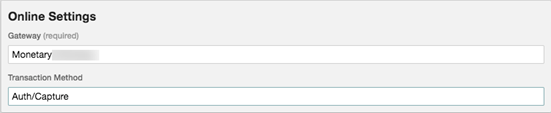
Details: When processing online orders using the Monetary gateway, users were only able to take transactions using the Sale/Adjust transaction method. Now you can use the Auth/Capture transaction method, which enables users to capture credits cards and close out later, and to add tips through daily review. In the Admin Portal, navigate to Payment Gateway. In the Online Settings area, if the Gateway list is set to Monetary, you can now select Auth/Capture in the Transaction Method list.
Online Ordering Analytics
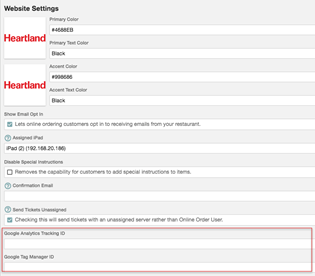
Description: You can now add a Google Analytics Tracking ID and a Google Tag Manager ID to Online Ordering.
Details: These tracking IDs will run the Google Analytics and Google Tag Manager scripts, which provide various tools for tracking site traffic. You can enable this function in the Admin Portal. In the Location Setup settings, tap Online Ordering, then tap Website Settings. In the Website Settings area, enter valid ID numbers in the Google Analytics Tracking ID and Google Tag Manager ID boxes.
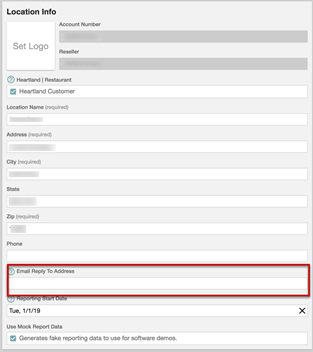
Reply-To Emails
Description: You can now configure the program to send reply-to email responses to consumer-facing email addresses.
Details: Previously, the program would route reply-to emails to noreply-hrpos@heartland.us. Now, if a user replies to an auto-generated email (such as an online order confirmation, e-gift confirmation, or receipt), the program routes those replies to a designated email address, instead of the unmonitored “noreply” mailbox. You can set the destination email address in the Admin Portal. In the main menu, click Location Setup, then click Settings. In the Location Info area, type the destination email address in the Email Reply To Address box.
Kiosk
Heartland Gift
Description: Heartland Gift direct integration is now supported with Heartland Kiosk.
Details: An option has been added in the Admin Portal under Payment Gateway, Gift Card dropdown to select Heartland. Once Heartland is selected the required fields shown are the URL (The URL is default and certified for Heartland Gift https://api2.chockstone.com/archer/v2), Username, Password, Domain (The Domain should always remain “hps” but it is left open to change if needed), and Store. These fields would be entered from a Heartland Gift VAR sheet. The Heartland Kiosk application will now support Heartland Gift Card redemption/swipes.
Recent Updates
The following list summarizes the updates we have included since our last Milestone release.
- We have added the location address to the Login screen location selector below the location name to help users differentiate between like-named locations.
- The app now displays the Order Now and Buy Gift Card option buttons properly on the Loyalty Detail page, below the site's map and address details.
- The app now sorts future orders based on their due time, not when the orders were place.
- The app no longer accepts a manager's password to perform restricted tasks if the manager is not currently clocked in.
- If you remove a menu item from a menu in the Admin Portal while the item is on an open check, it no longer causes the KDS to crash.
- When you combine multiple checks, the KDS no longer marks various items from the original ticket as deleted on the newly combined ticket.
- If you swipe a gift card on an MSR device multiple times, the POS does not load the card to the check multiple times.
- On sites using the RoomKey service, you can now process split checks with the RoomKey service.
- You can now open and pay out split checks on the PAX D210 PINpad device.
- The KDS system now prints items on separate kitchen slips when the Display Format is set to do so.
- In the Job Types screen, the Pay In/Out setting now displays correctly, even if set to No.
- On sites using the Como loyalty service, the app no longer prevents you from closing tickets with failed customer registration.
- The app no longer displays incorrect amounts for suggested tips when discounting non-tippable items, such as gift cards or merchandise.
- The Admin Portal now features a New User activation link for dealers, which will only be available until we resolve certain email management problems.
- When users access the Loyalty Membership List page, the program now honors the permissions settings for editing the user interface and disables the user interface for users without permissions.
- The program now includes images from the Image Library when performing a Menu Copy.
- The Admin Portal no longer automatically enters data in the various fields in the Payment Gateway screen.
- The Admin Portal no longer allows accounts to be deleted if they have active users.
- In the Info screen, the Credit Card icon displays in the proper color (blue) when the check is associated with a swiped card.
- On a check, if the total quantity is divided between menu items with separate line items, the POS now applies room level taxes to all items properly.
- The app will now round the total of fully paid checks to the hundredths (penny) decimal place.
- When you copy pricing rules, the program now copies scheduled times properly.
- When you view the audit trail in the Admin Portal, it now displays accurate time punch information on edits made in both the POS and the Admin Portal.
What’s Coming Next?
The following enhancements are planned and being prepared for future releases. We do not guarantee the completion of the issues included in this list, due to unforeseen circumstances that may arise during development. Please refer to the release notes to confirm the issues that have been completed.
- You can now configure the POS to process Heartland Gift transactions from both the Online Ordering service and on PAX devices within the store.
- We have added the Require Checkout Before Clockout check box to the Location Settings screen.
- We have added the Auto Logout Time list to the New User screen (for new users) and the My Profile screen (for the existing current user).
- Dealers can now retrieve new API keys for their integration partners in the Admin Portal, on the Integrations page.