Overview
The current Milestone release contains updated versions of the following components:
- Admin Console
- Guest
- Kiosk
- Online Ordering
- POS
If you have questions regarding the updates described in this document, please contact Heartland Restaurant's Support Department by email (Earlyaccess@heartland.us) or phone (1-833-844-HPOS).
New Enhancements
The following section includes detailed descriptions of the enhancements included in this Milestone:
HR-657 Business Name, Address, and Phone Number Added to Customer Emails
Description: We have added the customer’s business name, address, and telephone number to all emails.
Details: In the Online Ordering website, if a customer provides a business name, address, and telephone number, the program will include that information in all emails sent to the customer.
HR-864 Overlapping Time Ranges for Menu Group Schedules
Description: In Online Ordering, you can now set menu group schedules with overlapping time ranges.
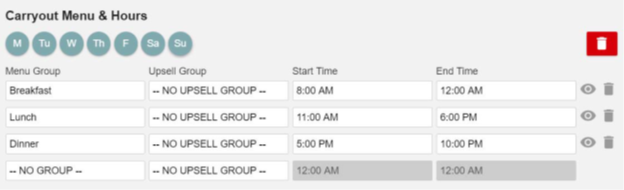
Details: In the Admin Console’s Main Menu, click Location Setup, then click Online Ordering. In the Online Ordering screen, click the Online Order tab. In the Schedules area, you can add schedules that determine when the items of specific menu groups are available for carryout and delivery service in the Online Ordering app.
In previous versions, the program did not allow you to set menu groups with overlapping time ranges. The program did not allow multiple menu groups to be available at the same time of day. We have modified this, and now you can set menu groups with overlapping time ranges.
For instance, you could set a “Breakfast” menu group with a time range of 8:00 AM to 12:00 AM, and then set a “Lunch” menu group with a time range of 11:00 AM to 4:00 PM. In such a case, if a customer accesses the Online Order website between 11:00 and 12:00, the program will allow the customer to order items from both the “Breakfast” and “Lunch” menu groups.
HR-892 Link Buttons Added to Online Ordering and Catering Websites
Description: We have added link buttons on the Online Ordering and Catering websites.
Details: If your location is set up to provide both an Online Ordering website and a Catering website, then the Online Ordering website will feature a Catering link button. If you click the button, you will access the Catering webpage. Likewise, the Catering website will feature an Online Ordering link button. If you click the button, you will access the Online Ordering webpage.
HR-893 Catering Service Website Now Available
Description: We have added Catering service to the Online Ordering website.
Details: To enable Catering service for a location, log into the Admin Console and select the appropriate account. In the Main Menu, click Account Info. In the Account Info screen, select the Catering check box. Once you enable the Catering service, the program will make the Catering controls visible and active in the Online Ordering screen. To access these controls, click Location Setup in the Main Menu, then click Online Ordering. In the Online Ordering screen, click the Catering tab.
For a full description of the Catering service options, review Online Ordering Setup for Heartland Restaurant: https://pos.heartlandpaymentsystems.com/kb/kb_upload/file/Online_Ordering_Setup_for_HR.pdf
HR-1012 Description Box Added to Attributes Settings Screen
Description: We have added the Description box to the Attributes Settings screen.
Details: In the Description box, you can type custom descriptive text, such as undercooked food warnings or disclaimers. In the Online Ordering website, Kiosk, or Guest, if a customer orders an item that is associated with an attribute with text in the Description box, the website or app will display that text to the customer.
HR-1039 Special Instructions Limited to 150 Characters
Description: We have limited special instructions to 150 characters.
Details: In the Online Ordering website, Guest, and Kiosk, special instructions are now limited to 150 characters. If customers enter special instructions for an order, they can only enter instructions of 150 characters or less.
HR-560 Company Name and Location on Daily Summary
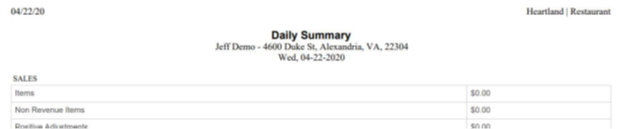
Description: We have added the site’s name and address to the header of all reports.
Details: For all the reports in the Admin Console, if you print a report, or export it to PDF format, the site's name and street address will appear directly below the report's title. The report header will also include the report's date. If you export the report to CSV format, the program will include the text of the site’s name in the CSV file name.
HR-687 Customer Feedback Report
Description: We have added the Customer Feedback Report to the Admin Console.
Details: This Customer Feedback Report enables you to review comments written and posted by customers using the various apps in the Heartland Restaurant suite. In the Admin Console’s Main Menu, select an appropriate account and location. Click Reports, then click Customer Feedback.
If you click the Date box, the program will open the Calendar window, allowing you to select a specific date or date range for the report. In the All Reviews list, you can filter the report to only include reviews received from specific sources. If you select All Reviews, the default option, the report will display reviews received from all sources. If you select Guest App, the report will only include reviews received from the Guest app. If you select Online Ordering Orders, the report will only include reviews received from the Online Ordering website, submitted from the Rate your online ordering experience panel. If you select General Online Ordering Feedback, the report will only include reviews submitted from the
We would love your feedback panel, accessed by the Leave us feedback link at the bottom of the Online Ordering website.
In the All Ratings list, you can filter the report to only include reviews with a specific star rating. If you select All Ratings, the report will include reviews from all ratings. If you select a specific star rating (one to five), the report will only include reviews with the selected rating.
Each review listed in the report will include the time and date when the review was submitted, the source of the review, the customer’s name, phone number, and email address, the rating (if any), and the full text of the review.
HR-871 Your Order Panel Visible as Customers Add Items
Description: In the Online Ordering website, the “Your Order” panel now displays while you navigate the site.
Details: We have modified the Online Ordering website to display the “Your Order” panel while you navigate the site. If you access the Online Ordering website with a desktop browser, select an item, then select Carryout or Delivery, the Online Ordering website will display the Your Order panel on the right side of the page. The rest of the page will remain active, and the panel will continue to display while you navigate the site. If you order additional items, the program will immediately display them in the Your Order panel and update the ticket’s total. Customers can review their order without clicking the Shopping Cart, and submit the ticket at any time by clicking CHECKOUT in the Your Order panel.


HR-917 Print Check on Delivery Dispatch
Description: You can set the POS to print delivery tickets immediately after they are assigned to a delivery driver.
Details: In the Admin Console’s Main Menu, click Location Setup, then click Settings. In the Location Settings screen, in the App Settings area, we have added the Print Check on Delivery Dispatch check box. If you select this check box, the POS will print a delivery customer’s ticket immediately after you assign a driver to it. This feature enables delivery drivers to receive delivery tickets more quickly and conveniently.
HR-947 Require AVS Billing Information for Online Ordering and Guest
Description: You can now set Online Ordering and Guest to require billing information from customers.
Details: Sites using the Heartland Portico payment gateway can now set the program to store credit card transactions in two separate batches, on for in-store transactions processed with PAX, one for online order transactions processed with eCommerce.
We have added the Full Billing Address Verification check box to the Payment Gateway screen. In the Admin Console’s Main Menu, click Payment Gateway. In the Payment Gateway screen, in the Online Settings area, if you select Heartland/Portico in the Gateway list, the program will display the Full Billing Address Verification check box with other controls specific to the Heartland Portico gateway). If you select this check box, the Online Ordering website will require customers to provide additional billing information (street address, city, state, and ZIP code) with the standard credit card information.

This will enable the processor to use address verification for online orders (where a credit card is not present at the point of sale).
HR-956 eGift Tickets Automatically Close
Description: You can now set the Online Ordering site to close eGift tickets automatically.
Details: In the Admin Console’s Main Menu, click Location Setup, then click Online Ordering. In the Online Ordering screen, click the Online Ordering tab. In the General Settings area, we have added the Auto Close eGift Tickets check box. If you select this check box, when a customer orders an eGift in the Online Ordering website, the program will automatically close the ticket after it is paid and immediately send the eGift to the customer’s email address. If you clear this check box, the program will not send the eGift to the customer until a staff member closes the ticket manually.
You can also set Kiosk to close eGift tickets automatically. In the Admin Console’s Main Menu, click Locations, then click App Ordering. In the General tab, we have added the Auto Close eGift Tickets check box. If you select this check box, when a customer orders an eGift in Kiosk, the app will automatically close the ticket after it is paid and immediately send the eGift to the customer’s email address. If you clear this check box, the apps will not send the eGift to the customer until a staff member closes the ticket manually.
This setting will also automatically close eGift tickets made with the Guest app. To purchase an eGift card in the Guest app, a customer must first use the Explore function, locate an appropriate restaurant, and tap Order Now.
HR-983 Auto Close Tickets for Online Ordering
Description: You can now set the Online Ordering site to close all paid tickets automatically.
Details: In the Admin Console’s Main Menu, click Location Setup, then click Online Ordering. In the Online Ordering screen, click the Online Ordering tab. In the General Settings area, we have added the Auto Close Tickets check box. If you select this check box, the Online Ordering website will automatically close a ticket immediately after it is paid. If you clear this check box, the program will not close a paid ticket; a staff member must close the ticket manually.
HR-1003 Delivery Information Added to Kitchen Slips and Receipts
Description: You can now add delivery information to kitchen slips and customer receipts.
Details: In the Admin Console’s Main Menu, click Location Setup, then click Rooms. In the Room Settings screen, we have added the Print Delivery Info list. This list enables you to set the POS to include customer delivery information (phone number and street address) to printed kitchen slips and customer receipts. If you select Disable, the POS will not print delivery information on kitchen slips or customer receipts. If you select Kitchen, the POS will include the customer’s phone number and address on kitchen slips. If you select Customer Receipt, the POS will include the customer’s phone number and address on customer receipts. If you select Both, the POS will include the customer’s phone number and address on both kitchen slips and customer receipts.
HR-1010 100% Comped Online Orders Automatically Close
Description: The POS now automatically closes Online Ordering, Guest, and Kiosk tickets that are comped for 100%.
Details: If a ticket created in Online Ordering, Guest, or Kiosk is comped for 100% of its amount, the POS will automatically close the ticket. In previous versions, such a check would appear in the POS as unpaid, requiring a staff member to close it manually. This feature requires you to enable the Auto Close eGift Tickets and Auto Close Tickets settings (located in the Online Ordering screen, in the Online Ordering tab, in the General Settings area).
HR-1011 Customized Order Completion Message for Online Ordering
Description: You can now set the Online Ordering website to display custom messages after orders are completed.
Details: We have added the Order Completion Message boxes to the Online Ordering and catering settings. These boxes enable you to add a customized text message that will display when customers complete an order in the Online Ordering website. Using these controls, you can create separate closing messages for carryout and delivery orders for online ordering and catering.
In the Admin Console’s Main Menu, click Online Ordering, then click the Online Ordering tab. In both the Carryout and Delivery areas, we have added the Order Completion Message boxes. In the Title box, type a title for the message. In the Message box, type the text of the full message.
We have also added the Order Completion Message boxes to the Carryout and Delivery areas of the Catering tab. Just like the controls on the Online Ordering tab, you can use these controls to set the catering website to display custom messages after customers complete a carryout or delivery catering order.

In the Online Ordering website, when a customer submits an order, the website will display your custom title and message in the order confirmation screen. It will also include the custom title and message in the customer’s order confirmation email.
HR-1082 Support for ThinkReservations
Description: Heartland Restaurant now supports integration with the ThinkReservations service.
Details: Comprised of proven business management solutions, ThinkReservations includes integrated payment processing, outstanding customer support, and direct connectivity with channels such as Booking.com, Expedia, TripAdvisor, Airbnb, and Google Hotel Ads. As a team of passionate industry professionals, with real-world lodging experience, we understand your day-to-day operations and speak your language. We’re dedicated to finding new ways to make your business more profitable and productive. Save time. Increase revenue. Be a Thinker.
HR-685 Add Staff Breaks to Time Punches
Description: You can now add staff breaks to time punch records.
Details: In the Time Punch Settings screen, we have added the Breaks list. In this list, if the click  , the program will add a break record to the list, and display its name, start date, start time, end date, end time, and length in hours and minutes. To delete the break from the list, click
  . To edit the break, click
  . The program will display the Edit Break area, which includes controls that enable you to edit the settings of the selected break.

In the Break Type list, select the type of break that you want to add to the time punch. Based on the type of break you select, the Paid box displays Yes if it is a paid break or No if it is not. When an employee takes a break of this type, the POS will exclude the break’s time from the staff member’s paid time.
The Break Start Date box displays the date when the staff member started the break.
The Break Start Time box displays the time of day when the staff member started the break.
The Break End Date box displays the date when the staff member ended the break.
The Break End Time box displays the time of day when the staff member ended the break.
HR-788 Optimum Control Integration
Description: Heartland Restaurant supports Optimum Control’s Sales Export service.
Details: By integrating Heartland POS with Optimum Control’s Sales Export, restaurants and bars are able to leverage accurate sales and inventory data to make the most informed decisions possible. This integration is easy-to-use; simply select the Heartland POS interface, choose the configuration you’d like to use (.csv or directly imported into the OC database), and Optimum Control will begin to automatically export your sales information from your POS. Once this is complete, you’ll have all of your sales data at your fingertips in Optimum Control and ready for use in our 70+ reports.
HR-801 IBS Connect Integration
Description: Heartland Restaurant supports the IBS Connect service.
Details: IBS Connect was created to give dealers a way to “fill gaps” in the POS. Many times a prospect will want a particular report or interface that Heartland would not typically do. We offer our services to help with these situations. We can create custom reports as well as custom interfaces according to the needs of the customer. Our base package includes interfaces for Quickbooks Desktop & Online, payroll interfaces with most major payroll companies including Heartland, ADP, Paychex & Paycor.
HR-870 Required Modifier Alert Text in Online Ordering
Description: We have added alert text for required modifiers in Online Ordering
Details: In the Online Ordering website, if a customer selects an item with one or more required modifiers, the website now displays a label (“Required”), highlighted in the site’s accent color, beside the header of each set of required modifiers, alerting the customer that the selections are required. The website will not enable the Add to Order button until the customer selects all required modifiers in the screen.

When a customer orders an eGift card, the website will display similar alerts for the required information (name, email address, and amount), and will not enable the Add to Order button until this information is entered.
HR-954 Whole Modifiers Print as Two Halves
Description: You can now set the POS to print whole modifiers in both the Right Half and Left Half sections of listed modifiers.
Details: In the Admin Console’s Main Menu, click Location Setup, then click Display Formats. In the Display Format Settings screen, we have added the Print Whole Ingredients as Two Halves check box. This setting modifies how the POS prints or displays topping items on kitchen slips, kitchen labels, and KDS displays. If you select this check box, the POS will list all “half & half” modifiers in both the Right Half and Left Half sections of the modifiers list, even when the modifier is added to the whole item, such as the pepperoni and mozzarella modifiers in the following example.

If you clear the check box, the kitchen slips, kitchen labels, and KDS displays will list whole pizza toppings above any Right Half and/or Left Half toppings.
The POS only lists whole modifiers as two halves if the modifier can be added as half ingredients. You can enable this feature in the modifier’s settings. In the Admin Console’s Main Menu, click Account Menu, then click Modifiers. In the Modifiers window, select a topping modifier. In the modifier’s settings, select the Allow Half & Half check box, and save your settings.
HR-973 PAX Surcharge Integration
Description: Heartland Restaurant now allows merchants to impose and collect surcharges on qualifying credit card payments processed through certain PAX PINpad devices.
Details: In the interest of helping merchants collect more revenue, Heartland Restaurant now allows users to impose and collect a surcharge on qualifying credit card transactions processed through PAX S300 PINpad devices.
- All chip-enabled credit card transactions, with or without PIN, are eligible for surcharge.
- All debit and prepaid card transactions are ineligible for surcharge.
- Surcharge is not available in all states and should only be implemented where permitted by law.
When a customer inserts their card in the PAX device, it will automatically determine whether the transaction is eligible for surcharge. If a transaction is deemed eligible, the PAX device will inform the cardholder of the surcharge, and offer them the option to Accept, which allows the transaction to process, or Cancel, which cancels the transaction. In instances where merchants present customers with printed invoices before payment, the invoices will include a surcharge clause. (You must configure the POS to include the surcharge clause on printed invoices.)
- Once a sale is complete, Heartland Restaurant will print the completed invoice with the pre-surcharge subtotal, the surcharge amount, and the total, each on individual lines.
- Heartland Restaurant will include all surcharge totals in EOD reporting, and will list them separately from credit card totals.
For detailed procedures to set up a site to use the surcharge feature, review our document on Surcharge Setup for Heartland EMV: https://pos.heartlandpaymentsystems.com/kb/kb_upload/file/HR/Surcharge_Setup_for_Heartland_Restaurant.pdf
HR-982 Partial Approval Prompt Added to POS
Description: You can now set the POS to display an alert prompt when partial payments are received for a ticket.
Details: In the Admin Console’s Main Menu, click Location Setup, then click Settings. In the Location Settings screen, we have added the Partial Approval POS Prompt check box. If you select this check box, the POS will display a prompt when it receives a partial payment for a ticket. The prompt will state that a partial payment was received, and display the amount paid and the amount due. The POS will not print a receipt until a staff member has tapped OK at the prompt. This prompt is intended to alert servers that a partial payment has occurred and that additional payment.
HR-984 Surveillance Destination IP Address
Description: We have relabeled the Integration IP Address box to Surveillance Destination IP Address.
Details: We have relabeled the Integration IP Address box to Surveillance Destination IP Address. This is intended to emphasize that the setting should be used for integrations only.
HR-1063 Customer Vehicle Information on Kitchen Slips
Description: The POS now prints customer vehicle information on kitchen slips.
Details: In the Room Settings screen, we have renamed the Print Delivery Info list to Print Guest Info. In this list, if you select Customer Receipt, the POS will include the customer’s information on printed customer receipts. If you select Kitchen Slips, the POS will include the customer’s information on printed kitchen slips. If you select Both, the POS will include the customer’s information on customer receipts and kitchen slips.
If a customer’s information includes any vehicle information (such as make, model, or color), the POS will print the vehicle information with the customer’s name and other information.
HR-1068 URLs in Activation Emails No Longer Broken
Description: In activation emails, the URLs generated from converted links are no longer broken.
Details: When Heartland Restaurant sends activation email to customers, the activation links in those emails are often converted into URLs by email client software. In previous versions, the URLs may have been broken because the path in the original link contained the hashtag character (#), which some email clients remove when converting the link into a URL. To correct this, we have modified the code of our activation links to exclude hashtag characters, and the URLs generated from converted activation links are no longer broken.
HR-1091 ORCA Inventory Integration
Description: Heartland Restaurant supports the ORCA Inventory service
Details: With our fully integrated state-of-art restaurant inventory software, you can automate the inventory and ordering processes and save thousands of dollars in the process. You’ll notice an immediate boost in accuracy, accountability and ease of operations.
HR-558 Send Main Menu Item to Multiple Kitchen Groups
Description: You can now set the POS to send a main item to multiple kitchen groups when it includes modifiers associated with multiple kitchen groups.
Details: In the Location Settings, we have added the Ingredient Kitchen Group Behavior list. In this list, if you select Only One Kitchen Group, the POS (and other apps) will only send a main item to its kitchen group, and it will only print or display in that group’s kitchen printer or KDS display. If you select Allow Many Kitchen Groups, the POS will print or display a main item in multiple kitchen slips or KDS displays if it includes modifiers with ingredients associated with multiple kitchen groups.
For instance, if you order a main item associated with a “grill” kitchen group, then add one modifier with ingredients associated with a “sauté” group and a second modifier with ingredients associated with a “fry” kitchen group, the POS (and other app) will send the main item to all three printers or KDS displays. This feature can help kitchen staff determine which side items to include with a main item.
HR-752 Fixed Price Discounts
Description: You can now define discounts that apply fixed prices to qualifying items.
Details: We have added the Fixed Price check box to the Discounts Settings screen. When defining a new discount, if you select the Fixed Price check box, the POS will apply a fixed price to qualifying items. You can set the fixed price in the Amount box. In the POS, if you apply the discount to a qualifying item, the POS will reduce the price of the item to the fixed amount in the discount’s settings. The POS will only apply the discount to items with prices higher than the discount’s fixed price.
You can also define fixed price discounts with promotional codes that customers can use in the Online Ordering website and the Kiosk and Guest apps.
HR-783 Net Sales Report
Description: We have added the Net Sales Report to the Admin Console.
Details: In the Admin Console’s Main Menu, click Reports, then click Net Sales. The Net Sales Report screen includes list of the past twelve months, with the location’s total net sales for each month. If necessary, owners can use this report to negotiate monthly rent with a landlord. If you click Print, the program will open the Print Preview window, allowing you to preview and print the report. In the Export list, you can select an export format for the report. If you select PDF, the program will export the report’s information into an Adobe PDF file. If you select CSV, the program will export the report’s information into a text file with comma-separated values.
HR-911 Heartland Restaurant Includes Employee Sales Total in CAPI Exports
Description: Heartland Restaurant now includes employee sales information in its exports to the Central API service.
Details: Heartland Restaurant will now include employee sales information in its exports to the Central API service. For each employee included in the export, the program will include total gross sales totals, including totals for cash and non-cash sales, per shift and each job worked.
HR-976 Subitem Sorting Options Added
Description: You can now modify how the POS sorts and displays subitems in the Order screen.
Details: In the Location Settings screen, we have added the Sort Subitems as Ingredients check box to the App Settings area. If you select this check box, the POS will group and list subitems and ingredients together and display them below the main menu item that includes them.

In the Display Format Settings screen, we have also replaced the Combine Subitems check box with the Sub Item Sorting list. This controls enables you to modify how the POS sorts subitems in kitchen slips and KDS displays. In this list, if you select Sort as a Regular Item, the POS will sort and list subitems with main menu items. If you select Show Sub Items below Main Item, the POS will group and list subitems below the main menu item that includes them. If you select Sort Sub Items as Ingredients, the POS will group and list subitems and ingredients together, below the main item that includes them.

HR-1007 ECommerce Setup for Multiple Online Ordering Websites
Description: You can now configure an alternative Online Ordering website for accounts with multiple locations.
Details: We have added the ECommerce screens to the Admin Console. If an account includes multiple locations, these screens enable you to configure an Online Ordering website that includes a search function that enables customers to search for local locations.
In the Account Info screen, we have added the Online Ordering Landing Page check box. If you select this check box and click Save, the Admin Console will and display the ECommerce Setup submenu in the Admin Console’s Main Menu. The ECommerce Setup submenu includes two screens, General and Online Ordering.
The General screen allows you to preview and edit the appearance of the logo that displays in the Online Order website. The Guest app will also display this logo in the account’s tile. The screen displays a preview of the account’s tile. If you click Set Image, the program will open the Logos page, allowing to select or upload a logo image to display in the location’s tile. In the Display Name box, you can enter a name for the site.
The Online Ordering screen includes controls that determine the appearance and performance of the each location’s Online Ordering website.
In the URL Subdomain box, you can enter the URL subdomain of the account’s website. After typing an appropriate subdomain in the box, the program will create the website when you save your settings (by clicking Save), the program will create the website for Online Ordering service. After saving, if you click .hrpos.heartland.us, the program will access the new website.
If you click the Set Banner box, the program opens the Change Banner window, allowing to select or upload a logo image to display as the banner in the location’s website.
The Primary Color box enables you to set the color of the background in the website. If you click this box, the program displays a color panel. In this panel, you can select an appropriate color. The Primary Text Color list enables you to set the color of the primary text that displays in the site’s website. In this list, you can select either black or white. The Primary Color box enables you to set the color of the background in the site’s website. If you click this box, the program displays a color panel. In this panel, you can select an appropriate color. The Accent Text Color list enables you to set the color of the accent text that displays in the site’s website. In this list, you can select either black or white.
In the Site Preview area, the program displays a preview of the location’s Online Ordering website. When you edit the appearance of the website, the panel enables you to preview the new appearance before saving your settings.
The Online Ordering website will display a list of the account’s various locations, include each one’s address, telephone number, and ordering options. In the City, State, or ZIP Code box, if a customer enters the name of a city or state, or enters a ZIP code, the website will sort the locations and display the locations that are closest at the top of the list. The customer can also filter the displayed locations by their available services (catering, delivery, carryout, and curbside pickup). If a customer finds a desirable location and clicks Order Now, the website then displays the regular Online Ordering menu screen.

HR-1086 Print Online Order Tickets Immediately
Description: You can set the POS to print Online Order tickets as soon as they are received.
Details: We have added the Print Checks Immediately on Received Orders option to the Online Ordering and Catering settings. In the Admin Console’s Main Menu, click Location Setup, then click Online Ordering. In the Online Ordering screen, click the Online Ordering tab. In the Delivery and Carryout areas, we have added the Print Checks Immediately on Received Orders check boxes. If you select the check box in the Delivery area, the POS will print checks for delivery orders immediately upon receiving them from the Online Ordering site. If you select the check box in the Carryout area, the POS will print checks for carryout orders immediately upon receiving them from the Online Ordering site.
In the Catering tab, we have also added the Print Checks Immediately on Received Orders check boxes to the Delivery and Carryout areas. If you select the check box in the Delivery area, the POS will print checks for delivery orders immediately upon receiving them from the Catering website. If you select the check box in the Carryout area, the POS will print checks for carryout orders immediately upon receiving them from the Catering website.
HR-1099 Include Guest Name In Surveillance Data
Description: You can now include guest names in event data sent to third-party surveillance services.
Details: You can now set the POS to include guest names in surveillance data sent to a third-party surveillance services. In the Location Settings screen, if you enter an IP address in the Surveillance Destination IP Address box, the program will display the Send Additional Surveillance Info check box. If you select this check box, the POS will include the guest names associated with the transactions and event data that is sent to the surveillance service.
HR-1121 Print and Export Customer Feedback Reports
Description: You can now print and export Customer Feedback Reports.
Details: In the Admin Console’s Main Menu, click Reports, then click Customer Feedback. In the Customer Feedback screen, we have added the Print button and Export list. If you click the Print button, the program will open the Print Preview screen, allowing you to preview and print the report. In the Export list, you can select an export format for the report. If you select PDF, the program will export the report’s information into an Adobe PDF file. If you select CSV, the program will export the report’s information into a text file with comma-separated values.
Recent Updates
The following list summarizes the updates we have included since our last Milestone release:
- KDS Displays Removed Ingredients Properly for Duplicate Items
- Kiosk Displays Gift Card Option Properly
- POS Prints Sub Items Properly for Duplicate Items
- KDS Displays Rushed Course Items Properly
- POS Displays Loyalty Rewards When No Discounts Are Defined
- Start mcPrint Print Jobs Do Not Open Cash Drawers
- No Error When Customers Edit Tip Amounts on Guest Display
- POS No Longer Displays Items from Unavailable Sections
- POS Only Displays Limited Sections with Defined Time Ranges
- Loyalty Report Exports to PDF and CSV Formats
- POS Includes Gift Tips in Checkout Reports
- Kiosk Reading Gift Cards for Monetary
- Print Jobs Not Doubled in the Print Queue
- New Split Check No Longer Set as “Paid”
- Checkout Screen Displays All Options for Empty Checks
- Guest App Displays Accurate Delivery Times
- Ordering Items with “Half and Half” Modifiers on Guest App
- Kiosk Selects Correct Default Menu Section
- Ingredient Images from Copied Location Display Properly
- eCommerce Promotional Discounts Applying Properly
- Call Center’s No Tax Function Removes Room-level Taxes
- No Spaces in Email Address Box
- Editing Colors No Longer Crashes Online Ordering
- Accepts Valid Start and End Times for Scheduled Shifts
- Curbside Pickup Accessible When Delivery is Disabled
- Publish Changes for Sites and Large Menus
- Subitems on Held Tickets Print Immediately
- Accurate Surcharge Totals in Server Checkout Reports
- Modified Shopping Cart Panel in Online Ordering
- Removed Failed Option Added to Print Queue Control
- Copied Location Data No Longer Includes Override Prices
- Online Ordering Section List Displays Options Properly
- POS Combines Subitems Properly
- POS Displays Recent Orders Properly
- Online Ordering Sites Automatically Inserts Guest Name
- POS Doesn’t Close When Paying a Check Twice With Credit Card
- POS Closes ItsaCheckmate Tickets Automatically
- Mobilebytes Image Crop Overlay No Longer Displays
- Refunds for Split Checks Applied Accurately
- POS Now Applies Printer Permissions Correctly
- Save Online Ordering Settings Without Selecting Colors
- POS Prints Receipts After Partial Approval Prompt
- Partial Payments with Pre-paid Gift Cards
- Image Crop Overlay Now at Proper Size Displays