Overview
The current Milestone release contains the following enhancements:
- Ingredient Images on Kiosk, Skip the Line, and Online Ordering
- Add Time Availability to Items and Sections
- Support for Gift Tipping on PAX Devices
- Servers with View-Only access can assign tickets to other severs
- Guest app requires upgrade to Version 5.15
- Integration with Restaurant Solutions Inc. (RSI)
- Integration with TipsSender
- Guest Log In and Profile screens revised
- Support for Start mcPrint-3 printer
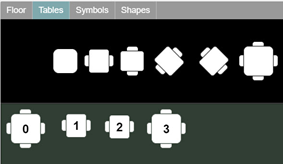
- More Table Images and Seating options added to Library
- POS prints select Room names in red text
- Timed Item Holds
- Collapse and expand News posts
- Scale certification
- Audit trail for job types and pay rate changes
- Open check counts and totals in server and cashier Checkout reports
- Manual weight items on Kiosk
- GraTrack integration
- New “What’s New” screen in Guest app
- Supports for Pour Controls Liquor Monitoring Service
- Curbside Pickup Service added to Online Ordering
- Refund Heartland Payments from Online Ordering
- Add Weight Amounts in Online Ordering and Guest
If you have questions regarding the updates described in this document, please contact Heartland Restaurant's Support Department by email (Earlyaccess@heartland.us) or phone (1-833-844-HPOS).
New Enhancements
The following section includes detailed descriptions of the enhancements included in this Milestone:
HR-435 Ingredient Images on Kiosk, Skip the Line, and Online Ordering
Description: You can now set images for ingredients.
Details: In the Ingredient Settings screen, we have added the Set Image box. If you click Set Image, the program opens the Change Image panel. If you click Upload New Image, the program opens an explorer window, enabling you to browse and select a graphic on your network. Select an appropriate graphic, then click Open. In the Change Image panel, type a name for the image in the Name box, and select Ingredients in the Type list.
To upload the image, click  . Then, in the Change Image screen, click the newly uploaded image. In the Ingredient Settings screen, the program will display the image in the Set Image box.
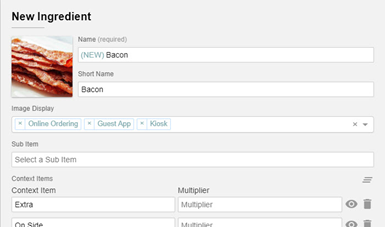
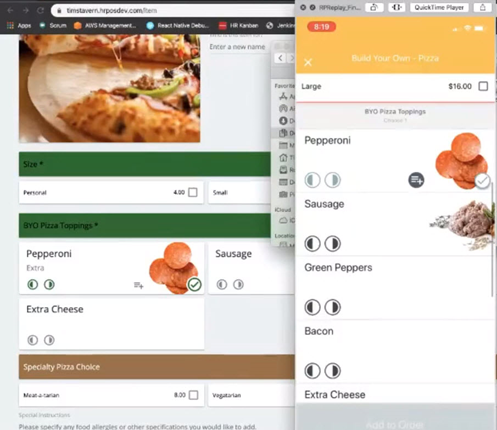
In this window, we have also added the Image Display list. In this list, you can select which apps will display the image in its Ingredients window. In this list, you can select Online Ordering, Guest App, and Kiosk. If you select one or more of these apps, they will display the uploaded images on ingredients buttons.
HR-438 Add Time Availability to Items and Sections
Description: You can now specify the time, by days of the week and hours of the day, when specific items are available.
Details: In the Admin Console’s Main Menu, click Account Menu, then click Items. In the Item Settings window, we have added the Use Specific Hours check box. If you select this check box, the Specific Hours area will display. In the Select a Day list, you can select a day of the week when the item will be available for purchase. When you select a day in this list, the Start Time and End Time boxes display. In these boxes, you can set a time range during the day when the item will be available.
When you select a day in the Select a Day list, the program displays another Select a Day list below it. Using these list, you can multiple days to the list, and set different time ranges for each day. Later, the POS will only display these items in the menu during the days and times specified in this list.
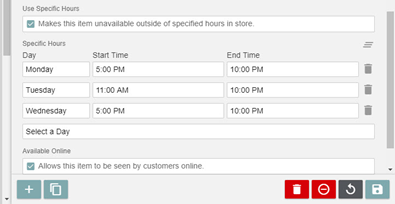
We have also added the Use Specific Hours check box and Specific Hours area to the Sections Settings window. These controls are identical to the controls in the Item Settings window. If you set specific days and hours of availability to a menu section, the POS will only display that section during the days and times specified in this list. The program will apply these timed availabilities in all of the customer applications.
HR-552 Support for Gift Tipping on PAX Devices
Description: Heartland Restaurant now supports tipping on Gift Card transactions processed by a PAX device.
Details: In the POS, in the Check screen, you can pay the check with a Gift Card. Tap Gift, then tap Redeem. The POS then prompts you to complete the payment on the PAX device. After the payment is processed successfully, you can then add a tip to the check. Enter a tip amount, then tap Tip. The PAX device will process the tip and (if successful) display that it was “Approved”.
Support for gift tipping on Heartland PAX devices is only available if your site uses Heartland SDK.
To set up a POS to perform tipping on Gift Card transactions through a PAX device, you must enable gift tipping. In the Admin Console’s Main Menu, click Location Setup, then Settings. In the Advanced Settings area, select the Gift Tipping check box.
Also, you must set the site to use a PAX payment terminal. In the Main Menu, click Location Setup, then Payment Terminals. If one does not already exist, click Add a Payment Terminal and create a payment terminal record for the PAX device.
Also, you must define a valid payment gateway. In the Main Menu, click Location Setup, then Payment Gateway. In the In-Store Settings area, enter the necessary settings for the PAX solution. Then, in the POS Ticket screen, tap the Settings button in the top right corner, then tap Manager. In the Manager screen, tap Payment Terminals, then select the payment terminal that you set up in the Admin Console.
HR-593 Servers with View-Only access can assign tickets to other servers
Description: We have added the Modify Server with View-Only Access list to the location settings.
Details: In the Admin Console’s Main Menu, click Location Setup, then Settings. In the Advanced Settings area, we have added the Modify Server with View-Only Access list. If certain staff members have the Modify Server permission enabled, but are in a job type with View-Only access, you can use this control to give them the ability to assign tickets to other servers or to themselves.
If you select Disabled, the POS will not allow such servers to reassign tickets to other servers.
If you select Enabled with Popup, the POS will allow such servers to assign tickets (their own or others) to different servers. In the POS, servers can open a ticket assigned to another server, access the check’s Info screen, tap Server, and assign the check to themselves. Afterwards, the POS will not allow the previous server to access the check.
Servers can also open one of their own checks, access the check’s Info screen, tap Server, and assign the check to a different server. If you do so, the POS will display a popup window, warning you that if you assign the check to another server, you will be unable to access or change it again.
If a server opens one of their own checks, makes changes to the check, then taps Server and selects another server, the POS will display an error message instructing the server to discard or save the unsaved changes before reassigning the ticket to another server.
If you select Enabled, the POS will allow such servers to assign tickets (their own or others) to different servers. The procedures are identical to the procedures for the Enabled with Popup the setting. However, when a server assigns one of their own tickets to another server, the POS will not display the warning message.
HR-747 Guest App requires upgrade to Version 5.15
Description: We have modified the Guest app to require an upgrade to 5.15.
Details: We have modified the Guest app to require the user to upgrade to 5.15. If the user runs an older version of the app, it will immediately display an Update prompt stating that the update is required.
HR-806 Integration with Restaurant Solutions Inc. (RSI)
Description: Heartland Restaurant now supports integration with Restaurant Solutions Inc.
Details: Heartland Restaurant now supports the integration with Restaurant Solutions Inc. RSI isn’t just software-in-a-box; they’re experts in restaurant accounting, providing busy restaurateurs with solutions to not only survive in this competitive business, but thrive.
Recipe for Solving Business Problems with Heartland Restaurant + RSI
Software
Accounting/Weekly Financial Statements (Profit and Loss, Balance Sheet, Cash Flow): Receive full financial statements weekly instead of once a month. Track where every nickel goes.
Bill Payment/Digital AP Automation (Invoice Scanning/Storage): Remove file cabinets from the restaurant, protect yourself from use tax audits by proper storage of all purchases made.
Inventory Management and Recipe Costing: Count sheets, item pricing updates, theoretical vs actual usage reporting. Find where there is waste or loss.
Payroll Processing: Simplify the employee journey with integrated recruiting and employee onboarding. Automated time and attendance into payroll processing.
POS Integration and Reporting: Drill down from a Profit and Loss statement all the way to a guest check without leaving the website.
Services
Operations: Each RSI client is provided a singular contact that has held a GM or higher-level position within the industry. Hospitality extended.
Accounting: A General Accountant and Accounting Clerk are assigned to each client, providing both education and a second set of eyes on financial data.
Business Tax Processing: We calculate and remit all sales/payroll related taxes.
Bank Reconciliation: An additional set of eyes on your bank account activity to help monitor for accurate cash position.
Compliance: The Compliance team at RSI provides resources and education around a myriad of ever-changing laws.
HR-809 Integration with TipsSender
Description: Heartland Restaurant now supports integration with TipsSender.
Details: A reliable way to track and distribute gratuities for the hospitality industry. The TipsSender web portal has added a vast array of features never even dreamed of in the days leading up to its launch. Today, TipsSender is considered the best in its class for Gratuity Management Services. With sophisticated tip distribution, rule capability, payroll service integrations, rapid feature request implementation, and comprehensive consulting services. Our customer satisfaction is consistently rated high.
Unlimited tip pool templates per day part. Up to 24 day parts per day.
Day parts can have different tip pool templates for each day of the week for the same source job. For example, weekday breakfast server, Saturday breakfast server and Sunday brunch server could all have different sets of tip rules.
Many tip pool fulfillment rules are available: percent share of charge tips, percent of net sales, percent of sales group, flat rate tip, break points and more.
Indirect earner tip pools can be defined by job type clusters, then distributed by hours worked or equal share. Think of a support pool comprised of employees clocked in as runners, bussers and hosts.
Direct earner tips can also be defined by job type clusters, fulfilled either directly to the employee running sales, or sent to direct earner tip pools. Think of a regular table server versus a team of bartenders sharing tips.
Banquet and catering team member assignment functions, event sharing ratios, tip rules and commission capture are available.
Full payroll service integration for final tip distributions, with front and back of house labor totals.
HR-365 Guest Log In and Profile Screens Revised
Description: We have revised the Log In and Profile screens in the Guest app.
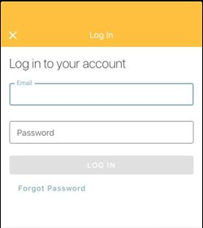
Details: We have revised the Log In screen and Profile screen in the Guest app. The revised screen now requires customers, in all circumstances, to log into the app before using it. Also, so long as customers use the same phone number they entered in their profile, they will retain their loyalty and saved address and payment options.
HR-408 Support for Star mcPrint-3 Printer
Description: Heartland Restaurant now supports the Star mcPrint-3 printer.
Details: Heartland Restaurant now supports the Star mcPrint-3 printer.
HR-569 More Table Images and Seating Options Added to Library
Description: We have added more table images and seating options to the library of available table images.
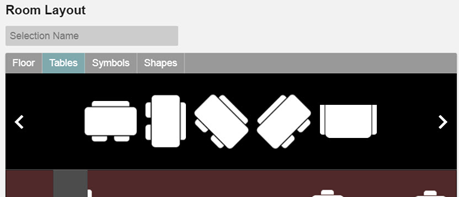
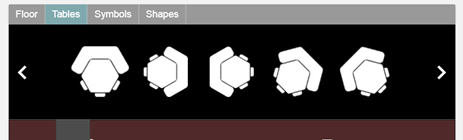
Details: In the Room Settings room, in the Room Layout area, we have added more table images to the collection of predefined table images. The new images include options for 6, 10, and 12 top tables, both round and rectangular. We have also added images for 4, 6, and 8 top booths. We have also added images for a wider variety of tables with combinations of chairs and booth seats (2x2, 3x3, 4x4) and corner booth tables.
HR-686 POS Prints Select Room Names in Red Text
Description: You can now set the POS to print the names of specific rooms in red print on prep tickets.
Details: In the Admin Console, in the Room Settings screen, we have added the Print Room Name in Red check box. If you select this box, the POS will print the room's name in red text when printing the name on prep tickets that include orders for tables in that room. This setting only applies to Impact printers.
For this setting to apply, you must set the display format to display room names. In the Admin Console's main menu, click Location Setup, then click Display Formats. In the Display Formats screen, in the Show Room Name list, select Show.
HR-557 Timed Item Holds
Description: We have added timed item holds to Heartland Restaurant.
Details: This feature enables servers to order an item and then hold the item for a set number of minutes. The POS then waits for that period of time to expire before sending the order to the kitchen and printing its kitchen slip.
To use timed holds in the POS, you must set a tablet to server as a dedicated socket server. In the Admin Console main menu, under Location Setup, click Authorized Tablets. In the Authorized Tablets screen, click Set Dedicated Socket Server. In the Dedicated Socket Server IP Address window, select the device that will run the POS and use the timed holds feature in the Dedicated Socket Server Tablet list. When you select the table, the program should display its IP address in the Dedicated Socket Server IP Address box. Click  .
.
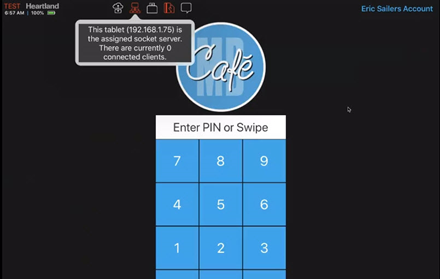
To use timed holds, the device running the POS app must either be the dedicated socket server or connected to the dedicated socket server. In the POS log in screen, you can check the connection status of the device by tapping in the top panel.
Now you can enable the timed item holds feature. In the main menu, under Location Setup, click Settings. In the App Settings area, select the Enable Timed Item Holds check box. The program will display the Timed Item Hold Presets in Minutes box. In this box, you can enter a common number of minutes for a hold time duration, such as 5. If you enter a preset, another Timed Item Hold Presets in Minutes box, enabling you to enter multiple timed hold presets, such as 10, 15, and so on. Later, when servers use the timed item hold function, the POS will display these presets as options.
Open a new ticket, order an item, and then tap Course. In the Course keypad, if you tap and release the Hold button, the POS puts a manual (non-timed) hold on the item. If you tap and hold the Hold button, the POS will open the Timed Hold keypad.
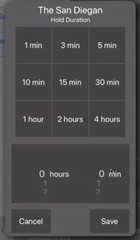
The keypad includes buttons for each of the timed hold presets you created in the Location Settings screen. You can select one of these preset options, or you can set a custom hold time by selecting a number of hours and minutes with the pickers below the buttons. After setting an appropriate hold time, tap Save. To exit the keypad without setting a hold time, tap Cancel.
In the Order screen, the POS will flag the held ticket with an “H” and include text in the item describing the duration of the hold, such as “Hold for 5 min” or “Held for 10 min”.
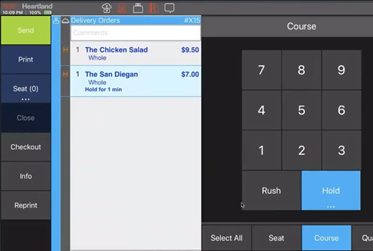
The POS will also put the item’s kitchen slip in the print queue, but will not send it to the printer until the timed hold expires. Likewise, the order will not display in the KDS until after the timed hold expires. The POS groups held items by their hold times within the kitchen slips, and orders the slips in the print queue by their times to print. The POS displays the number of active printing jobs on the print queue icon. Using timed holds, you may have multiple held jobs indicated in the icon, while only one slip is actively printing. The POS includes the hold time on each kitchen slip.
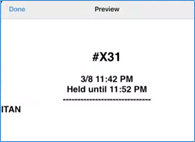
You can set a single timed hold to multiple items selecting the items in the ticket display before tapping Course and Hold. To release a held item, select the item, tap Course, and then tap Hold again. The POS will release the held item and send its slip to the kitchen printer.
HR-655 Collapse and Expand News Posts
Description: You can now expand or collapse each news posts.
Details: In the Admin Portal, in the Reseller News screen, you can now expand or collapse each news post. In each post, if you click  , the program will expand the post so you can read it. If you click , the program will collapse the post.
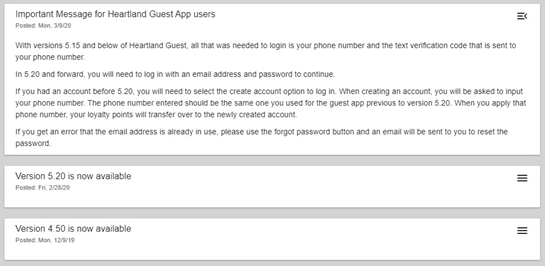
The most recent post will always display as expanded when you access the screen.
HR-670 NTEP Scale Certification
Description: We have added new features to the POS for scales.
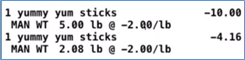
Details: We have added various features to the POS regarding scales, which are necessary for NTEP certification. When it prints a receipt that includes an item priced by weight, the POS now prints the weight’s unit with the item.

Also, if an item priced by weight is refunded by a staff member, the POS will print the refund amount as a negative on the receipt. If the item was refunded manually, the POS will also include text (“MAN”) to indicate it on the receipt.
Also, the POS will display the NETP certification number in the About screen, accessible from any screen by tapping Heartland on the top left corner of the screen.
HR-690 Audit Trail for Job Types and Pay Rate Changes
Description: We have added an Audit Trail screen to each staff member’s record.
Details: In the Staff Settings screen, if you access an existing staff record and edit the staff member’s job types (either by adding or removing), or if you edit the regular rate or overtime rate of any of the job types, then save the changes, the program will display the  button in the panel.
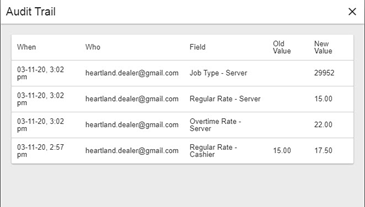
If you click  , the program will open the Audit Trail panel, which displays a list of all changes to the job types and pay rates in the staff record. Each row includes the date and time the change was made, the name of the staff member who made the change, the settings that was changed, its old setting and its new setting.
HR-713 Open Check Counts and Totals in Server and Cashier Checkout Reports
Description: We have added totals for open check counts and amounts to the Server and Cashier Checkout Reports.
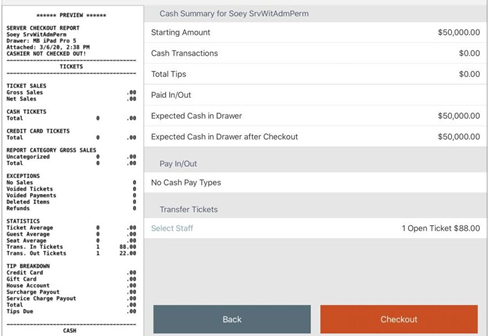
Details: We have added totals for the number and dollar amount of all open tickets to the Server and Cashier Checkout Reports. If a server or cashier checks out while having one or more open tickets, the POS will display the total number of tickets and the total amount of those tickets in the Transfer Tickets list. (The server or cashier can transfer those tickets to another staff member by selecting a staff member in the Transfer Tickets list.) To the printed reports, we have also added total counts and dollar amounts for tickets transferred in and transferred out.
HR-743 Manual Weight Items on Kiosk
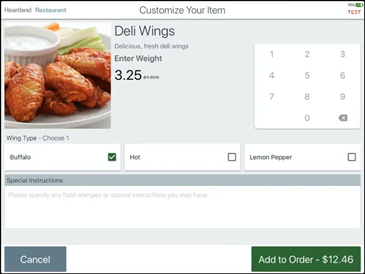
Description: We have added a keypad to Kiosk that enables customers to manually enter a measurement when ordering measurement-priced items.
Details: In sites where customers order items that are priced by a measured unit (such as weight) and are allowed to measure their own portions of items, when the customer orders such an item, Kiosk displays a keypad in the screen to allow the customer to manually enter the item’s measurement. The app will display the keypad for all measurement-priced items.
HR-929 Gratrack Integration
Description: Heartland Restaurant now supports integration with Gratrack.
Details: Whether the concept is quick service, fast casual, full service, fine dining or all of these under one roof GraTrack is a vital restaurant management software that will save you hours each week. GraTrack’s process calculates employee tip income to be paid with your standard payroll intervals and methods such as direct deposit, printed check or payroll card. GraTrack gratuity management software is designed to simplify distributions for fine dining, full service, and fast casual environments. GraTrack reduces the tedious tasks of managing cash due backs or spreadsheet data entry to about 30 min total time per week.
No more repetitive cash counting or daily data entry by managers in tip tracking spreadsheets. Paying tips on payroll for servers, bartenders and support staff allows you to adjust the safe bank reducing exposure to theft.
HR-961 New “What’s New” Screen in Guest App
Description: We have added a new "What's New" screen to the Guest app.
Details: After installing the update, when a customer runs the Guest app, it will immediately display a screen with text explaining that the app now requires all members to use an email address to log in. Also, when existing members create a new email login, they can then use their telephone number to access their existing loyalty history and rewards.
We have also added a text window in the Phone Number Verification screen instructing existing customers to enter and verify their phone numbers to access their existing loyalty history.
We have also added similar text to the description of the Guest app in the iTunes app store.
HR-833 Supports for Pour Controls Liquor Monitoring Service
Description: Heartland Restaurant now supports the Pour Controls liquor monitoring service.
Details: Pour Controls is a Liquor monitoring and dispensing company. We are a partner and reseller of BarVision’s industry leading RFID pour spouts. We are also the manufacturer of the Sprint line of liquor dispensing and draft beer monitoring systems. We are an excellent alternative to the Berg line of products. Please join our expanding dealer network in USA, Canada and Mexico.
HR-985 Curbside Pickup Service Added to Online Ordering
Description: We have added Curbside Pickup service to Online Ordering.
Details: Curbside Pickup service allows customers to add descriptive vehicle information to a ticket, which enables staff to identify customers who wish to pick up orders curb-side in front of the site.
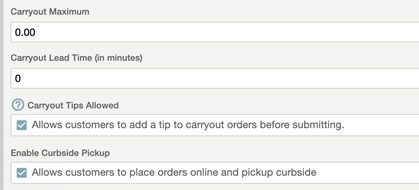
In the Admin Console’s Main Menu, click Location Setup, then click Online Ordering. In the Online Ordering screen, click the Online Ordering tab. In the Carryout Settings area, we have added the Enable Curbside Pickup check box. If you select this check box, the Online Ordering app will display the curbside pickup option when customers select carryout service.
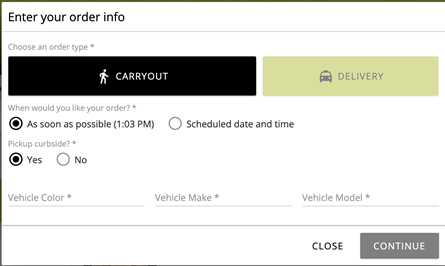
In the Online Ordering app, in the Enter your order info window, if the customer selects Carryout, the app displays options for carryout service. If you enable curbside pickup service in the Admin Console, this window will now display the Pickup curbside? option. If the customer selects Yes, the app will then display the Vehicle Color, Vehicle Make, and Vehicle Model boxes. The app will require the customer to enter this vehicle information to complete the transaction.
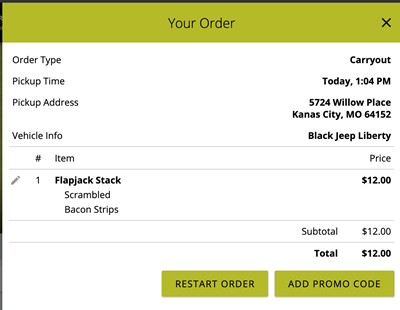
Online Ordering will display the vehicle information with the other order details in the Your Order panel.
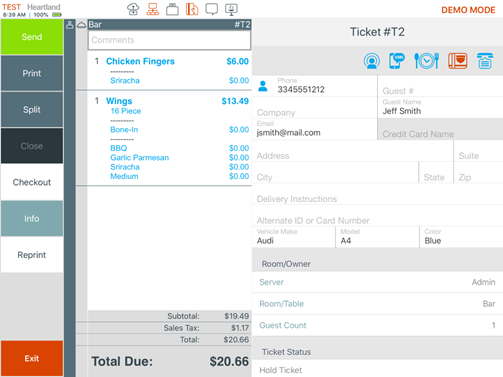
When you enable curbside pickup service, the POS will include the Vehicle Make, Model, and Color boxes to the Ticket Info screen, where servers can review or edit the information as needed. Tickets created in Online Ordering will include the vehicle information in these boxes. When servers create carryout tickets in the POS, the app will display these boxes but not require the information.
HR-986 Refund Heartland Payments from Online Ordering
Description: Sites using the Heartland Portico payment gateway can now perform refunds for online orders.
Details: If your site uses the Heartland Portico gateway, you can now refund Online Ordering tickets paid by credit card. In the POS, open the ticket, tap Info, tap Refund Ticket, tap Card, then tap the original payment.
HR-996 Add Weight Amounts in Online Ordering and Guest
Description: Customers can now add or edit weight amounts for items in Online Ordering and Guest.
Details: In sites with items that are priced by a measured unit (such as weight) and allow customers to specify the portion of such the items, customers can now edit the weight of such items in Online Ordering and Guest. In both apps, when customers select an item in the menu, they can now enter a weight amount (instead of quantity) before adding the order to the ticket. Both apps will display the item’s weight with the other order information in the Your Order panel.
Recent Updates
The following list summarizes the updates we have included since our last Milestone release:
- Cancel PAX transaction with Automatic Surcharge – When you cancel a PAX transaction with an automatic surcharge, the POS now removes the accurate amount.
- No error when reordering for carryout services – The Online Ordering website no longer generates an error message when reordering an earlier order for Carryout service.
- The POS now displays Tips Paid Out totals accurately.
- Online Ordering no longer duplicates items on tickets.
- Split checks with discounts – When checks are split evenly and include a discount, the POS now correctly shows the check paid in full.
- The POS can now close checks when they are partially paid with a Gift Card and the remainder is paid with another payment type.
- Gift Cards display in the Kiosk menu – The Kiosk is now displaying Gift Card items properly in its menu.
- Clock Out button not visible in POS screen saver – The POS no longer exits checks when they are partially paid with a Gift Card.
- The POS no longer automatically exits a check when there is a partial payment using a Gift Card.
- Blank upsell prompt fixed in Guest app – The Guest app no longer displays a blank upsell prompt in checks that meet the conditions of an upsell profile.
- KDS alert sound for sent tickets – When the On the Fly KDS feature is disabled, the KDS no longer emits the alert sound when adding the first item to a ticket on the POS.
- Tip from Guest display now adding properly – When a customer selects a tip in the Guest display before removing the card, the app now displays an instructive error message.
- The POS now displays ingredients with quotation marks properly.
- The Kiosk no longer removes context items from Ingredients.
- The Admin console allows users with Location Permission to view Ingredients.
- Online Ordering no longer displays an error when a check is opened by selecting an item for Carryout or Delivery service.
- The Kiosk now displays the correct prompt when it prompts the customer for an upsell item.
- The Kiosk now automatically changes its menu group properly.
- All QuickBooks items now display properly in the QuickBooks Configuration screen.
- Tips and Payouts reports list custom tender tips properly.
- The Kiosk displays now scan Gift Card button properly.
- The Kiosk displays menu selections in the proper order.
- When viewing the Items report with a range of multiple days, the filtering options lists in the screen no longer disappear.
- Online Ordering now displays items properly, even if they are unavailable at the current time.
- Online Ordering no longer adds one cent to refunded tickets.
- When you order duplicate modifiers with open priced ingredients, the POS no longer closes.
- The POS now prints customer names in receipts for split tickets.
- The POS prints seat names properly on kitchen slips.
- Change due displays in the POS until the ticket is exited.
- The Account Balance page can now generate the Accounts Balance report even when it includes tickets with totals of $1,000 or more.
- If multiple items are set up with multiple ranges of specific hours, the POS now makes them available for order during these hours.
- When you order an item from a customer’s order history to a split check, the POS adds the items properly.
- Checkout totals update properly when a late delivery fee is added.
- The POS now generates correct QR codes for generated tickets.
- The Kiosk no longer crashes when you order upsell items.
- The POS displays new tickets properly in the KDS “All Day” screen.
- The Kiosk no longer crashes when you add a new phone number.
- The Kiosk now displays the keypad properly when prompting for a locator number.
- The POS no longer allows servers to transfer tickets to staff members set as Time Clock Only.
- The POS no longer displays an error in Online Ordering.
- When viewed by staff members without editing permissions, the Admin Console now displays the Time Zone list and the Daylight Savings Time checkbox properly.
- Members without email confirmation can log into the Guess app.
- The Labor Summary report now displays ticket sales accurately with their actual hours.
- Time Zone is now required for new accounts and location records.
- The POS no longer shuts down when you move items between unpaid split checks.
- The POS ignores non-tippable items when calculating gratuities
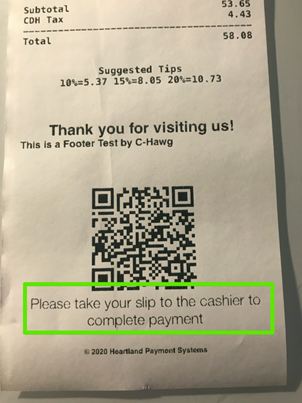
- Instructive text has been added to the Kiosk’s printed receipts.
- The Kiosk no longer displays an “Item is Unavailable” message when you use the Search feature to order an item.
- The POS no longer displays a black panel instead of menu item buttons.
- Email Marketing is available again in reseller Demo accounts.
- In the Room settings panel, the Admin Console now displays table numbers with black text on table icons.
- The Admin Console now sends the Daily Summary report emails at the correct time.