Overview
This article describes enhancements and updates to the following components:
- Admin Portal
- POS
- Kiosk
Enhancements
HR-14 Partial Payments for Online Orders
You can now perform partial payments for online orders. When a customer makes a payment for an online order, if the amount is less than the full amount of the check, Online Ordering will prompt the guest for another payment. The POS will only accept a credit card for the second payment, and will not allow you to perform any other tasks until the second payment is made. To use this feature, the iPad used for online orders must be running version 4.5 or later.
HR-22 Kiosk Supports Additional Payment Methods
In the Kiosk, if a customer tries to pay a check with a gift card that does not have enough funds, the program will allow the guest to use an additional payment method to pay the remainder of the check's balance.
HR-41 Hide Future Orders Control Added to POS Device Options
In the POS Device Options, we have added the Hide Future Orders control. The Hide Future Orders enables you to set the maximum number of days ahead of the current day that forthcoming future orders will be displayed by the POS. To access this control, run the POS. Open the Settings/Manager menu (top right corner). Tap Settings/Manager, then tap General. The Hide Future Orders control is listed under Device Options.
HR-46 Export All Reports (except Gift Liability, Account Balances, and Loyalty) to PDF Format
You can now export all reports (other than Gift Liability, Account Balances, and Loyalty Reports) into PDF format. In the screens for these reports, if you click the Export list in the top right, the program now displays the CSV and PDF options. If you select CSV, the program will display the report’s data in downloadable CSV format. If you select PDF, the program will display the report in the (printable or downloadable) PDF format.
HR-62 Heartland Portico Supports Credit Card Pre- and Incremental Authorizations
Sites using the PAX terminals can now preauthorize credit cards. With this feature, a customer can swipe a credit card and the POS authorizes it to later be captured without the card being present.
For sites using the Heartland Portico transport, you can also set the PAX preauthorization to increment. As more items are added to the check, the POS will renew the card’s authorization periodically, without the card being present.
HR-67 Kiosk, Guest Display can Display Three Graphics as Slideshow
We have added controls that enable you to upload up to three images, which the Kiosk and Guest display will display as an advertising slideshow. To access this control, click Location Setup in the Main Menu, then click App Ordering. We have added the Slide Show Images area and its controls. In the Slide Show Images area, if you tap Set Ad in one of the three available boxes, the program will open a window, enabling you to navigate to and select a graphic on the workstation. You can do this with all three of the Set Ad boxes. Later, when you run the Kiosk and Guest display, they will display the ads in these boxes as a sideshow in an ongoing loop. The Ad Duration in Seconds box enables you to configure the time (in seconds) that the program displays each image before switching to the next one.
HR-77 Admin Settings Added to Location Settings Screen
The Admin Settings are now visible in the Location Settings screen. To access these controls, click Location Setup in the Main Menu, then click Settings.
HR-85 Fast Cash Option Added to POS
We have added a Fast Cash payment option to the POS. To access the control, click Location Setup in the Main Menu, then click Rooms. In the Rooms screen, select a room in the left-hand panel. In the room settings (right-hand panel), we have added the Fast Cash check box. If you clear the check box, the POS will not include the Fast Cash option. If you select this check box, the POS will display the Fast Cash button as a ticket option when you pay a check associated with the room. If you tap Fast Cash, the POS will allow you to tender the check immediately to cash without accessing the Checkout screen.
HR-89 Tip Limit Removed
In previous versions, the program would not allow you to enter a tip greater than $100 for online orders. We have removed this limit, and you can now enter tips of any amount for online orders.
HR-110 Can Now Define Adjustments as Surcharges
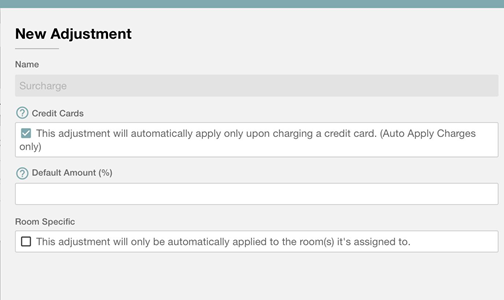
You can now define adjustments as surcharges for credit card purchases. We have added the Credit Card check box to the Add Adjustments screen. You can use this setting to define adjustments as surcharges for credit card purchases.
To access the control, click Account Menu in the Main Menu, then click Adjustments. In the Adjustments screen, click New. In the New Adjustment panel, we have added the Credit Card check box. (“This adjustment will automatically apply only upon charging a credit card.”) When creating a new adjustment, if you select this check box, the program will automatically enter “Surcharge” in the Name box and hide most of the other controls in the panel. You can then enter the amount of the surcharge (as a percentage) in the Default Amount (%) box. You can only enter an amount of 4% or lower. (The program will not save the adjustment with a default amount higher than 4%.) You can also select the Room Specific check box, if you want the surcharge to only apply to purchases made in the room it’s applied to.
HR-112 New Location for Ignore Minimum Choices in POS Option for Modifiers
We have moved the Ignore Minimum Choices in POS option for modifiers in accounts that support multiple locations.
If you only support a single location in your account, you can find the Ignore Minimum Choices in POS option in the Accounts Modifier screen. Click Account Menu in the Main Menu, then click Modifiers. In the Modifiers screen, click New. In the New Modifier panel, you can access the Ignore Minimum Choices in POS check box. If you select this check box, the POS will ignore the set maximum number of modifiers for items ordered in-house.
Now, if you support multiple locations in your account, the Ignore Minimum Choices in POS option is in a different location. Click Menu in the Main Menu, then click Modifiers. In the Modifiers screen, click New. In the New Modifier panel, you can access the Ignore Minimum Choices in POS check box. This new location enables you to set the option separately for each location.
HR-151 Kiosk Now Supports EMV Transports
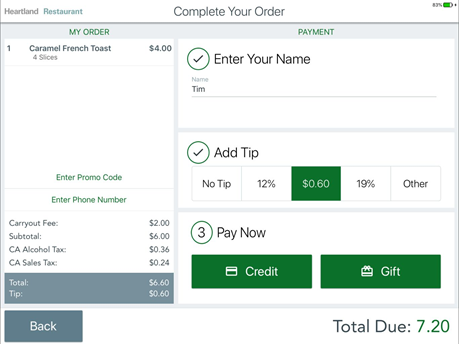
The Kiosk can now process credit card payments with EMV transport types. When a customer pays a check, the Kiosk will display two pay options, Credit and Gift. After selecting an option, the Kiosk prompts the customer to finish the payment on the EMV terminal.
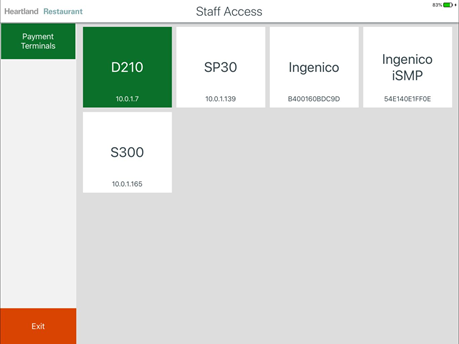
To enable or disable the EMV feature on the Kiosk, tap Heartland Restaurant in the top left hand corner of the screen. In the Heartland Restaurant window, tap Staff Access. In the keypad, enter a valid password. The Kiosk displays the Staff Access screen, which displays a list of buttons representing payment terminals. Tap a button to select the payment terminal that you want to pair with the Kiosk.
Updates
HR-21 Online Orders Held Until Check is Fully Paid
In previous versions, if a customer made a partial payment for an online order, the program may have sent the order to the kitchen before the remainder of the check was paid. We have corrected this, and now if a customer makes a partial payment for an online order or on the Kiosk terminal, the program will hold all items on the check until the check’s balance is fully paid.
HR-47 POS Rounding Prices Properly for Split Items
In previous versions, when you split an item, if the item’s price did not split evenly to the penny, the POS would have rounded the fraction of each item’s price up by one cent. For instance, if you ordered an item for $10.00, and split it by three, the POS would have rounded the price of each split item up to $3.34. This would result in slightly inaccurate totals in various sales reports. We have corrected this, and now when you split an item with an uneven price split, the POS only rounds the price of one - not all - of the split items up to one full cent.
HR-48 POS Does Not Time Out while Updating Locations
In previous versions, if you tried to publish changes to an unusually large group of locations (such as 20), the POS may have timed out before updating all locations. We have corrected this, and the POS no longer times out while publishing changes to multiple locations.
HR-57 Each Device Now Has a Unique Device ID Number
The program now gives each device running the POS a unique two-digit device ID number. When creating numbers for new tickets, the POS will include the device ID as part of the ticket invoice number. Invoice numbers will be compiled with the following elements:
<Date><NumericDeviceID><TicketNumberW/oPrefix>
The POS will display such numbers with its elements separated by hyphens. (For example, 190515-8-1)
HR-61 POS No Longer Checks for Deleted Kitchen Groups
In previous versions, if you deleted a Kitchen Group that was required for a Display Format, the POS would still check for the Required Kitchen Group. Now, when you delete a Kitchen Group that is the Required Kitchen Group for a Display Format, the POS no longer requires that deleted Kitchen Group.
HR-65 Increased Maximum Number of Future Days for Online Orders
We have increased the maximum number of future days for online orders to 999 days. In previous versions, merchants could only set the maximum number of future days for online orders to 30 days. We have replaced the Future Days Allowed for Online Orders list to a box, and you can now enter a maximum number of 999 days. To access this control, click Location Setup in the Main Menu, then click Online Ordering. In the Online Ordering screen, click the Online Ordering tab.
HR-75 POS Emails Checks Properly
In previous versions, if a customer tried to have a copy of a check sent by email, the program may have failed to do so. Specifically, if the server tendered a check to cash, then allowed the customer to enter an email address and then tap Send Email, the program may have not sent the email. We have corrected this, and the POS now sends checks by email properly.
HR-98 Program Saves All Location Settings Properly
In previous versions, when creating a new location in the Locations screen, the program may have failed to save the setting in the State box. We have corrected this, and the program now saves all location settings (including the State) properly.
HR-106 Online Order No Longer Fails with “Half & Half” Modifiers
In previous versions, when placing an online order, if you added an item with a “Half & Half” modifier, you may have encountered a problem. In certain circumstances, if you ordered an item with a “Half & Half” modifier and the modifier’s Half & Half Pricing was set to Most Expensive Half, the program may have displayed a blank screen and stopped responding. We have corrected this, and the Online Order service no longer fails when you order items with a “Half & Half” modifiers.
HR-108 Guest Now Prints Receipt with QR Code Properly
Normally, if a customer taps No Receipt when paying a check on the Guest terminal, the program should skip printing the full receipt but should still print a receipt with the QR code for the customer’s loyalty points. However, in previous versions, if a customer tapped No Receipt, the program may have failed to print the receipt with the QR code. We have corrected this, and the Guest program now prints the receipt with the QR code properly.
HR-125 POS Calculates Check Total Properly After Applying “No Tax”
In previous versions of the POS, if you tapped Checkout to pay an open check, then tapped Adjust, then tapped No Tax, then immediately paid with Cash, the POS may have charged the original amount and failed to remove the tax from the total due. We have corrected this, and the POS now calculates the check total properly when you tap No Tax and pay with cash.