Overview
This article describes enhancements and updates to the following components:
- POS
- Admin Console
Enhancements
HR-95 POS Prevents Duplicate Charges for Interrupted Online Orders
In previous versions, on sites using the Monetary service to process payments, you may have encountered a problem. In certain circumstances (such as an unstable network connection), when a customer placed an online order, the payment might have been received by the Monetary processor, even if the order was not received by the site's POS. In such cases, the customer may have repeated the order and payment, resulting in a duplicate charge. We have corrected this, and now the POS now recognizes and prevents duplicate charges for an interrupted or duplicated online order.
HR-130 Export Gift, Account Balances, and Loyalty Reports to PDF Format
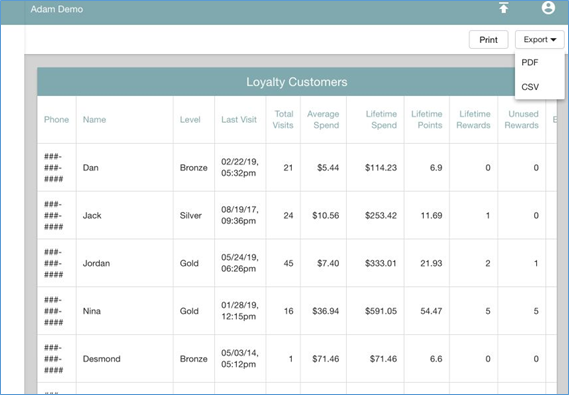
You can now export the Gift, Account Balances, and Loyalty Reports into PDF format. In the screens for these reports, if you click the Export list in the top right, the program now displays the CSV and PDF options. If you select CSV, the program will display the report's data in downloadable CSV format. If you select PDF, the program will display the report in the (printable or downloadable) PDF format. To access the Gift and Account Balances Reports, click Locations in the Main Menu, select a location, then click Reports in the menu, then click Gift or Account Balances. To access the Loyalty Report, access the top most level of the Admin Console, then click Reports in the Main Menu, then click Loyalty.
HR-140 Admin Console Displays a Warning Two Minutes Before Logging Off
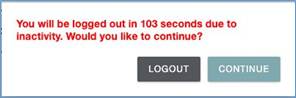
The Admin Console now displays a warning message two minutes before it automatically logs off. If the Admin Console is set to automatically log out after a set number of minutes, it now displays a warning message two minutes before it logs off. The warning message includes a countdown timer and two buttons, Logout and Continue. If you click Logout, the Admin Console will log you out immediately. If you click Continue, the program will remove and reset the auto logout timer.
HR-152 Label Size List Added to Display Formats Window
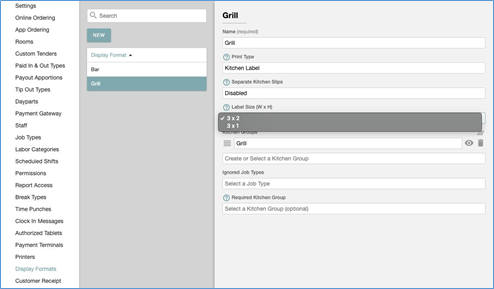
We have added the Label Size list to the Display Formats window. If you are defining a format for printing labels, you can use the Label Size list to set an appropriate size for your labels. In the Main Menu, click Location Setup, then click Display Formats. In the Display Format screen, click an existing record, or click New. In the settings window, if you select Kitchen Table in the Print Type list, the program displays the Label Size list.
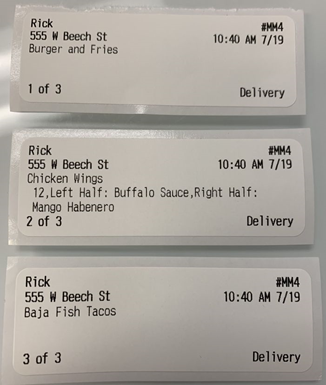
In the Label Size list, you can select 3 x 2 or 3 x 1. The 3 x 1 option is the default setting. The 3 x 1 option is designed for labels printed by Epson L90 printers, and it only prints small fonts, up to 47 characters wide. At this time, you cannot edit the font or text size for either option.
If you change the width setting of a printer, you will also need to recalibrate the printer itself.
- Turn off the printer.
- With the roll paper cover open, turn on the power while pressing FEED inside the printer. Keep pressing FEED until the ERROR LED comes on.
- When the ERROR LED comes on, then release FEED.
- Press FEED six times.
- Close the roll paper cover.
The printer feeds several labels and remembers the label paper size.
HR-172 Activation Emails No Longer Blocked for Gmail Users
We have removed the activation link from the New Users window. In some previous versions, when you created a new user (in the New User screen) and saved the new user record, the program would have displayed an activation link and URL, as well as sending an activation email to the new user. In earlier versions, users with Gmail accounts would not always receive their activation emails. Therefore, we added the activation link to the New User screen to provide an alternate source for the link. With this release, we have corrected the problem that blocked Gmail users from receiving their activation emails. Now when you save a new user record, the program sends an email to the new user that includes the activation link, but it no longer displays the activation link and URL.
Updates
HR-44 Payment Data No Longer Cached in iPad Browser
In previous version, in rare cases, if you manually entered a payment transaction that was processed with the BridgePay transport, the program may have tried to charge the card for the transaction again days later. This was caused by the transaction data being cached in the iPad browser. We have corrected this, and transaction data is no longer cached in the browser.
HR-88 Unadjusted Checks Excluded from Adjustments Reports
In previous versions, if you used the Adjustments report to find a specific check with an adjustment, the report may have also included unadjusted checks. Instead of listing a check with an adjustment, the report may have listed all checks from the selected date, with or without adjustments. This may have also occurred in the Discount reports. We have corrected this, and the program no longer includes unadjusted checks in the Adjustments report. (To access the Adjustments report, click Reports in the Main Menu, then click Adjustments.)
HR-90 Monetary Transport Settings Saves Properly
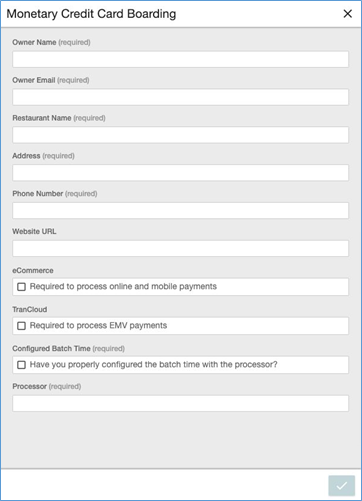
In previous versions, if you configured the program to use the Monetary transport type for a new location, you may have been unable to save the settings. In the Monetary Credit Card Boarding window, after entering the necessary settings for the Monetary transport type, the program may have rendered the Save button (in the lower right corner) inactive until you selected either the eCommerce or TranCloud check boxes. This is inappropriate, since the eCommerce or TranCloud features are not required to use the Monetary transport. We have corrected this, and you can now save your settings (by clicking the active Save button) without first selecting the eCommerce or TranCloud check boxes.
HR-141 Online Ordering App No longer Removing Menu Items from Check
In previous versions of Online Ordering, if you added one or more items to the cart and then changed to another menu group (such as Breakfast to Lunch), the program would have removed all items from the cart. The program should only remove items from the cart if the item is not available in the second group or is in a different section of the second group. Items available in both groups (in the same sections) should not be removed. We have corrected this, and now when you change from one group to another, the Online Ordering app will only remove items from the cart if the items are unavailable in the new group or section.
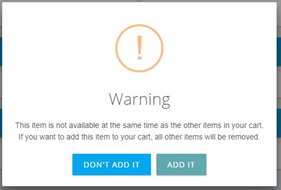
If you add available items from one group, and then try to add an item from a different group that is not currently available, the program will display a prompt warning you that adding the new item will remove the other available items from the cart.
HR-147 Gateway Options Display Properly
In older versions, the program may not have displayed the settings in the Payment Gateway properly. In the Payment Gateway screen, in the In-Store Settings area, the program may have failed to display the gateway options in the Gateway list. We have corrected this, and the program now displays the gateway options properly in the Payment Gateway screen.
HR-162 Settings Now Active in Call Center Screen
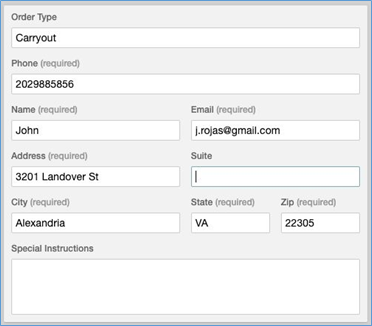
In previous versions, you may have been unable to enter contact information in the Call Center screen. To access the Call Center screen, access a location, then click Call Center in the Main Menu. Normally, if you select an order type in the Order Type list and then enter a phone number in the Phone box, the other settings (such as Name, Email, and Address) become active and usable. In previous versions, however, the other settings may have remained inactive, preventing you from entering any other information. We have corrected this, and now when you select an order type and enter a phone number, the other contact settings become active and usable.
HR-174 No Error When Filtering Tip Outs Report
In previous versions, if you accessed the Tip Outs Report, filtered it by staff, then selected a staff member in the report, the app may have generated an error. We have corrected this, and now if you filter the Tip Outs Report by staff and review a staff member's log, the program no longer generates an error.