Overview
This article describes enhancements and updates to the following components:
- POS
- Kiosk
- Guest
- Admin Console
- Online Ordering
Enhancements
The following release notes detail the enhancements we have included in this release.
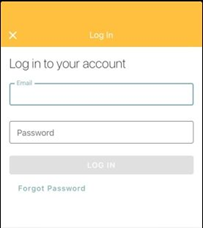
HR-365 Guest Log In and Profile Screens Revised
Description: We have revised the Log In and Profile screens in the Guest app.
Details: We have revised the Log In screen and Profile screen in the Guest app. The revised screen now requires customers, in all circumstances, to log into the app before using it. Also, so long as customers use the same phone number they entered in their profile, they will retain their loyalty and saved address and payment options.
HR-408 Support for Star mcPrint-3 Printer
Description: Heartland Restaurant now supports the Star mcPrint-3 printer.
Details: Heartland Restaurant now supports the Star mcPrint-3 printer.
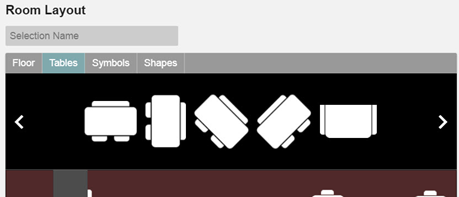
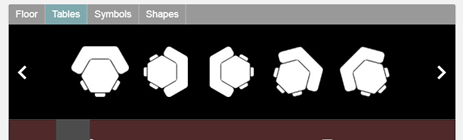
HR-569 More Table Images and Seating Options Added to Library
Description: We have added more table images and seating options to the library of available table images.
Details: In the Room Settings room, in the Room Layout area, we have added more table images to the collection of predefined table images. The new images include options for 6, 10, and 12 top tables, both round and rectangular. We have also added images for 4, 6, and 8 top booths. We have also added images for a wider variety of tables with combinations of chairs and booth seats (2x2, 3x3, 4x4) and corner booth tables.
HR-686 POS Prints Select Room Names in Red Text
Description: You can now set the POS to print the names of specific rooms in red print on prep tickets.
Details: In the Admin Console, in the Room Settings screen, we have added the Print Room Name in Red check box. If you select this box, the POS will print the room's name in red text when printing the name on prep tickets that include orders for tables in that room. This setting only applies to Impact printers.
For this setting to apply, you must set the display format to display room names. In the Admin Console's main menu, click Location Setup, then click Display Formats. In the Display Formats screen, in the Show Room Name list, select Show.
Updates
The following release notes detail the updates we have included in this release.
HR-516 Admin Console lists Quickbook Items Properly
Description: All Quickbooks items now display properly in the Quickbooks Configuration screen.
Details: In previous versions, if your site uses the Quickbooks service, the Admin Console may have only displayed up to 100 Quickbook items in the Quickbooks Configuration screen. In the Admin Console, if you log into an Admin account, you can access the Quickbooks Configuration screen. In that screen, if you select any of the lists in the Default area, the list should include all items configured in Quickbooks Online Products. However, in previous versions, the lists may have included a maximum of 100 items. We have corrected this, and the list now properly display all items configured for Quickbooks.
HR-632 Tips and Payouts Report Lists Custom Tenders Tips Properly
Description: The Admin Console now includes custom tenders tips in the apportion columns in the Tips and Payouts report.
Details: In previous versions, the program may have listed custom tender tips improperly in the Tips & Payout reports. In the Admin Console, click Reports in the main menu, then click Tips & Payouts. In the Tips and Payouts report, while including custom tender tips in the report's totals, the program may have failed to list them properly in the columns for separate payout apportions (such as Server - Cash, Server - Payroll, and Merchant). This error occurred specifically with customer tenders the It’sACheckmate and Call Center services. We have corrected this, and the Admin Console now includes custom tenders tips in the apportion columns in the Tips and Payouts report.
HR-749 Kiosk Displays Scan Gift Card Button Properly
Description: Kiosk now displays the Scan Gift Card button properly when set to do so.
Details: In previous versions of Kiosk, on workstations using PAX EMV devices, customers may have been unable to scan QR codes on gift cards. You can set the Kiosk to provide the option to scan gift cards in the Settings screen. In the Admin Console's main menu, click Locations Setup, then click Settings. In the Settings screen, in the Transactions Settings area, if you select the eGift QR Code check box, Kiosk should display the Scan Gift Card button in its payment screen. After selecting Gift Card as the payment method, the customer can then tap Scan Gift Card and then scan the QR code on the gift card. However, in previous versions, Kiosk may not have displayed the Scan Gift Card button in its payment screen, even when set to do so. We have corrected this, and Kiosk now displays the Scan Gift Card button properly.
HR-784 Kiosk Displays Menu Sections in Proper Order
Description: Kiosk now displays menu sections in the order that you set.
Details: In previous versions, Kiosk may not have displayed menu sections in the proper order. In the Groups Settings screen, you can arrange the order in which menu sections display in the various apps. However, when you started a new order in Kiosk, the app may have displayed the menu sections in a different order. We have corrected this, and Kiosk now displays menu sections in the order that you set.
HR-805 Filtering Option Lists for Items Report No Longer Disappear
Description: When you view the Items Report with an item in a menu group with no name, the filtering option lists no longer disappeared.
Details: In previous versions of the Admin Console, if you accessed the Items report and generated a report with a range of multiple days, the filtering option lists in the screen may have disappeared. In such cases, the generated report included an item associated with a menu group that had no name, which would then create the problem with the filtering options. We have corrected this, and now when you view the Items Report with an item in a menu group with no name, the filtering option lists no longer disappeared.
HR-859 Online Ordering Displays Unavailable Items Properly
Description: Online Ordering will display items properly, even if they are unavailable at the current time.
Details: In previous versions of Online Ordering, if a customer tried to select an item that was unavailable at the current time, the app may not have displayed the item's button in its menu group screen. Therefore, the customer could not select the item or order it for a future time. We have corrected this, and now Online Ordering will display items properly, even if they are unavailable at the current time.