Overview
This article describes enhancements and updates to the following components:
- POS
- Kiosk
- Guest
- Admin Console
- Online Ordering
Enhancements
The following release notes detail the enhancements we have included in this release.
HR-557 Timed Item Holds
Description: We have added timed item holds to Heartland Restaurant.
Details: This feature enables servers to order an item and then hold the item for a set number of minutes. The POS then waits for that period of time to expire before sending the order to the kitchen and printing its kitchen slip.
To use timed holds in the POS, you must set a tablet to server as a dedicated socket server. In the Admin Console main menu, under Location Setup, click Authorized Tablets. In the Authorized Tablets screen, click Set Dedicated Socket Server. In the Dedicated Socket Server IP Address window, select the device that will run the POS and use the timed holds feature in the Dedicated Socket Server Tablet list. When you select the table, the program should display its IP address in the Dedicated Socket Server IP Address box. Click  .
.
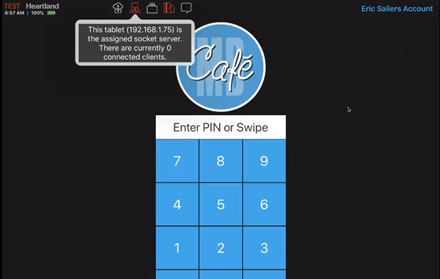
To use timed holds, the device running the POS app must either be the dedicated socket server or connected to the dedicated socket server. In the POS log in screen, you can check the connection status of the device by tapping in the top panel.
Now you can enable the timed item holds feature. In the main menu, under Location Setup, click Settings. In the App Settings area, select the Enable Timed Item Holds check box. The program will display the Timed Item Hold Presets in Minutes box. In this box, you can enter a common number of minutes for a hold time duration, such as 5. If you enter a preset, another Timed Item Hold Presets in Minutes box, enabling you to enter multiple timed hold presets, such as 10, 15, and so on. Later, when servers use the timed item hold function, the POS will display these presets as options.
Open a new ticket, order an item, then tap Course. In the Course keypad, if you tap and release the Hold button, the POS puts a manual (non-timed) hold on the item. If you tap and hold the Hold button, the POS will open the Timed Hold keypad.
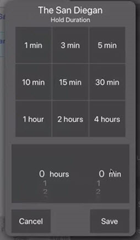
The keypad includes buttons for each of the timed hold presets you created in the Location Settings screen. You can select one of these preset options, or you can set a custom hold time by selecting a number of hours and minutes with the pickers below the buttons. After setting an appropriate hold time, tap Save. To exit the keypad without setting a hold time, tap Cancel.
In the Order screen, the POS will flag the held ticket with an “H” and include text in the item describing the duration of the hold, such as “Hold for 5 min” or “Held for 10 min”.
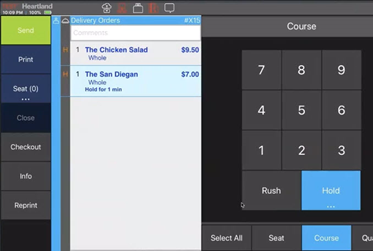
The POS will also put the item’s kitchen slip in the print queue, but will not send it to the printer until the timed hold expires. Likewise, the order will not display in the KDS until after the timed hold expires. The POS groups held items by their hold times within the kitchen slips, and orders the slips in the print queue by their times to print. The POS displays the number of active printing jobs on the print queue icon. Using timed holds, you may have multiple held jobs indicated in the icon, while only one slip is actively printing. The POS includes the hold time on each kitchen slip.
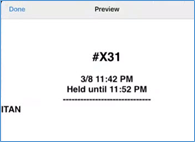
You can set a single timed hold to multiple items selecting the items in the ticket display before tapping Course and Hold. To release a held item, select the item, tap Course, and then tap Hold again. The POS will release the held item and send its slip to the kitchen printer.
HR-655 Collapse and Expand News Posts
Description: You can now expand or collapse each news posts.
Details: In the Admin Portal, in the Reseller News screen, you can now expand or collapse each news post. In each post, if you click , the program will expand the post so you can read it. If you click , the program will collapse the post.
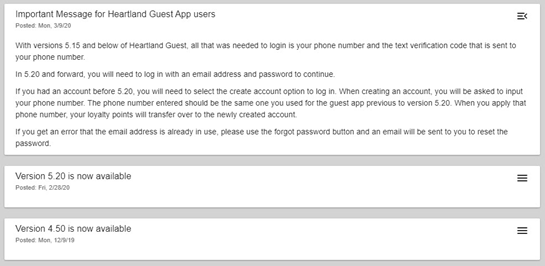
The most recent post will always display as expanded when you access the screen.
HR-670 NTEP Scale Certification
Description: We have added new features to the POS for scales.
Details: We have added various features to the POS regarding scales, which are necessary for NTEP certification. When it prints a receipt that includes an item priced by weight, the POS now prints the weight’s unit with the item.

Also, if an item priced by weight is refunded by a staff member, the POS will print the refund amount as a negative on the receipt. If the item was refunded manually, the POS will also include text (“MAN”) to indicate it on the receipt.
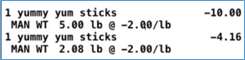
Also, the POS will display the NETP certification number in the About screen, accessible from any screen by tapping Heartland on the top left corner of the screen.
HR-690 Audit Trail for Job Types and Pay Rate Changes
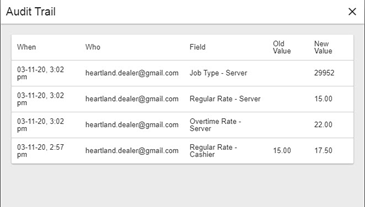
Description: We have added an Audit Trail screen to each staff member’s record.
Details: In the Staff Settings screen, if you access an existing staff record and edit the staff member’s job types (either by adding or removing), or if you edit the regular rate or overtime rate of any of the job types, then save the changes, the program will display the  button in the panel.
If you click  , the program will open the Audit Trail panel, which displays a list of all changes to the job types and pay rates in the staff record. Each row includes the date and time the change was made, the name of the staff member who made the change, the settings that was changed, its old setting and its new setting.
HR-713 Open Check Counts and Totals in Server and Cashier Checkout Reports
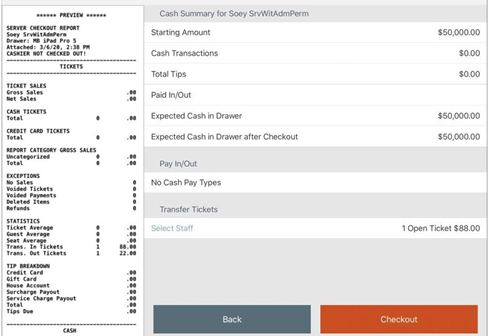
Description: We have added totals for open check counts and amounts to the Server and Cashier Checkout Reports.
Details: We have added totals for the number and dollar amount of all open tickets to the Server and Cashier Checkout Reports. If a server or cashier checks out while having one or more open tickets, the POS will display the total number of tickets and the total amount of those tickets in the Transfer Tickets list. (The server or cashier can transfer those tickets to another staff member by selecting a staff member in the Transfer Tickets list.) To the printed reports, we have also added total counts and dollar amounts for tickets transferred in and transferred out.
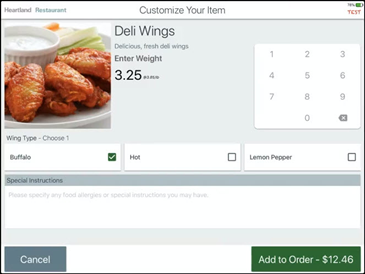
HR-743 Manual Weight Items on Kiosk
Description: We have added a keypad to Kiosk that enables customers to manually enter a measurement when ordering measurement-priced items.
Details: In sites where customers order items that are priced by a measured unit (such as weight) and are allowed to measure their own portions of items, when the customer orders such an item, Kiosk displays a keypad in the screen to allow the customer to manually enter the item’s measurement. The app will display the keypad for all measurement-priced items.
HR-929 Gratrack Integration
Description: Heartland Restaurant now supports integration with Gratrack.
Details: Whether the concept is quick service, fast casual, full service, fine dining or all of these under one roof GraTrack is a vital restaurant management software that will save you hours each week. GraTrack’s process calculates employee tip income to be paid with your standard payroll intervals and methods such as direct deposit, printed check or payroll card. GraTrack gratuity management software is designed to simplify distributions for fine dining, full service, and fast casual environments. GraTrack reduces the tedious tasks of managing cash due backs or spreadsheet data entry to about 30 min total time per week.
No more repetitive cash counting or daily data entry by managers in tip tracking spreadsheets. Paying tips on payroll for servers, bartenders and support staff allows you to adjust the safe bank reducing exposure to theft.
HR-961 New “What’s New” Screen in Guest App
Description: We have added a new "What's New" screen to the Guest app.
Details: After installing the update, when a customer runs the Guest app, it will immediately display a screen with text explaining that the app now requires all members to use an email address to log in. Also, when existing members create a new email login, they can then use their telephone number to access their existing loyalty history and rewards.
We have also added a text window in the Phone Number Verification screen instructing existing customers to enter and verify their phone numbers to access their existing loyalty history.
We have also added similar text to the description of the Guest app in the iTunes app store.
Updates
The following release notes detail the updates we have included in this release.
HR-636 Online Ordering Doesn’t Add One Cent to Refunded Tickets
Description: Online Ordering no longer adds one cent to the sales tax of refunded tickets.
Details: In previous versions, if you refunded a ticket with a tip, Online Ordering may have added one cent to the refund total. In certain circumstances, Online Ordering slightly miscalculated sales taxes on some tickets, while our other apps (such as POS and Kiosk) did not. We have corrected this, and Online Ordering no longer adds one cent to the sales tax of refunded tickets.
HR-764 Duplicate Modifiers with Open Priced Ingredients
Description: When you order duplicate modifiers with open priced ingredients, the POS does not close.
Details: In previous versions, if you added a modifier with an open priced ingredient to a ticket, then increased its quantity by one or more, the POS may have closed. We have corrected this, and now when you order duplicate modifiers with open priced ingredients, the POS does not close.
HR-813 POS Now Prints Customer Names in Receipts for Split Tickets
Description: The POS now prints customer names in receipts for split tickets.
Details: In previous versions, the POS may have failed to print the customer name on printed receipts for split tickets. In the Customer Receipt settings screen, you can set the POS to show seat details, including customer names. However, in certain circumstances, if you split a ticket and then printed the receipts, the POS may have printed the proper seat number in the receipt body, but it may have omitted the name. We have corrected this, and the POS now prints customer names in receipts for split tickets.
HR-814 POS Prints Seat Names Properly on Kitchen Slips
Description: The POS now prints seat names properly on kitchen slips..
Details: In previous versions, the POS may have printed the seat name on the wrong line on kitchen slips. Normally, if set to show seats (in the Display Formats settings screen), the POS prints the seat name under the room name’s line. However, in previous versions, when printing kitchen slips on a thermal printer, the POS may have printed the seat name on the same line as the room name. We have corrected this, and the POS now prints seat names properly on kitchen slips.
HR-847 Change Due Displays in POS Until Ticket Is Exited
Description: The POS now displays the change due amount until the server exits the check or the POS times out.
Details: In previous versions, when displaying a ticket’s change due on a customer display, the POS may have failed to display the change due until the ticket was closed. Specifically, when paying a ticket, if you selected a dollar amount that was greater than the ticket total, the POS would display the change due amount on both the POS and customer display screens. If the customer tapped None on the customer display screen, the POS may have cleared the change due. We have corrected this, and the POS now displays the change due amount until the server exits the check or the POS times out.
HR-849 Account Balance page needs to strip commas that come in from Monetary
Description: The Admin Console can now generate the Accounts Balance Report, even when it includes tickets with totals of $1,000 or more.
Details: In previous versions, on sites using the Monetary payment gateway, the Admin Console may have occasionally failed to generate the Accounts Balance Report. In such cases, the Admin Console may have received improperly formatted total for a ticket paid with a house account. Specifically, if a ticket’s total was higher than $1,000, the POS may have failed to remove the comma from the check’s total when saving the transaction record. Consequently, the Admin Console was unable to process the total and would stall while trying to generate the report. We have corrected this, and the Admin Console can now generate the Accounts Balance Report, even when it includes tickets with totals of $1,000 or more.
HR-880 Menu Items with Multiple Ranges of Specific Availability Hours
Description: If you set up menu items with multiple ranges of specific hours, the POS now makes them available for order during those hours.
Details: In previous versions, if you set a menu item’s availability to include more than one range of specific hours, the POS may have failed to make it available in all of its time slots. For instance, you might set an item’s availability as 8:00 AM to 11:00 AM and then 1:00 PM to 5:00 PM. In such a case, if you tried to order the item at 3:00 PM, the POS may not have displayed the item as available. We have corrected this, and now if you set up menu items with multiple ranges of specific hours, the POS now makes them available for order during those hours.
HR-899 Ordering Items from Order History to Split Checks
Description: When you order an item from a customer’s order history to a split check, the POS adds the item properly.
Details: In previous versions, if you opened a ticket, associate the ticket with a customer, split the ticket, then ordered an item from the customer’s order history, the POS may not have added the item to either of the split checks. We have corrected this, and now when you order an item from a customer’s order history to a split check, the POS adds the item properly.
HR-902 Checkout Total Updates Properly When Late Delivery Fee is Added
Description: When the POS adds an automatic delivery fee to a ticket, it will also display an accurate total in the Checkout screen.
Details: In previous versions, if you set the POS to add a delivery adjustment to a check, it may not have updated the check’s total to include the adjustment. In the Admin Console, in the Online Ordering settings, you can associate a delivery zone with a delivery fee (a charge adjustment), so that the POS automatically applies the fee to delivery orders for addresses in that zone. However, in previous versions, if you opened a ticket for an address in a zone with a fee, the POS may have failed to update the total in the top right corner of the Checkout screen. That displayed total would differ from the (accurate) Total Due printed on the ticket. We have corrected this, and now when the POS adds an automatic delivery fee to a ticket, it will also display an accurate total in the Checkout screen.
HR-905 Correct QR Codes Generated for Tickets
Description: The POS now generates QR codes that match their tickets.
Details: In previous versions, when generating a QR code for a ticket, the POS may have generated a code for the wrong ticket. In such cases, the POS generated a QR code that corresponded to a different ticket open at the time. We have corrected this, and the POS now generates QR codes that match their tickets.
HR-907 Kiosk Does Not Crash When You Order Upsell Items
Description: Kiosk now accesses the Checkout screen properly when you select an upsell item.
Details: In previous versions, if you ordered an upsell item in Kiosk, the app may have closed. Specifically, if you opened a ticket, ordered an item that triggered a window of upsell items, tapped the Checkout button, then selected an upsell item, the app may have closed abruptly instead of opening the Checkout screen. We have corrected this, and the Kiosk now accesses the Checkout screen properly when you select an upsell item.
HR-927 POS Displays New Tickets Properly in KDS “All Day”.
Description: The POS now displays new tickets immediately in the KDS “All Day” screen.
Details: In previous versions, in the POS’s KDS screen, if you ran the app in “All Day” mode (by tapping All Day), the app may have failed to display new checks immediately as they are created. In such cases, the POS may have lagged in displaying new orders in the KDS. Specifically, if you created an order, the KDS may not have displayed the order until another new order was created. Effectively, instead of displaying each new ticket, the KDS displayed the ticket that preceded the new ticket. We have fixed this, and the POS now displays new tickets immediately in the KDS.
HR-930 Kiosk Doesn’t Crash When You Add New Phone Number
Description: When you enter a phone number for a new customer, Kiosk does not close.
Details: In previous versions of Kiosk, if you opened a ticket, entered a new phone number, and tapped Go, the app may have displayed an error message (“Failure entering phone number”). The app effectively would not save phone numbers for new customers. We have corrected this, and now when you enter a phone number for a new customer, Kiosk saves the number properly and allows customers to select menu items.
HR-932 Kiosk Displays Keypad Properly When Prompting for Locator Number
Description: Kiosk now displays the keypad properly after prompting you to enter a locator number.
Details: In previous versions, if you set the Kiosk to require a locator number for either carryout or eat-in orders, the app may have failed to display the keypad when prompting for the locator number. After the app displays a prompt for the locator number, if you tapped the text box, the app may have failed to display the keypad that would allow you to enter the locator number. We have fixed this, and Kiosk now displays the keypad properly after prompting you to enter a locator number.
HR-935 POS Doesn’t Allow Transferring Tickets to “Time Clock Only” Staff
Description: The POS no longer allows servers to transfer tickets to staff members set as Time Clock Only.
Details: In previous versions, the POS may have allowed servers to transfer tickets to staff members set as Time Clock Only. In the Admin Console, the Job Type Settings screen includes the Time Clock Only check box. If you select this check box, then the POS will only allow staff members clocking into this job type to clocking in and out. This setting is intended for job types that do not require performing POS sales transactions, such as cooks and dishwashers. So, normally, the POS does not allow servers to transfer checks to any staff member working in a job type set as Time Clock Only. However, in previous versions, the POS may have allowed servers to transfer tickets to such staff members. We have corrected this, and the POS no longer allows servers to transfer tickets to staff members set as Time Clock Only.
HR-937 No Upsell Error in Online Ordering
Description: The POS no longer displays an error when you select an upsell item in Online Ordering.
Details: In previous versions, if you tried to select an upsell item in Online Ordering, the app may have displayed an error message (“Something went wrong - Try again later”). We have corrected this, and the POS no longer displays an error when you select an upsell item.
HR-944 Daylight Savings Time Controls Display Properly
Description: When viewed by staff members without editing permissions, the Admin Console will display the Time Zone list and the Daylight Savings Time check box properly.
Details: In the Admin Console, you can give staff members permission to review the settings in the Location Settings screen but withhold permission to change those settings. However, in previous versions, if such a staff member accessed the Location Settings screen, the program may have displayed the Daylight Savings Time check box as cleared, even if it was selected. We have fixed this, and now when viewed by a staff member without editing permissions, the program will display the Daylight Savings Time check box accurately if it is selected and enabled.
HR-949 Members Without Email Confirmation Can Log Into Guest
Description: You can now log into the Guest app, even if you have not confirmed your email address.
Details: In previous versions, if customers signed up as members on Online Ordering but never confirmed their email addresses, they may have been unable to log into the Guest app. In such cases, when you logged in, the Guest app would prompt for a phone number. If you entered a valid phone number, the app would send a confirmation code in an SMS message. If you entered that code, the app may still not have let you log in. We have corrected this, and now if you create an account in Online Ordering, you can log into the Guest app, even if you have not confirmed your email. (This fix is only available in version 5.25 or later.).
HR-958 Ticket Sales Aligned with Hours in Labor Summary Report
Description: The Labor Summary Report now displays ticket sales accurately with their actual hours.
Details: In previous versions, when displaying the Labor Summary Report, the program may have displayed ticket sales incorrectly. Specifically, the ticket sales may have appeared misaligned with the hours, so that the values (while accurate) were shifted one hour ahead. In effect, all ticket totals were listed as one hour ahead of their actual hour. We have corrected this, and the Labor Summary Report now displays ticket sales with their actual hours.
HR-958 Time Zone Required for New Accounts and Locations
Description: You cannot save new account or location records without first selecting a time zone.
Details: In previous versions, the Admin Console may have allowed you to create and save an account record without selecting a time zone. We have corrected this, and now if you create a new account (in the Create New Account window) or create a new location (in the Create New Location window), you cannot save the record until you select a time zone in the Time Zone list. Also, for sites in the US, you can now only enter a ZIP code in the ZIP box with a maximum of five digits.