Overview
The following release notes contains updated versions of the following files:
- POS
- Admin Console
- Online Ordering
- Guest
If you have questions regarding the updates described in this document, please contact Heartland Restaurant’s Support Department by email (hrpossupport@heartland.us ) or phone (1-833-844-HPOS).
What’s New?
The following release notes detail the updates we have included in this release. We have divided the updates by project area.
HR-1221 Customizable Banner in Online Ordering
You can now set the Online Ordering website to display a banner with customizable text on its main page. In the Admin Console’s Main Menu, click Location Setup, then click Online Ordering. In the Online Ordering screen, we have added the Text Banner check box. If you select this check box, the program will display the Banner Text, Banner Background Color, and Banner Text Color boxes directly below it.
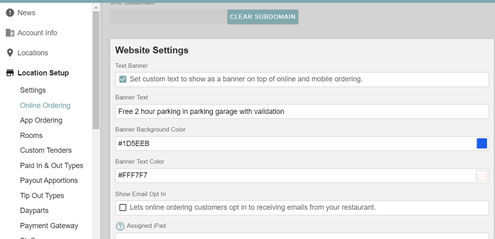
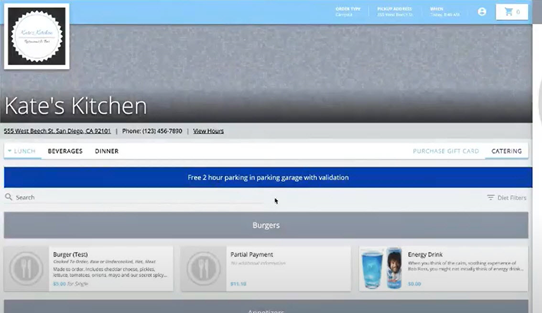
If you type a message in the Banner Text box, the Online Ordering website will display a banner with that text at the top of its main page.
The Banner Background Color box enables you to set the color of the banner’s background. If you click this box, the program displays a color panel. In this panel, you can select an appropriate color.
The Banner Text Color box enables you to set the color of the text that displays in the banner. If you click this box, the program displays a color panel. In this panel, you can select an appropriate color.
HR-1399 Support for Shogo Business Automation Service
Shogo is a business automation service that automatically posts your Heartland Restaurant sales data directly to your accounting system every day. Basically: Shogo takes care of your daily sales accounting so you don’t need to.
YOUR DAILY POSTING IS BROKEN DOWN INTO 2 HIGH-LEVEL COMPONENTS.
WHAT DID THE CUSTOMER PAY FOR?
For Heartland Restaurant, daily sales will post in total at the Sales Category Level OR you can optionally choose to configure to post sales summarized by individual Heartland Restaurant sales items. Also included in the posting will be all Discounts & Comps, Service Charges, Sales and Value-Added Taxes, and anything else the customer paid for.
HOW DID THEY PAY FOR IT?
On the other side of the accounting ledger will be the details of how the customer paid. Whether with a credit card, a gift card redemption, cash etc. And for Credit Cards, you can optionally group the cards by type such that the posting will match the way your processor will deposit the funds to your bank account.
HR-1408 Chain ID Removed from Payment Gateway
In the Payment Gateway screen, we have removed the Chain ID box from the Heartland Gift Settings area. This setting is no longer required.
Updates
The following release notes detail the updates we have included in this release. We have divided the updates by project area.
HR-1192 Time Punches Updating Properly
In previous versions, you may have been unable to change a member’s job type in the Time Punches screen. In the Admin Console, click Location Setup, then click Time Punches. In the Time Punches screen, if you selected the time punch record of a staff member who was already clocked in, selected a different job type in the Job Type list, then clicked  , the POS may not have updated the record. This problem may have also occurred if you selected and tried to edit a time punch record from a previous date. We have corrected this, and the Admin Console now updates a staff member’s time punch record properly when change its job type.
HR-1250 Auto Pricing Modifiers Gross Sales
In previous versions, the POS may have displayed inaccurate amounts for discounted modifiers in the Daily Summary Report. In the Pricing screen, you can create a set of pricing rules that the POS will automatically apply to a ticket when certain conditions are met. (In the Admin Console, click Account Menu, then click Pricing.)
However, in previous versions, when the POS applied such rules to the price of modifiers, the Daily Summary Report may not have displayed the modifier prices as discounted in the gross totals. We have corrected this, and the Daily Summary Report now displays accurate prices for discounted modifiers in the Gross totals column.
HR-1412 Scan for Pay Tickets Display Properly in Guest
In previous versions, if your site uses the Scan for Pay feature, the Guest app may not have been unable to display certain tickets in the Ticket Details screen. Specifically, this problem would occur only with tickets that were paid with cash and that did not include the customer’s phone number. In such cases, if a customer scanned the QR code on the receipt and then tried to access the ticket in the app’s Ticket Details screen, the app may have been unable to display the ticket’s details. We have corrected this, and the Guest app now displays tickets with Scan for Pay QR codes properly in the Ticket Details screen.
HR-1471 Cart Accessible in BridgePay Online Ordering
In previous versions, if your site uses the BridgePay payment gateway, the “cart” may have been inaccessible in the Online Ordering website. Specifically, if you set up Online Ordering at the account level for multiple locations, if any of those locations used the BridgePay payment gateway, the cart may not have functioned. In such cases, if a customer clicked the cart icon, the site would have displayed an error. We have fixed this, and customer can now access the cart in the Online Ordering website.
HR-1478 Sort Sub Item Setting Displays Properly
In previous versions, the Sort Sub Items setting may have displayed improperly in the Display Formats screen. In the Admin Console’s Main Menu, click Location Settings, then click Display Formats. The Display Formats screen includes the Item Sorting and Sub Item Sorting lists, which list enables you to set how the POS sorts items and subitems on kitchen slips and KDS displays.
In previous versions, if you selected None in the Item Sorting list, the program may have allowed you to select Show Sub Items Below Main Item or Sort Sub Items as Ingredients in the Sub Item Sorting list. We have corrected this, and now when you select None in the Sort Item list, the program will set the Sort Sub Item setting to Sort as a Regular Item, the only available setting.
HR-1480 Paying with BridgePay Gift Cards in Online Ordering
In previous versions, if your site uses BridgePay as its payment gateway and BridgePay as its Gift Card service, customers may have been unable to use gift cards as a payment option in the Online Ordering screen. We have corrected this, and customers can now pay for online orders with gift cards at sites that use the BridgePay service to process gift cards.
HR-1498 Item’s Search Box Displays Auto Completed Names
In previous versions, the Search box in the Items screen may not have displayed automatically completed matching names properly. In the Admin Console’s Main Menu, click Account Menu, then click Items. In the Items screen, if clicked New Item, then typed part of the name of an item in the Search box, the program may have listed automatically completed matching names as options below the box. We have fixed this, and now when you type part of an item name in the Search box, the program displays automatically completed matching names properly.