Overview
This article describes enhancements and updates to the following components:
- POS
- Kiosk
- Guest
- Admin Console
- Online Ordering
Enhancements
The following release notes detail the enhancements we have included in this release.
HR-833 Supports for Pour Controls Liquor Monitoring Service
Description: Heartland Restaurant now supports the Pour Controls liquor monitoring service.
Details: Pour Controls is a Liquor monitoring and dispensing company. We are a partner and reseller of BarVision’s industry leading RFID pour spouts. We are also the manufacturer of the Sprint line of liquor dispensing and draft beer monitoring systems. We are an excellent alternative to the Berg line of products. Please join our expanding dealer network in USA, Canada and Mexico.
HR-985 Curbside Pickup Service Added to Online Ordering
Description: We have added Curbside Pickup service to Online Ordering.
Details: Curbside Pickup service allows customers to add descriptive vehicle information to a ticket, which enables staff to identify customers who wish to pick up orders curb-side in front of the site.
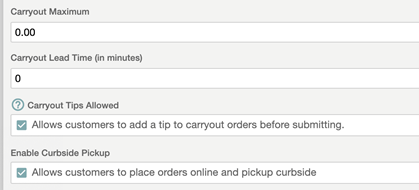
In the Admin Console’s Main Menu, click Location Setup, then click Online Ordering. In the Online Ordering screen, click the Online Ordering tab. In the Carryout Settings area, we have added the Enable Curbside Pickup check box. If you select this check box, the Online Ordering app will display the curbside pickup option when customers select carryout service.
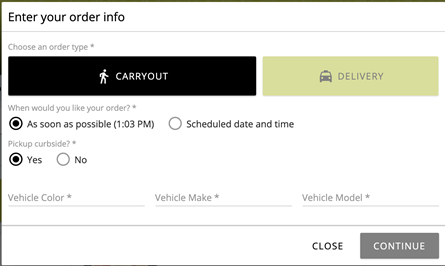
In the Online Ordering app, in the Enter your order info window, if the customer selects Carryout, the app displays options for carryout service. If you enable curbside pickup service in the Admin Console, this window will now display the Pickup curbside? option. If the customer selects Yes, the app will then display the Vehicle Color, Vehicle Make, and Vehicle Model boxes. The app will require the customer to enter this vehicle information to complete the transaction.
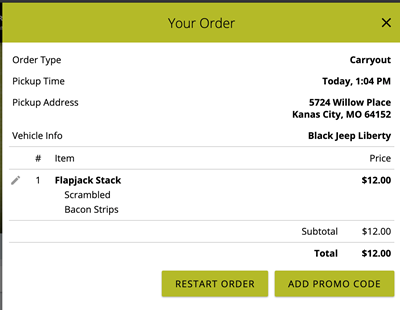
Online Ordering will display the vehicle information with the other order details in the Your Order panel.
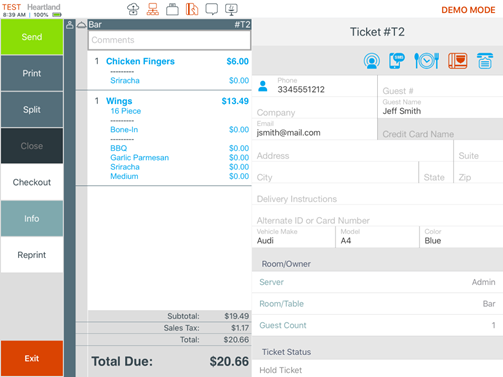
When you enable curbside pickup service, the POS will include the Vehicle Make, Model, and Color boxes to the Ticket Info screen, where servers can review or edit the information as needed. Tickets created in Online Ordering will include the vehicle information in these boxes. When servers create carryout tickets in the POS, the app will display these boxes but not require the information.
HR-986 Refund Heartland Payments from Online Ordering
Description: Sites using the Heartland Portico payment gateway can now perform refunds for online orders.
Details: If your site uses the Heartland Portico gateway, you can now refund Online Ordering tickets paid by credit card. In the POS, open the ticket, tap Info, tap Refund Ticket, tap Card, then tap the original payment.
HR-996 Add Weight Amounts in Online Ordering and Guest
Description: Customers can now add or edit weight amounts for items in Online Ordering and Guest.
Details: In sites with items that are priced by a measured unit (such as weight) and allow customers to specify the portion of such the items, customers can now edit the weight of such items in Online Ordering and Guest. In both apps, when customers select an item in the menu, they can now enter a weight amount (instead of quantity) before adding the order to the ticket. Both apps will display the item’s weight with the other order information in the Your Order panel.
Updates
The following release notes detail the updates we have included in this release.
HR-744 POS Stable When Moving Items Between Unpaid Split Checks.
Description: The POS no longer shuts down when you move items between unpaid split checks.
Details: In previous versions, if you split a check multiple times, then moved items from one split check to another, then paid some (not all) of the split checks, then tried to move another item from one split check to another, the POS may have shut down. We have corrected this, and the POS no longer shuts down when you move items between unpaid split checks.
HR-778 POS Ignores Non-tippable Items When Calculating Gratuities
Description: The POS no longer includes non-tippable items when calculating a manual or automatic gratuity for a check.
Details: In previous versions, if you added an item set as not tippable to a check and then added a manual gratuity to the check, the POS may have included the item’s price when calculating the amount of the tip. Likewise, on a POS set to apply autogratuities, if you added an item set a tippable and another item set as not tippable to a check, the POS may have included the non-tippable item when calculating the amount of an automatic gratuity. We have corrected this, and the POS no longer includes non-tippable items when calculating a manual or automatic gratuity for a check.
You can set a menu item as tippable or non-tippable by selecting or clearing the Tippable check box in the Menu Item Settings screen.
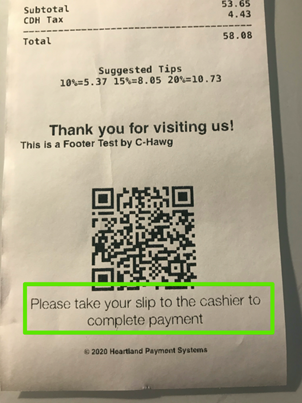
HR-836 Instructive Text Added to Kiosk’s Printed Receipt
Description: We have added instructive text to the Kiosk’s printed receipt.
Details: In Kiosk, we have added text to the printed receipt instructing customers to take the slip to the cashier to complete the payment.
HR-865 No Error Message in Kiosk for Orders Added with Search Function
Description: Kiosk no longer displays the “Item is Unavailable” message when you use the Search feature to order an item.
Details: In previous versions of Kiosk, if you added an item to a check after searching for it (using the Search bar), then tried to pay the check with a credit card, the app may have displayed an error message claiming the item was no longer available, even if it was. If you ordered the same item from a menu section, Kiosk would not have displayed the error. This problem only occurred on sites using PAX devices to process credit card orders. We have corrected this, and Kiosk no longer displays the “unavailable” message when you order an item after searching for it.
HR-910 No Black Panel Instead of Menu Item Panel in POS
Description: The POS no longer displays a black panel instead of menu item buttons.
Details: In previous versions, after opening a ticket, the POS may have displayed a black panel instead of items in the menu item selection panel. In certain circumstances, in accounts with multiple locations, if you set the program to include some menu sections in all locations, but also include some menu sections on different separate locations, the POS may have failed to display the menu item selection panel properly. We have corrected this, and the POS no longer displays a black panel instead of menu item buttons.
HR-950 Email Marketing Available in Reseller Demo Accounts
Description: Email Marketing is available again in reseller Demo accounts.
Details: In previous versions, resellers using the Admin Console to configure a demo account may have been unable to set the account to use Email Marketing. In the Admin Console’s Main Menu, click Integrations, then click New Integrations. In the Integrations Setup panel, the option for Heartland Email Marketing may have been absent in the Integrations Type list. We have corrected this, and Heartland Email Marketing now displays and is available in the Integrations Setup panel.
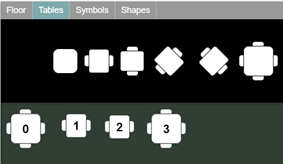
HR-969 Numbers in Black Text on Table Icons
Description: In the Room settings panel, the Admin Console now displays table numbers with black text on table icons.
Details: In previous versions, when you added tables to floor plans, the program may have displayed table numbers in white text, rendering them invisible. In the Admin Console’s Main Menu, click Location Setup, then click Rooms. In the Rooms screen, if you created a new room, selected Table Layout in the Type list, and then added a table to the room in the Room Layout area, the program may have displayed the numbers on the table icons with white text, rather than black text. Since the table icons have a white background, the white table numbers were effectively invisible. We have corrected this, and the program now displays table numbers with black text on table icons.
HR-979 Daily Summary Report Emails Sent at Correct Time
Description: The Admin Console now send Daily Summary Report emails at the correct time.
Details: In previous versions, the Admin Console may have sent the Daily Summary Report emails at the wrong time. In certain circumstances, the program may have applied the wrong time zone to the set time when emailing the report. We have corrected this, and the Admin Console now send Daily Summary Report emails at the correct time.