Overview
The following release notes contains updated versions of the following files:
If you have questions regarding the updates described in this document, please contact Heartland Restaurant’s Support Department by email (hrpossupport@heartland.us ) or phone (1-833-844-HPOS).
What’s New?
The following release notes detail the updates we have included in this release. We have divided the updates by project area.
HR-1745 Paytronix Gift Settings Independent of Loyalty
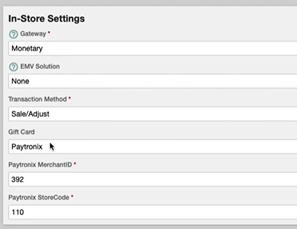
In the Payment Gateway screen, in the In-Store Settings area, if you select Paytronix in the Gift Card list, the Admin Console now displays the Gift Merchant ID and Gift Store Code boxes. In these boxes, you can enter the merchant ID and store code for the location using the Paytronix gift card service. These controls enable you to set a site to use the Paytronix service for gift cards while using another service (such the Heartland Restaurant) for loyalty. In previous versions, if the site used Paytronix for gift cards, it could not use a different loyalty service.
HR-1825 Redirect Online Ordering Sites to 404 Error Page
In previous versions, when a customer tried to access an online ordering site that was inactive, they were redirected to the Heartland Payments website. We have modified this, and now customers will be redirected to a “404 Error” page that describes the online ordering site as no longer active.
HR-1848 New Link to Heartland Info Center Portal
We have added a link to the Heartland Info Central service in the Admin Console. Heartland Info Central is a tool provided by Heartland Payments Systems to validate funding and review a site’s processing statements and daily batches.
In the Admin Console’s Main Menu, click Heartland Info Central. The program will run the default web browser and access this URL:
https://infocentral.heartlandpaymentsystems.com/#login
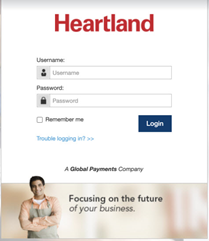
This link is only visible if the location uses Heartland to process credit cards transactions.
For more information on Heartland Info Central, please refer to our FAQ.
HR-1942 Relabel Available on Kiosk/Skip the Line Settings
In multiple setting screens, we have changed the label of the Available on Kiosk/Skip the Line check box to In-Store E-Commerce. We have also modified the explanatory text that accompanies the control.

We relabeled the In-Store E-Commerce settings in the following screens:
- Ingredients
- Location Overrides
- Attributes
- Context Items
- Groups
- Items
- Modifiers
- Pricings
- Promotions
- Sections
- Sizes
HR-2165 Loyalty Setup Audit Trail
We have added an audit trail to the Loyalty Setup screen. In the Admin Console’s Main Menu, click Loyalty Setup, then click Loyalty. In the Loyalty Setup screen, click  (in the bottom left corner). The program will display the Audit Trail screen. The Audit Trail screen displays a list of changes made to any setting in the Loyalty Setup screen. For each event in the list, the program displays the time of the change, the name of the user who performed the change, the specific settings that were changed, the old value of each changed setting, and the new value of each changed setting.
HR-2166 Rooms Audit Trail
We have added an audit trail to the Rooms screen. In the Admin Console’s Main Menu, click Location Setup, then click Rooms. In the Rooms screen, click  (in the bottom left corner). The program will display the Audit Trail screen. The Audit Trail screen displays a list of changes made to any setting in the Rooms screen. For each event in the list, the program displays the time of the change, the name of the user who performed the change, the specific settings that were changed, the old value of each changed setting, and the new value of each changed setting.
HR-2167 Payout Apportions Audit Trail
We have added an audit trail to the Payout Apportions screen. In the Admin Console’s Main Menu, click Location Setup, then click Payout Apportions. In the Payout Apportions screen, click  (in the bottom left corner). The program will display the Audit Trail screen. The Audit Trail screen displays a list of changes made to any setting in the Payout Apportions screen. For each event in the list, the program displays the time of the change, the name of the user who performed the change, the specific settings that were changed, the old value of each changed setting, and the new value of each changed setting.
HR-2168 Location Settings Audit Trail
We have added an audit trail to the Location Settings screen. In the Admin Console’s Main Menu, click Location Setup, then click Settings. In the Location Settings screen, click  (in the bottom left corner). The program will display the Audit Trail screen. The Audit Trail screen displays a list of changes made to any setting in the Location Settings screen. For each event in the list, the program displays the time of the change, the name of the user who performed the change, the specific settings that were changed, the old value of each changed setting, and the new value of each changed setting.
Updates
The following release notes detail the updates we have included in this release. We have divided the updates by project area.
HR-1235 QR Codes Included on Printed Split Tickets
In previous versions, if your site includes QR codes on printed tickets (for Ticket Lookup or Scan to Pay), you may have encountered a problem. In certain circumstances, if you split a ticket, then printed one of the split tickets, the POS may not have included the QR code on the printed ticket. If you printed all split tickets (by tapping All and then Print), the POS would have included the QR code on all printed tickets, but the POS may have omitted the QR code on tickets printed individually. We have corrected this, and the POS now includes QR codes (for Ticket Lookup or Scan to Pay) properly on printed tickets.
HR-1763 POS Rounding Amounts Properly for Loyalty Customers
In previous versions, if your site uses a third-party loyalty service, the POS may have displayed an error (such as “Como error: 4000000”) when a customer tried to pay a ticket with loyalty reward points. In such cases, the POS was rounding the payment amount improperly. We have corrected this, and the POS no longer displays an error when customers pay a ticket with loyalty reward points.
HR-1805 Como Rewards on Online Order Tickets
In previous versions, if your site uses the Como loyalty service, you may have encountered a problem. When applying a reward to an online order ticket, the program may have found the customer’s Como account and deducted reward points from the account, but then failed to apply the reward to the ticket. We have corrected this, and the POS now applies Como reward discounts properly to online order tickets.
HR-1835 POS No Longer Crashes When Modifiers Are Deleted
In previous versions, if you deleted an ingredient from a menu item, it may have caused the POS to quit abruptly. Specifically, if you logged into the Admin Console, deleted an ingredient from a menu item, then published the changes, the POS may have quit if an open ticket included the item with the deleted modifier. This would only occur if the deleted ingredient was associated with a context item. We have corrected this, and the POS no longer quits when you delete a menu item’s modifier and publish the changes.
HR-1985 Online Ordering Changes Now Save Properly
In previous versions, if you tried to change the settings in the Online Order screen, the Admin Console may not have saved the changes. In the Admin Console’s Main Menu, click Location Setup, then click Online Ordering. In the Online Ordering screen, click the Online Ordering tab. In previous versions, if you changed any of the settings in this tab and then clicked Save, the Admin Console may not have saved your new settings. In such cases, after clicking the Save button, the program did not display a message indicating the changes were saved. If you refreshed the page, the program would display the original settings. We have corrected this, and the Admin Console now saves changes in the Online Ordering settings properly.
HR-2250 Online Order Sties Accept Como Login Codes
In previous versions, if your site uses the Como loyalty service, you may have encountered a problem. If a customer tried to log into an online order site with a four-digit one-time login code generated by the Como service, the online order site may have failed to accept the code. In such cases, the app would not recognize the code as valid input and would therefore not enable the Login button. We have corrected this, and the online order sites now accept one-time login codes generated by the Como service.
HR-2270 Guest App Processes Payments Properly
In previous versions of the Guest app, when customers tried to order food or egift items, the app may have generated an error (‘Payment Failed An unknown error occurred.”) and failed to process any payment for the order. Also, if customers tried to use the scan-to-pay feature, the Guest app may have generated the error. We have corrected this, and the Guest app now performs scan-to-pay transactions and processes payments without generating errors.