Overview
Your security is a top priority here at Heartland. With this in mind, we have introduced Multi-Factor Authentication (MFA) for Heartland Retail Point of Sale (POS). Multi-factor authentication serves as an additional safeguard against cyber threats such as phishing attacks and unauthorized account takeovers. This security feature validates your identity by using two distinct "factors" of authentication during the login process.
- Something you know (such as a password)
- Something you have (Phone or Device)
- Something you are (such as a fingerprint or other biometric method)
By implementing this second factor of authentication, we enhance the security and integrity of our merchants’ data by preventing unauthorized access to user profiles within the POS. To that end, although MFA is not required for the front-end Point of Sale page, all merchants are now required to use MFA in order to log into the dashboard or back office components of Heartland Retail.
This update includes the following changes to the user experience:
- User IDs are no longer supported for log-in. Instead, users will log in with their email address.
- All users must have a distinct user account with a verified email address.
Owners wishing to opt out of MFA for users with lower access, either across the board or individually, can do so upon acceptance of liability, as described later in this guide.
If you have questions regarding the information provided in this guide regarding MFA, please contact the Heartland Retail support team by phone at 833-844-4767 (select option 1, then option 2), or by email at hretailsupport@heartland.us.
Using Multi-Factor Authentication
Getting Started
All users will receive a notification about MFA, including setup instructions.
Upon logging into their account, users will be prompted to start the MFA process.
Users will then verify their identity using their primary authentication method (for example, their password).
MFA Setup Process
To get started with MFA, you must first select your preferred authentication method.
- For new employees, the POS will prompt for a selection upon enrollment into the system.
- For existing employees who have not yet set up MFA, the POS will prompt for a selection after any attempt to access the back office components of Heartland Retail, or to view other sensitive information such as partially masked customer data.
Users will receive an informative welcome email as follows:
For new users created after MFA enablement, the welcome email will contain instructions for logging in, as pictured below:
For existing users, the welcome email will contain instructions for logging in, as pictured below:
You can choose to either receive an SMS text message delivered to your mobile device, or you can install an MFA authenticator app on your phone or mobile device.
Click the links below for information and help with the authenticator apps.
Once you have set up your authentication method, select Continue.
Important Note:
- If, after making your selection, you decide you would like to switch to the other method (from authenticator app to text, or vice versa), you can easily do so by selecting the 'I want to set up a different method' option from the bottom left of the page before selecting Verify.
- Once you select Verify, you will no longer be able to change your authentication method. Therefore, if you wish to change your selection, you must do so before selecting Verify.
If you choose Authenticator App, download and install the preferred app to your mobile device. We recommend Google or Microsoft. Click the options below to learn more about these apps.
You will receive a six-digit code via your chosen authentication method. Enter this code on the page that displays.
Select Verify to complete the authentication process.
If desired, select the Don’t ask me again for 45 days on this browser box. Doing so will allow you to log into the POS without authenticating each time for up to 45 days.
Here are some important notes about this option:
- This option is deal for locations with one user per station.
- A user will be remembered on a single device for 45 days. If the same user logs into a different device, this will invalidate the original login session.
- In multi-cashier setups, users sharing the same device will not be prompted for MFA again until the 45-day period expires, and/or until they log in on a different device.
MFA and the POS
The process for logging into the POS of Heartland Retail is as follows:
- Users enter their email and password as usual and access the POS section of the app.
- POS Access and Usage: Users can process transactions, manage gift cards, adjust taxes, find items, and utilize quick buttons and actions. They can also manage tickets, create layaways, assign sales reps, select customers, manage and close the drawer, handle cash paid in/out, generate daily summaries, and configure hardware settings. All personally identifiable information (PII) data is masked.
- Step-Up Authentication: Users can perform step-up authentication with MFA to gain full system access, provided they have the required POS permissions.
MFA and the Back Office
The process for logging into the back office of Heartland Retail is as follows:
- Initial Login:
- Enter Credentials: Users enter their email and password as usual.
- Answer MFA Prompt: The system prompts users to complete the second step of authentication based on their chosen MFA method.
- Complete MFA:
- For SMS/Email: Users enter the code received via text message or email.
- For Authenticator App: Users enter the code generated by the app.
- Access: Users have full access to the entire POS with no masking of PII, provided they have the required POS permission.
MFA for Accessing PII
While MFA is required for access to the back office components of Heartland Retail, most features within the POS screen will be available to users, regardless of whether they use MFA. However, as previously mentioned, the POS will partially mask sensitive data such as personally identifiable information (PII) and this information will not be accessible without MFA.
The general rules for masking Personally Identifiable Information (PII) are as follows:
- Email will show only the first two characters and the domain
- Phone will show only the last four digits
- No address information will show
Here are examples of how masked PII is reflected in Heartland Retail:
Customer Lookup 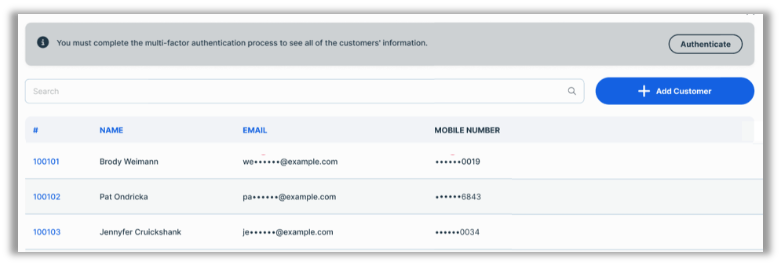
Customer Tab
Should you need to view the masked PII data, you will have the option to use MFA to unmask the data for as long as you are logged into your current session. To do so, select the Authenticate button that displays in the upper right corner of relevant pages and answer the prompts as noted in the previous section.
For reference, here is a list of POS functions that do not require MFA:
- Sale and Return Transactions
- Gift Cards
- Tax Adjustment
- Find Item
- Quick Buttons
- Quick Actions
- Find Ticket
- Create a New Ticket
- Create a Layaway
- Assign Sales Rep
- Select Customers
- Manage the Drawer
- Close the Drawer
- Cash Paid In/Out
- Daily Summary
- Hardware Settings
Resetting Your Password
Should you need to reset your password, you can do so by following these steps:
Please note: When logging into Retail after the MFA is enabled. Your current password may not meet the new requirements. If you click on the forgot password you can follow the prompts to reset your password.
- From the Heartland Retail Login screen, select Forgot your password.
- Enter your email address in the page that displays and select Send Verification Code.
- Check your email for a verification code. The email will be from noreply-hrtl@globalpay.com.
- Enter the verification code on Reset Password page and select Verify Code.
- Once your email is confirmed, select Continue.
- On the Create New Password page, enter your new password in both password fields, ensuring that you meet the password requirements, and then select Continue to finish the process.
Opting Out & Accepting Liability
Assuming MFA Control Upon Initial Login
Upon initial log-in after MFA enablement, users defined as Owner will see the following screen, indicating that MFA Control is Locked:
After selecting Assume MFA Control, the following legal disclaimer will display:
When an owner selects Accept, the system records the acceptance and will no longer display the screen upon subsequent logins. Upon acceptance, the following screen, indicating that MFA Control Is Unlocked will display:
By default, all users are required to MFA. The following subsections explain how to opt out if desired.
Please note:
- The bulk opt-out function will edit only existing users. New users will be required to MFA by default. To remove the requirement for new users, the owner must opt out using one of the options described in the subsections below.
- If you wish to enable the MFA requirement for a user for which it was previously disabled, you must make this change on the user's detail page as using the bulk opt-out function will not work for this purpose.
General Opt-Out for Users with Limited Access
As the owner of a retail site, you can opt out of MFA if desired. Doing so will remove the MFA requirement only for users with limited permissions as explained in more detail later in this section. If you choose to opt out, you will need to perform this action only one time.
You can view and modify your MFA settings from the ‘Unlocked’ page, accessible via the Owner heading of Settings.
If you select Require MFA For Users, the following modal will display:
If you select Disable MFA For Users, the following modal will display:
Please note: Regardless of selection, MFA will still be required for any users designated as ‘Owner’ and those with ‘Manage Users’ permissions.
Opt-Out on Per-User Basis
As an ‘Owner’ or as a user with ‘Manage Users’ permissions, you can also enable/disable the MFA requirement for individual users as needed. To facilitate this, we have added two new columns, TYPE and MFA REQUIRED, to the Users page.
- TYPE will indicate if the user is Owner, Admin or Other.
- MFA REQUIRED will indicate if a user is required to use MFA.
To change a user’s MFA requirement, select the user and then switch the Require Multi-Factor Authentication for sign-in to Yes or No as needed.
Please note:
- This setting cannot be disabled for users designated as ‘Owner’ or those with ‘Manage Users’ privileges.
- A badge will display on the Owner’s profile to allow users, internal teams, and others to easily identify their role.