Overview
The current Milestone release contains updated versions of the following programs:
- POS
- Admin Console
- Online Ordering
- Guest
- CAPI
- Kiosk
- Customer Display
If you have questions regarding the updates described in this document, please contact Heartland Restaurant's Support Department by email (hrpossupport@heartland.us ) or phone (1-833-844-HPOS).
What’s New?
The following section includes detailed descriptions of the enhancements included in this Milestone.
Support for Kickfin Tip Service
Kickfin allows restaurants to issue tips to their employees electronically. Most restaurants pay their employee tips at the end of the day in cash or make their employees wait to receive their tip payments on payroll. Tipping in cash is error prone and time consuming while tipping on payroll puts your restaurant at a competitive disadvantage when trying to attract talent. Kickfin solves all this by allowing you to issue tip payments to your employees instantly 24 hours per day, 365 days per year. Tips are immediately credited to the employees existing bank account. No need for special pay cards. No need to make bank runs to pick up cash. No more stuffing envelopes with cash for your employees. No more theft or lost funds. No need for employees to wait around after the end of their shift to receive their tip payments. And with Kickfin you have full visibility into your tip payments and detailed reporting for accounting and IRS compliance.
As a service to Heartland customers, Heartland and Kickfin have integrated our systems to make issuing tips even simpler. This integration allows the Kickfin platform to collect tip information directly from the point-of-sale system simplifying the process of issuing tips. When it’s time to issue tips, Heartland customers can simply choose a business day - or a range of business days - and the Kickfin platform will automatically collect and send the tip payments due to each employee for those days. The process is easy and makes issuing tips a breeze.
Support for Zignyl Labor Management Service
Zignyl’s integration with Heartland will allow for forecasting by the hour, scheduling and incentives to efficiently manage labor and increase sales. It is a solution that incorporates all of the owner’s portfolio brands into one easy-to-navigate dashboard. Zignyl is made for multi-unit owners who operate 10+ locations and has interfaces for the owner, employees, and managers. All customer interaction is handled by Zigny’s support team in the United States.
Support for Appfront Service
Appfront will enhance your brand with an all-in-one digital restaurant platform, making the online ordering experience simple, seamless and efficient while emphasizing personalization, loyalty and marketing. Appfront is the perfect complement to Heartland POS providing the complete package with a fully integrated solution of digital experience: online ordering and Mobile app with a strong AI marketing engine.
How Can Appfront Help Your Business?
- Seamlessly integrate your menu, online orders and loyalty
- Mobile app and responsive web ordering
- All in one loyalty and online ordering
- CRM and marketing platform
Turning Data into Revenues:
- Appfront captures your customers’ data and provides the platform to engage and communicate with them via any digital channel
- Appfront collects all of your business’ data (from your POS, online ordering site, social networks, etc.) and connects everything into one datacenter, calculates and analyzes the data to maximize your marketing efforts.
POS Recognizes Offline Status of Epson Printers
The POS can now check the offline status of Epson printers that use the latest firmware. In previous versions, if an Epson printer ran out of paper, the POS would recognize the printer as offline and reroute print jobs to a backup printer. However, the POS was unable to recognize printers using the latest firmware as offline. We have corrected this, and the POS can now recognize Epson printers as offline, even if they use the latest firmware.
Language Switch Added to Online Ordering Website.
We have added a Language switch to the header of the Online Ordering website. This switch enables customers to change the language of the labels displayed in the Online Ordering website. By default, the Online Ordering website uses the language selected in the browser’s settings, but the Language switch allows customers to override the default setting and view the website in another language. Currently the two options are EN for English, or ES for Spanish.
Currently, we only support the Spanish (United States) option in the browser's language settings, not the Spanish option.

You can enable the Language switch in the Admin Console. In the Main Menu, click Location Setup, then click Online Ordering. In the Online Ordering screen, click the Online Ordering tab. In the General Settings area, we have added the Language Switcher check box. If you select this check box, the Online Ordering website will display the Language switch in the header of the Online Order website, on desktop and mobile devices.

“$0” Tip Option Added to Scan to Pay Website
We have added a “$0” tip option to the Scan to Pay payment screen. In the Location Settings screen, in the Transaction Settings area, you can set the POS, online order website, and other apps to allow customers to select a “$0.00” tip amount by selecting the Allow Zero Tip Suggestion check box. If you do so, the payment screen will now display a “$0” tip option along with the other available tip options. The website will require customers to select this or another tip option to complete the transaction.
Room and Staff Options Added to Import/Export Tool
We have added the Rooms and Staff options to the Import/Export Options screen. In the Admin Console’s Main Menu, click Tools, then click Import/Export. In the Import/Export screen, we have added the Rooms and Staff options.
If you select Rooms and then click Export Data, the program will generate an .xlsx file containing all room records, including each room’s ID, name, entity ID number, location, and a flag designating if the room is deleted.
If you select Staff and then click Export Data, the program will generate an .xlsx file containing all staff records, including each staff member’s ID, name, entity ID number, location, and a flag designating if the staff member’s is deleted.

We have also added entity ID numbers to the exports for Kitchen Groups and Report Categories. We introduced the entity ID numbers to these exports to assist dealers in configuring sites to use QSR.
Audit Trails Added to Scheduled Shifts and Time Punches
We have added audit trails to various screens in the Admin Console. To view any of these audit trails, access the screen, then click  (in the bottom left corner). The program will display the audit trail for the specific screen. The Audit Trail lists all changes made to any record in the selected screen. For each event in the list, the program displays the time of the change, the name of the user who performed the change, the specific settings that were changed, the old value of each changed setting, and the new value of each changed setting.
In the Main Menu, under Location Setup, we have added audit trails to the following screens:
- Scheduled Shifts
- Time Punches
Duplicate Reconciliation for POS Without Auto Reversals
The POS will now automatically enable the Duplicate Reconciliation feature if it does not perform auto reversals.
QSR Displays Tickets for Future Orders
In previous versions, when a customer placed a future order, the POS would use the same ticket number from the original order as the ticket number when the order is prepared. In such cases, the QSR system would not display the prep ticket. We have corrected this, and now when a customer creates a future order, the POS no longer reuses the ticket number from when the order was created, and the QSR displays future order tickets properly.
Time Removed from “As Soon As Possible” Labels
In the Online Order website, we have removed the time that displays with the As Soon As Possible option for carryout and delivery orders. We have also removed the time from the “As Soon As Possible” label on tickets and order displays. Previously, the displayed time may have been interpreted as a fixed pickup time.

Support for MarketMan Inventory System
Heartland Restaurant now supports the MarketMan inventory system. MarketMan is a cloud-based inventory and supplier management system that streamlines back of house operations including budgeting, purchasing, order optimization, food costing, recipes, invoice scanning, vendor payments, supplier management and more. Available across all devices, MarketMan helps restaurants streamline operations and keep costs under control.
MarketMan works with Heartland by simply syncing menu items and sales data from the POS to MarketMan. Each menu item from Heartland POS flows into MarketMan so that an ingredient-by-ingredient recipe can be calculated for food costing purposes. Each time a sale is made by the POS, MarketMan automatically depletes inventory levels to trigger low stock alerts and reorder reminders.
Support for WebRezPro PMS System
Heartland Restaurant now supports the WebRezPro PMS system. WebRezPro™ cloud property management system (PMS) for independent hotels, hotel groups and chains, vacation rentals and inns is pleased to announce direct integration is now available for Web-based restaurant point-of-sale (POS) system, Heartland POS. This integration automates the process of posting restaurant tickets to hotel guest accounts in real time, improving visibility and efficiency of operation.
“Tax Included” Total Added to Printed Receipts
We have added the “Tax Included” total to printed receipts. Now, when it prints a receipt, you can set the POS to include the total sales tax from all “Tax Included” items in the order on a separate line labeled “Tax Included”. The POS prints this total below the existing “Tax:” line, which displays the total sales taxes from standard (tax-excluded) priced items. If the order does not include any “Tax Included” items, the POS print the “Tax Included” line with an amount of “$0.00”. At this time, the POS does not include the “Tax Included” total in emailed receipts.

You can enable or disable the “Tax Included” feature in the Admin Console. In the Admin Console’s Main Menu, click Location Settings, then click Customer Receipt. In the Customer Receipt screen, if you select the Show Tax-Inclusive Details check box, the POS will include the “Tax Included” total on printed receipts.

To define a tax-included item, access the Admin Console. In the Items screen, if you open an item’s settings and select Tax Included in the Tax list, the POS will include the item’s sales tax in its price.
Credit Card Manual Entry in POS
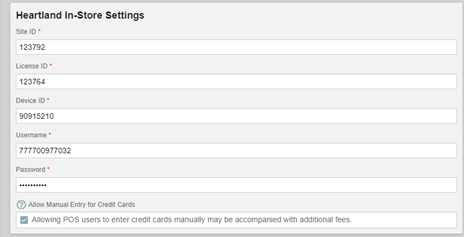
We have added the Allow Manual Entry for Credit Cards check box to the Payment Gateway screen. If you enable this setting, the POS will allow servers to enter credit card numbers manually. In the POS payment screen, the app will display the Card button with ellipses (...). If you press and hold the Card button, the app will open a panel prompting you to enter the credit card number, expiration date, CVV, and ZIP/Postal code. After completing a manual entry with this new feature, servers will need to exit and reopen the ticket to see its payment and close status.
Heartland Restaurant Requires iOS 12 or Newer
We now only support Heartland Restaurant on devices running iOS 12 or higher. We no longer support Heartland Restaurant on iOS versions 11 or older.
Scan to Order Feature Set
We have added the Scan to Order feature set heartland Restaurant. The Scan to Order features enable customers to use a site’s Online Ordering website to order meals from a table for dine-in service. With this feature, a customer can enter a site, sit at a table, scan a QR code that represents the table, and then order items in the site’s Online Order website. The site will then be prepared and brought to the table.
For detailed procedures to set up a site to use the Scan to Order feature set, review the “Scan to Order Setup Guide“.
Order Balancing
We have added the Order Balancing feature set to Heartland Restaurant. The Order Balancing features enable you to set the POS to automatically adjust the carryout or delivery times of eCommerce orders (Online Ordering and Guest App Orders), based on the projected capacity of the kitchen to prepare a certain number of items during ten-minute intervals. By doing so, Order Balancing can provide customers more accurate and realistic pickup and delivery times.
For a detailed description of the Order Balancing features, review the “Order Balancing Setup Guide for Heartland Restaurant“.
Audit Trails Added to Various Location Setup Screens
We have added audit trails to various screens in the Admin Console. To view any of these audit trails, access the screen, then click  (in the bottom left corner). The program will display the audit trail for the specific screen. The Audit Trail lists all changes made to any record in the selected screen. For each event in the list, the program displays the time of the change, the name of the user who performed the change, the specific settings that were changed, the old value of each changed setting, and the new value of each changed setting.
In the Main Menu, under Location Setup, we have added audit trails to the following screens:
- Online Ordering
- App Ordering
- Dayparts
- Customer Receipts
In the Main Menu, under Location Setup, we have also added audit trails to the Menu & Hours section of the following screens:
- Online Ordering
- App Ordering
In the Main Menu, under Account Menu, we have also added an audit trail to the Sizes screen.
Updates
The following list summarizes the updates we have included since our last Milestone release. We have divided the issues by project area.
- The tender buttons no longer become inactive if you tap the Card tender twice in a ticket.
- The Guest app now splits and charges partial payments properly between gift and credit cards.
- We have modified the POS to lock a ticket opened on a PATT device for two minutes.
- The payment website now requires customers to select a tip amount to complete the transaction.
- The payment options are now active consistently on POS iPads connected to PAX devices.
- The POS does not remove a credit card’s payment token from a ticket when you refund or void its full amount.
- The POS now includes customer addresses and delivery fees properly on tickets for delivery orders.
- The Daily Summary Report now lists accurate totals for auto priced items, and the Server Checkout Report now displays accurate totals for Gross Sales.
- When a customer creates a carryout order and selects a date that follows Daylight Savings, the program now saves the date properly.
- The Admin Console now displays accurate totals in the Credit/Debit Card Transactions section of the Daily Summary Report.
- The Guest app no longer displays time options that are not actually available.
- The POS now responds properly when it performs automatic reversals.
- The Ingredients Report now reports accurate ingredient amounts.
- When select an order with an auto adjustment with the Order History function, the POS now displays the ticket properly with the auto adjustment.
- We have corrected this by enabling the Send button on the POS so that you can save a delivery ticket properly after selecting and clearing a delivery driver on the Info screen.
- The POS no longer sends multiple payment requests in the Payment screen, even if a server taps the Card button multiple times.
- The POS now displays the Partial Approval message and prevents you from ordering more items while processing a card payment.
- The Online Order website now applies the selected date to future orders.
- When you delete a payment method, the Guest app no longer displays it as available.
- We have modified this section of the report to also include pending offline debit and credit transactions.
- The Online Ordering landing page now displays location telephone numbers properly.
- The Online Order website now displays the proper message: “Your payment was declined.”
- The payment options are now active consistently on POS iPads connected to PAX devices.