Overview
This document contains explanations for the following enhancements and updates:
- Mobile App
- Admin Console
If you have questions regarding the updates described in this document, please contact Heartland
Mobile Manager Support by email at hmm@heartland.us.
Enhancements
The following release notes detail the enhancements we have included in this release. We have
divided these by project area.
Mobile App + Admin Console
HMM-4436 – Implemented Updated Logo / Brand Identity / App Name
We have implemented the recently updated Mobile Manager logo across various aspects of the
Admin Console and the mobile app.
This logo appears on sign-in screens, sidebar logos, app shortcut, splash screens, and system generated emails. As well, we have updated the app name to ‘Mobile Mgr’, which will may also
change the app’s location for some users.
HMM-4033 – Added New ‘Notifications’ Report Type
We have added a new report type to include Notifications with the following information:
- Notification type
- Staff order
- Store
- Time stamp
- Check number and amount where applicable
This report greatly expands the usefulness of notifications by allowing users to easily and
simultaneously view all such activity for a defined period of time.
HMM-4169 – Set ‘Notifications’ Report as Default
To make users aware of the new Notifications report, we have set it as the default report in both the
Admin Console and the mobile app. The report displays with the following default configuration:
- Report name - All Notifications
- Date range - Today
- Primary grouping - by Store
- Primary filter - Include all
- Secondary grouping - not selected
- Sort/Order - not selected
Please note: If desired, users can easily edit their default report preferences.
HMM-4921 – Added Global Payments Logo to Log-In Screens
We now include the Global Payments brand at the bottom of sign-in screens. As well, instead of the icon, we now display ‘Heartland Mobile Manager’ at the top of the screen.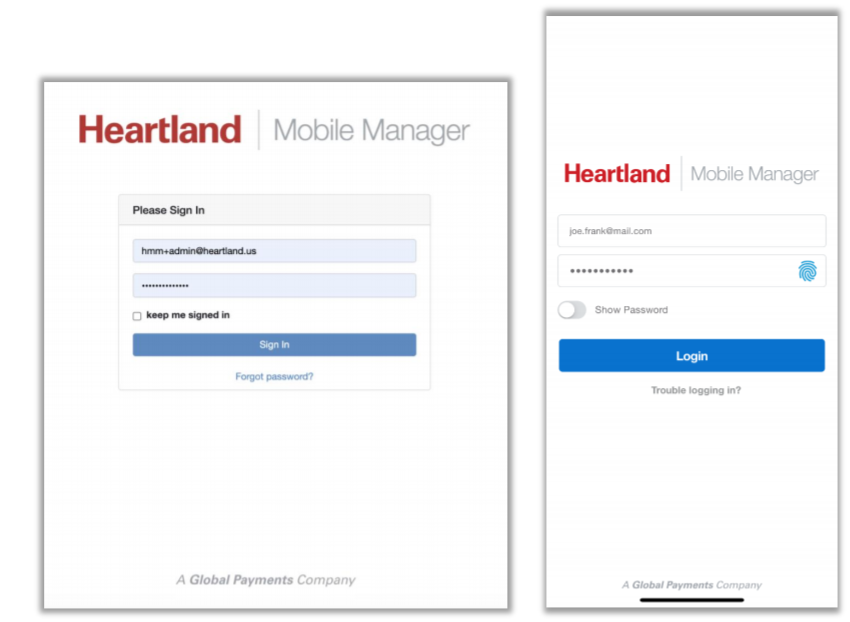
Mobile App
HMM-4010 – Implemented ‘Reorder’ Feature in Key Stats
So that users may better customize the Key Stats screen to suit their needs and preferences, we have
added the ability to reorder Key Stats components. To use this function, long-tap the item you wish to
move and drag it to the desired position.
- When dragging a component backward (to a higher position on the screen), all subsequent
items will move one spot forward. - When dragging a component forward (to a lower position on the screen), all preceding items
will move one spot backward.
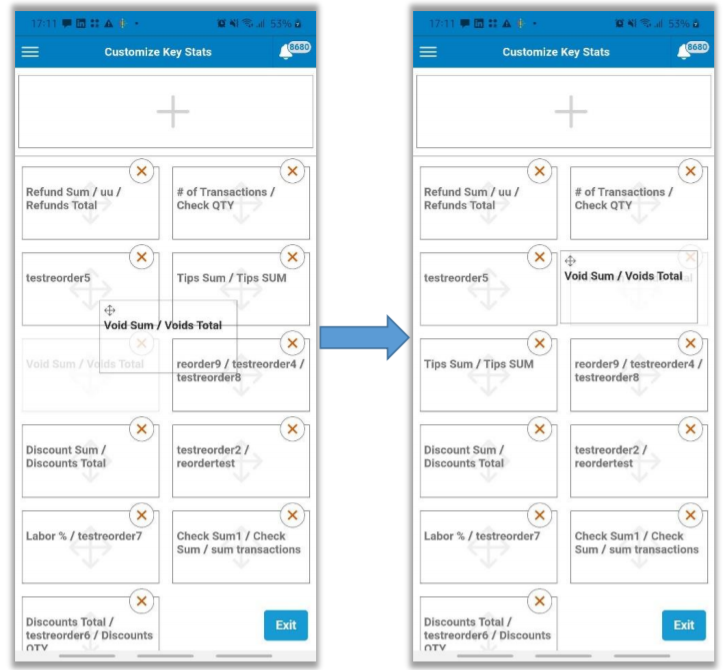
In the example pictured here, we move the ‘Void Sum / Voids Total’ key stat up one position.
HMM-4104 – Implemented ‘What’s New’ Feature
We have added a ‘What’s New’ page to the Help section of the mobile app.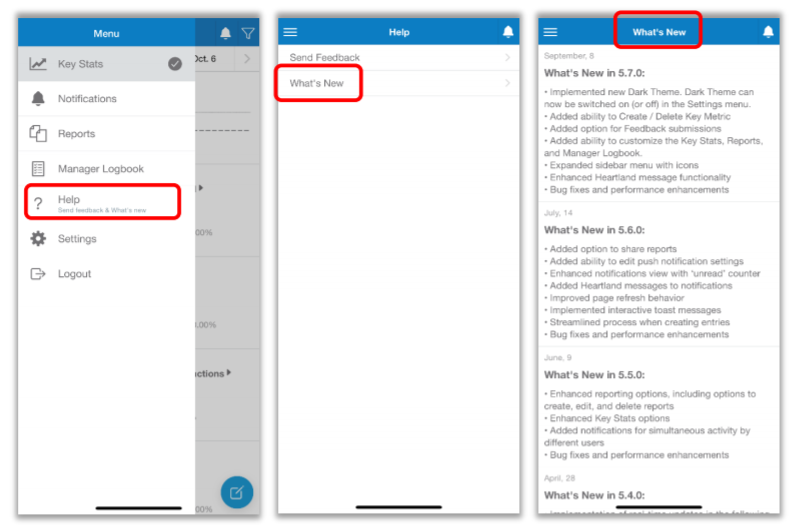
This page displays version history, including release dates and features.
HMM-4235 – Implemented ‘Unread’ Filtering
So that users can easily identify and view unread notifications, we have added a filter to the mobile
app. To use this function, simply toggle the Status selector at the top of the notifications page to
Unread.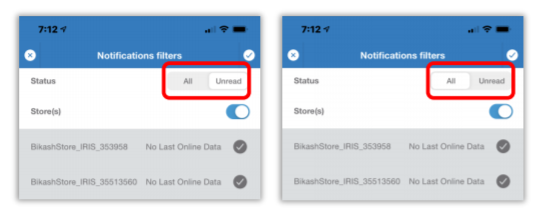
HMM-4129 – Implemented Quick Change to Previous/Next Period
We have ‘<’ and ‘>’ added controls to the Key Stats page so users can easily scroll to previous and
next periods, based on the current selection. For example, if a user is viewing data for October 11,
2020 compared with the same day last week, the app would display ‘Sunday, Oct. 11 vs. Sunday,
Oct. 4’.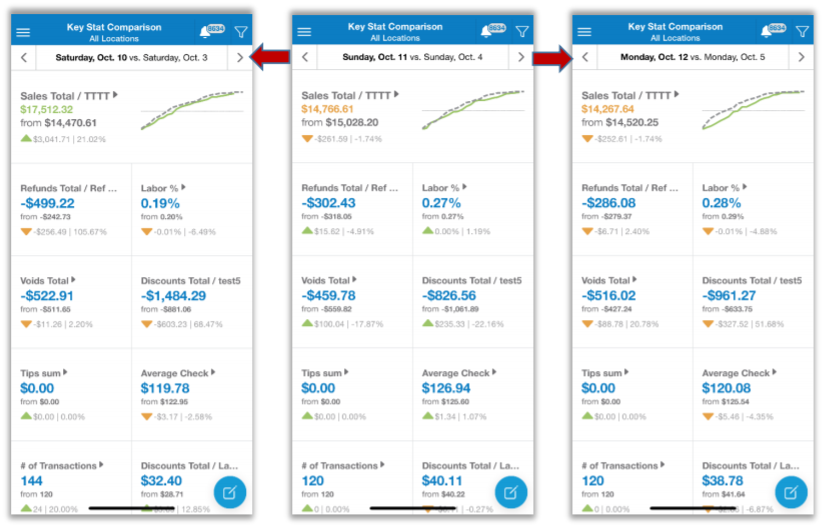
- If the user selects >, the app will then display data for ‘Monday, Oct. 12 vs. Monday, Oct. 5.
- If the user selects <, the app will then display data for ‘Saturday, Oct. 10 vs Saturday, Oct. 3’.
The app prevents users from scrolling to periods of data that are not yet defined or available by
disabling the control at the data endpoint.
HMM-4474 – Updated Filter Icon to Indicate Applied Selection
We have updated the filter icon behavior to indicate whether the currently applied filter is default.
- A full filter icon indicates non-default filtering is in effect.
- An empty filter icon indicates default filtering is in effect.
HMM-4236 – Added Option to Use System Default Settings for Dark Mode
With this release, we have added the option to follow the device’s theme settings. This is helpful for
users who prefer to use scheduled light and dark modes based on time of day. With this setting
enabled, the app seamlessly switches from one mode to the other according to device settings.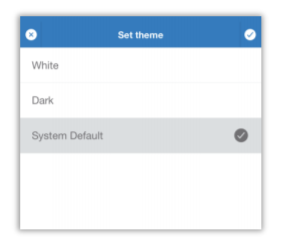
Please note that this feature is supported only as follows:
- Apple devices must be running iOS 13.0 or later
- Android devices must be running Android OS 10.0 or later
HMM-4405 – Improved Filtering in Manager Logbook
We have expanded the available filters in Manager Logbook. Users can now filter the list of entries
with the following criteria:
- Entry Type
- Created by
- Priority
- Stores
As well, you can filter Task entries by:
- Status
- Type
- Target Date
HMM-4535 – Always Show User’s Default Page When Opening App
The app now displays the user’s defined default page each time upon opening.
Admin Console
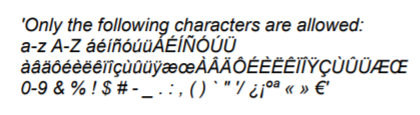
HMM-4581 – Allow Spanish and French Letters and Punctuation
We now allow Spanish and French letters and punctuation for various fields in the Admin Console:
- Users
- First Name
- Last Name
- Client
- Name
- Brand
- Store Name
- Dealership Name
The program uses the new rule to validate entries and, if it detects invalid characters, it will display,