Overview
This document contains explanation for the following enhancements and updates:
- Mobile App
- Admin Console
If you have questions regarding the updates described in this document, please contact Heartland Mobile Manager Support by email at hmm@heartland.us.
Enhancements
The following release notes detail the enhancements we have included in this release.
Mobile App
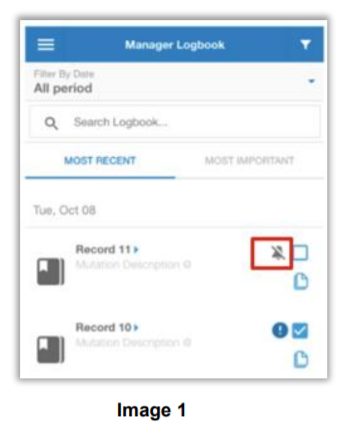
HMM-2694 – Added Mute Icon to Manager Logbook Entry List
Description: We have added a mute icon to the Manager Logbook entry list.
Details: So that users can clearly see whether or not notifications are muted for Manager Logbook entries, we have added a mute icon to the Manager Logbook entry list. This icon will appear in the entry list, to the right of the muted entry, as captured in Image 1 below.
HMM-2710 – Added Mute Option to Manager Logbook Notifications
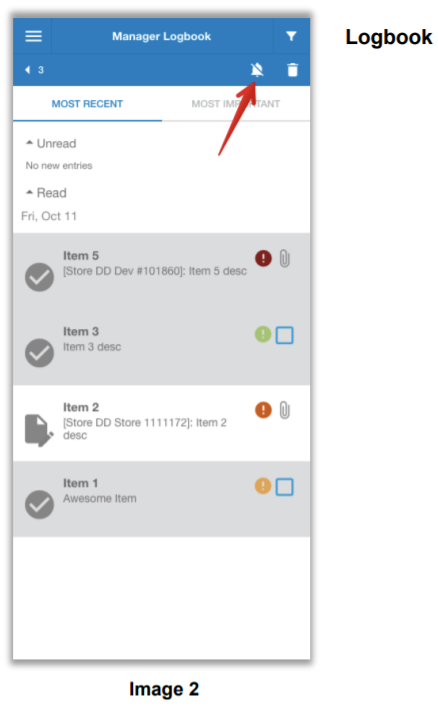
Description: You can now mute notifications in Manager Logbook.
Details: Store Owners can now mute notifications for any or all Manager Logbook entries. To do so, simply highlight the entries you wish to mute, and tap the mute icon in the upper right corner of the screen, as captured in Image 2 below.
HMM-2742 – Added ‘Created By’ Filter to Manager Logbook
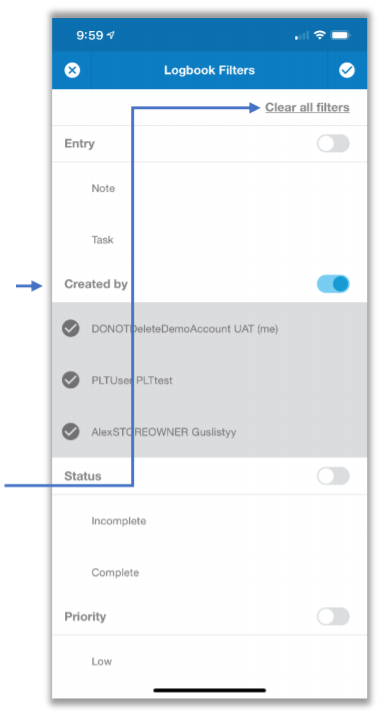
Description: We have added a Created By filter to Manager Logbook.
Details: You can now filter Manager Logbook entries based on Created By criteria. This filter allows you to select one or more users, and then displays only those entries that were created by the selected user(s).
HMM-2782 – Added Ability to Change Entry Type for Existing Manager Logbook Entries
Description: We have added the ability to change entry type for existing Manager Logbook entries. Details: You can now change entry type (for example, change from Note to Task) for existing Manager Logbook entries. This allows for greater flexibility in editing entries for which entry type was either entered incorrectly upon creation, or which require a change after the fact.
HMM-2807 – Added ‘Clear All Filters’ Option to Manager Logbook Filter Page
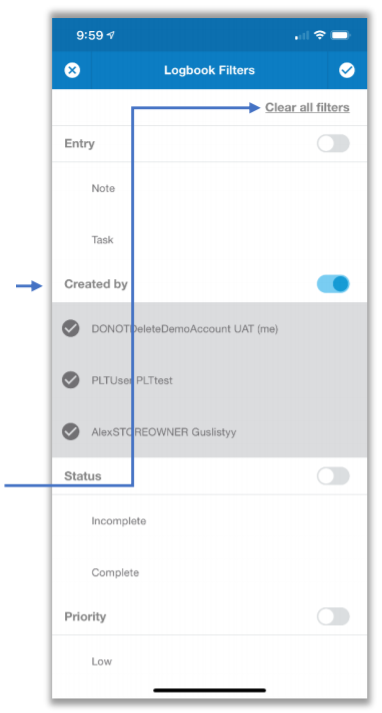
Description: We have added the option to Clear all filters in Manager Logbook.
Details: In the interest of efficiency and ease of use, we have added an option to Clear all filters in the Manager Logbook filter screen. By selecting this option, you can deselect all filters in one action.
HMM-2808 – Added Color to Indicate ‘Completed Date’ Status in Manager Logbook Tasks
Description: We have added color to the Completed Date to indicate whether tasks are completed by the specified Completed Date.
Details: With this release, the Completed Date for tasks will display in a color indicative of whether or not the task is completed on time.
- If a task is completed on or before the specified Target Date, the date will display in green.
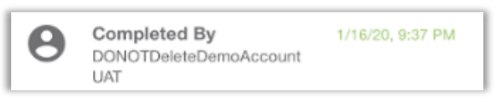
- If a task is completed after the specified Target Date, the date will display in red.

HMM-2813 – Expanded Allowed Character Types for Manager Logbook Text Fields
Description: We have expanded allowed character types for Manager Logbook text fields.
Details: You can now use a greater variety of keyboard characters in Manager Logbook text fields. If you attempt to enter characters that are not allowed, Mobile Manager will display the following message:

HMM-2816 – Refined Priority View in Manager Logbook Entry List
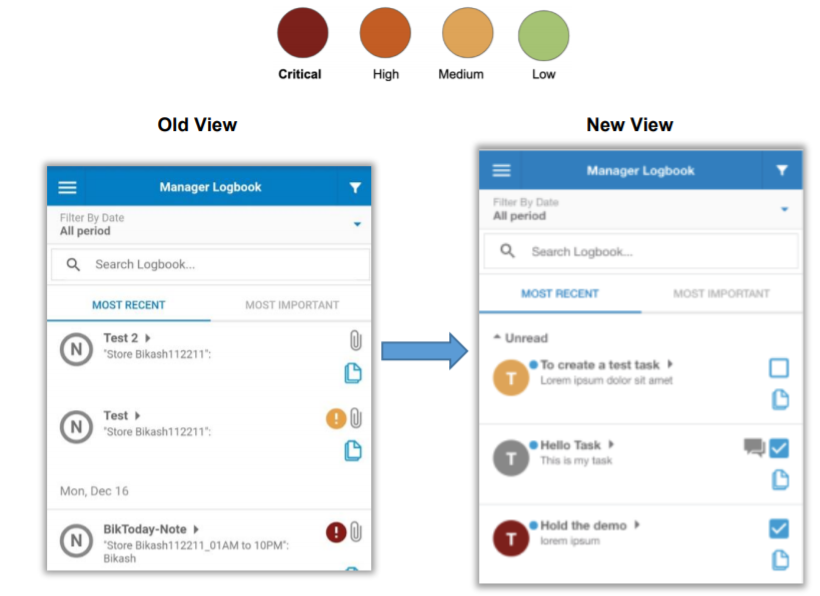
Description: We have changed the priority view in Manager Logbook so that logbook entry icons display in colors that indicate priority.
Details: In previous versions, the priority of a logbook entry was indicated by a separate icon that displayed on the right side of each entry in the list. With this release, we have removed this secondary icon and have added color designation to the entries’ main icons to indicate each entry’s priority.
HMM-2821 – Store Unsaved Comments in Manager Logbook
Description: The Mobile Manager app now stores unsaved comments for later retrieval.
Details: With this release, the app stores unsaved comments in Manager Logbook entry for later retrieval so that you can return to unsaved comments and send them later.
HMM-2874 – Mark Current User as ‘Me’ in the Who Field of Manager Logbook
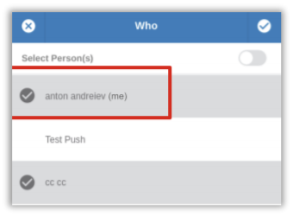
Description: The Manager Logbook now marks the current user as “me” in all views.
Details: To facilitate quick and easy recognition among store owner names, the mobile app will now display “(me)” next to the currently logged on user.
HMM-2881 – Added Confirmation Prompt When Deleting Comments in Manager Logbook
Description: We have added a confirmation prompt when deleting comments in Manager Logbook. Details: To prevent accidental deletions, the mobile app now displays a confirmation prompt when you attempt to delete a comment from a Manager Logbook entry.
- Selecting Cancel preserves the comment.
- Selecting Delete deletes the comment.
Regardless of selection, the app will return you to the same page.
HMM-2882 – Added Dividing Line Between Entries in Manager Logbook View
Description: We have added dividing lines between entries in Manager Logbook view.
Details: To clearly delineate between entries in the list, we have added dividing lines between entries in Manager Logbook view.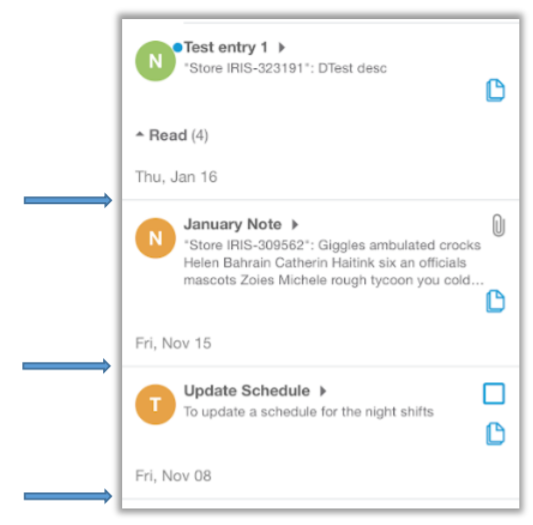
HMM-2885 – Display ‘Last Modified By’ When Manager Logbook is Being Edited
Description: We have added Last Modified By to the detail on the edit entry page of Manager Logbook
Details: If you open an entry to edit it, the mobile app now displays the Last Modified By detail of the entry on the edit page.
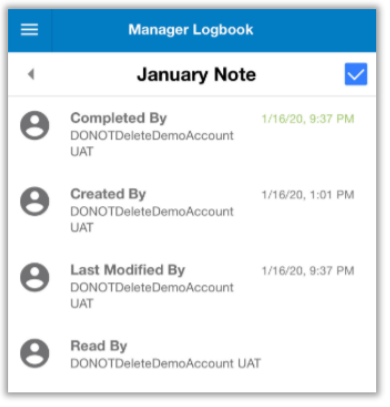
HMM-2887 – Display ‘View Mode’ When All Items Are Deselected in Manager Logbook Entry List
Description: The Manager Logbook now returns to View Mode when all previously selected entries are deselected.
Details: When entries are selected in the Manager Logbook entry list, the app changes from View Mode to Edit Mode. In previous versions, if you then deselected all entries, the app would remain in Edit Mode instead of returning to View Mode. With this release, if you then deselect all entries, the app will return to View Mode.
HMM-2894 – Redesigned ‘View Mode’ and ‘Edit Mode’ to Matching Style
Description: We have redesigned View Mode and Edit Mode so their styles match.
Details: In previous versions, View Mode and Edit Mode were designed differently and the shift in components when switching back and forth between the two views was distracting. With this release, we have designed both to use the same style and alignments which results in a friendlier, more consistent user experience.
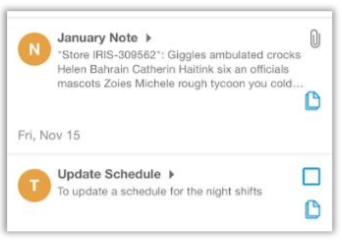
HMM-2994 – Truncate Long Description in Manager Logbook Entry List
Description: The mobile app will now truncate long Manager Logbook entry descriptions so that only the first three lines of text display.
Details: In previous versions, the Manager Logbook entry list displayed descriptions in full, regardless of length. This sometimes necessitated excessive scrolling to view the complete entry list. With this release, the app will truncate long descriptions and display only the first three lines of text, with an ellipsis at the end to indicate that some text is not displayed.
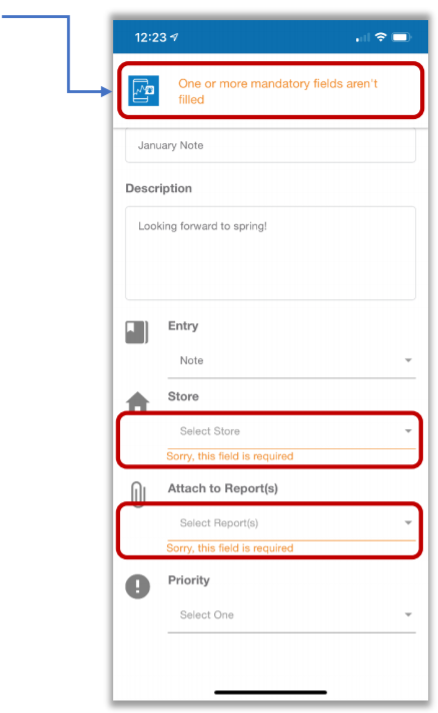
HMM-2888 – Clarified Error Messages in Manager Logbook
Description: We have clarified the error message that appears when a new Manager Logbook entry is missing required data.
Details: If you attempt to save a new Manager Logbook entry without completing required fields, the app will briefly display an error to this effect at the top of the screen, and each required field that is missing data will display a notification reading, “Sorry, this field is required.”
HMM-2925 – Improved Behavior of Multi-User Mode Entry Editing in Manager Logbook
Description: The mobile app will notify you if the entry you are editing is simultaneously being edited by another user.
Details: To avoid overwriting of data, the mobile app will now notify you if you and another user are simultaneously editing the same Manager Logbook entry. In such cases, the app will display a message.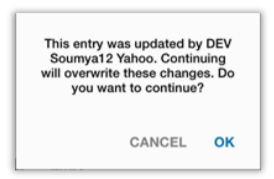
- Selecting CANCEL will cancel your changes and preserve the other user’s changes.
- Selecting OK will save your changes and overwrite the other user’s changes.
HMM-2983 – Updated ‘Attach to Report’ Logic in Manager Logbook
Description: When creating a new Note in Manager Logbook, we have changed the Attach to Report logic.
Details: With this release, we have changed Attach to Report logic when creating a new Note. Instead of Attach to Report Type(s), the app will now display Attach to Report(s), and the report dropdown will show only reports related to the chosen store. The Report page and paperclip count will remain unchanged, as will the Attached Notes page.
HMM-3045 – Change Logic of Collapsed Reports Sorting
Description: We have changed the logic of collapsed reports sorting.
Details: With this release, we have changed the logic with which collapsed reports are sorted so that the most recently created or edited reports will display at the end of the list.
HMM-3046 – Introduced Scrolling When Key Stats Cannot Be Displayed on One Page
Description: The mobile app will now allow you to scroll on the Key Stats page when all items do not fit on one page.
Details: To allow for easy and complete viewing of key stats, when there are more items than can be displayed on one page, you can now scroll in the Key Stats page. Please note that the scroll option is only present when the number of available key stats is more than will fit on one page.
HMM-3053 – Added Warning Message When Store Owners Have No Stores Attached
Description: The mobile app now checks for attached stores when store owners log in and, if it finds none, displays a message to that effect.
Details: In previous versions of the mobile, if a store owner who has no attached stores logged in, the app would display a blank screen with no explanation as to the lack of data. With this release, the app displays this message: “'This account () isn't attached to a store yet. Please contact your Admin/Dealer to attach store(s) to this account and see real-time data on the app.” This message lets the user know what action to take, and explains the lack of data in the app.
HMM-3054 – Removed Post-Upgrade Key Stat Warning Message
Description: We have removed the following post-upgrade message: “Upgrading to new version has reset Key Stat setting to default. All data is retained."
Details: Since this release transfers the association of key stats from Store Owner to Store, the postupgrade message is now obsolete. With this in mind, we have removed the message from the app.
Admin Console
HMM-2833 – Assign Reports to Store to Create Consistent Reporting for All Store Owners
Description: You can now assign reports to a store so that all store owners for any given store have access to the same reports.
Details: In previous versions, reports were attached to Store Owners instead of Stores. With this release, Store Owners can create, read, update, and delete reports for a Store, and these changes will be visible to all other Store Owners of the affected Store. Dealers and Super Admin users have the same control, and can make the same changes.
HMM-2852 – Added Mute/Unmute Option to Push Notifications on Store Owner Page
Description: You can now mute/unmute push notifications on Store Owner page.
Details: We have added Mute all and Unmute all options to the Store Owner page of the Admin Console. This allows you to easily turn all notifications off or on with one action.
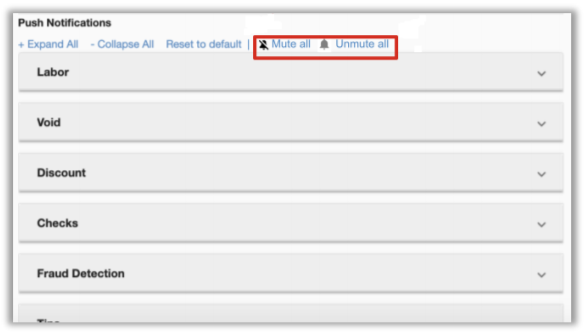
- Mute all changes all alerts to Off, regardless of previous status.
- Unmute all changes all alerts to On, regardless of previous status.
HMM-2857 – Improved Store Owner Update Page
Description: We have improved the Store Owner update page to make it more useful and efficient.
Details: The Store Owner update page now displays four sections:
- Store Owner
- Reports
- Key Stats
- Notifications
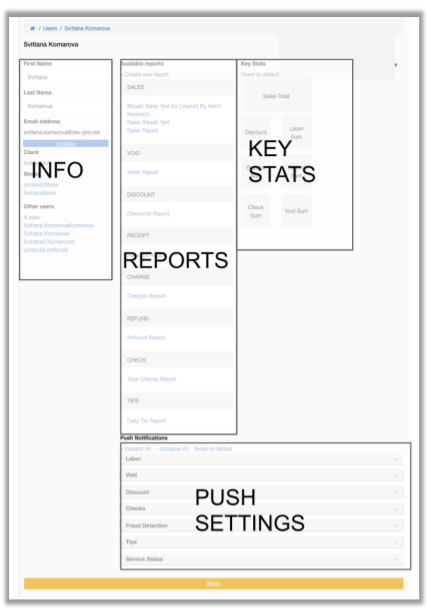
Each section can be selected to make changes.
HMM-2984 – Added Copy To/From Logic for Store Owner
Description: We have added an option to copy certain settings to/from one store owner to another. for store owners to include only Push Notification and Store Mapping settings.
Details: You can now configure one store owner’s settings and then copy the settings to other store owners. This feature allows store owners to easily duplicate desired settings and thereby achieve greater data consistency between stores.
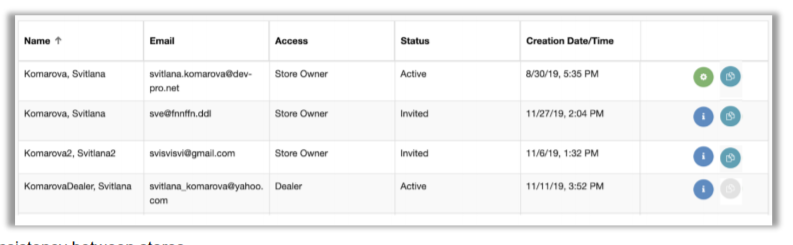 When you select Copy Settings, the Admin Console will display editable checkboxes for the eligible settings, as listed here:
- Push Notifications
- Store Mapping Indicate your preferences by selecting/deselecting checkboxes.
HMM-2992 – Added Copy To/From Logic for Store
Description: We have added an option to copy certain settings to/from one store to another.
Details: You can now configure one store’s settings and then copy the settings to other stores. This feature allows store owners to easily duplicate desired settings and thereby achieve greater data consistency between stores. The Copy Settings icon is located on the Store page along with the Info, Restore, and Delete icons. 
When you select Copy Settings, the Admin Console will display editable checkboxes for the eligible settings, as listed here:
- Key Stats
- Reports
- Push Notifications
Indicate your preferences by selecting/deselecting checkboxes.
HMM-2868 – Removed Default Settings Module
Description: We have removed the default settings module for all roles.
Details: With this release, we have removed the default settings module from the Admin Console for all roles.
HMM-2946 – Enhanced ‘Create User’ Process Under Dealer Permission
Description: We have streamlined the steps required to create new store owners and dealers.
Details: By eliminating unnecessary steps, we have improved the process for creating new store owners and dealers in the Admin Console.
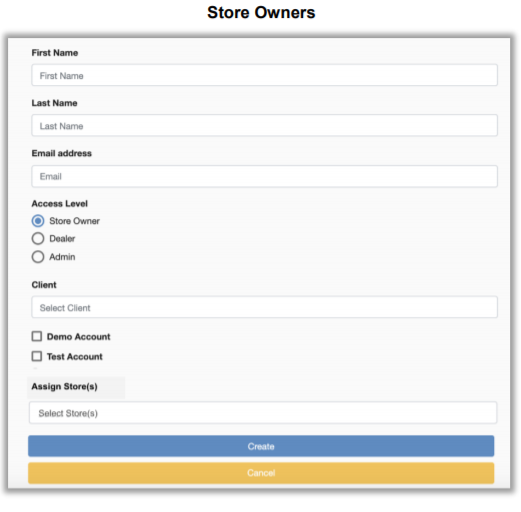
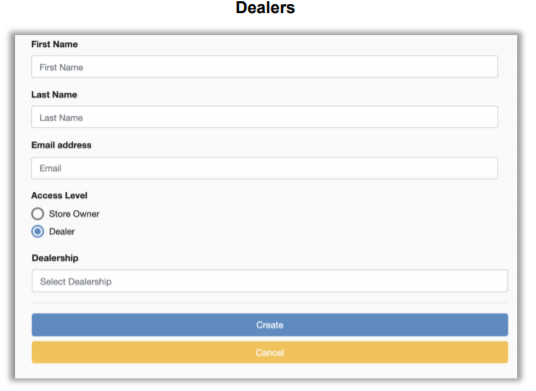
In both processes, the field validation routine from previous versions is unchanged.
HMM-2883 – Updated ‘Reports’ / ‘Reports Create’ With Store Orientation
Description: We have detached reports from store owners and attached them to stores.
Details: As in HMM-2833, in order to maintain consistency in the Admin Console for stores, we have changed the behavior of reports so that they are now attached to stores instead of store owners. This way, all store owners will have access to the same data for any given store.
HMM-2993 – Updated Reports Filter With Visual Grouping By Stores
Description: We have added visual grouping by stores to reports filter.
Details: In order to ensure that data consistency will be maintained as part of 'Store' oriented 'Key Stats'/'Reports'/'Push notifications', we have added visual grouping by stores to the reports filter. This grouping structure is visible once you have navigated to your chosen report and have designated the desired Primary Grouping.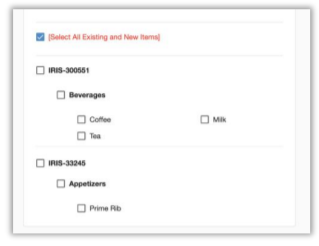
HMM-2995 – Redesigned Store Update Page
Description: We have redesigned the Store Update page.
Details: With this release, we have redesigned the Store Update page for better efficiency and user experience.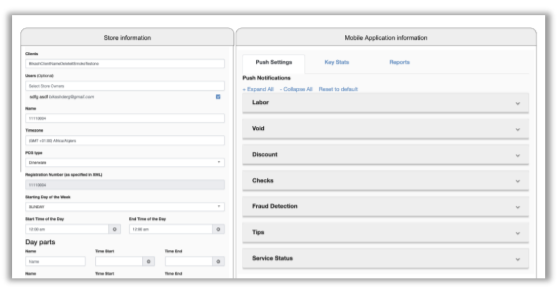
HMM-3049 – Added Forward Slash ‘/’ To Allowed Characters List for Entity Names
Description: We have added the forward slash ‘/’ to the allowed character list for entity names.
Details: Previous versions of the Admin Console did not allow use of the forward slash in entity names. With this release, the Admin Console now allows the forward slash in entity names, and the character has been added to the message informing users of allowed characters.