Overview
This document contains explanation for the following enhancements and updates:
- Mobile App
If you have questions regarding the updates described in this document, please contact Heartland Mobile
Manager Support by email at hmm@heartland.us.
Enhancements
The following release notes detail the enhancements we have included in this release.
Mobile App
HMM-2544 – Added Manager Logbook to Mobile App
Description: We have added a Manager Logbook to the main menu of the mobile app so that you can log things like tasks and notes.

- This function is available for Store Owner role only.
- This function exists only in the mobile app.
Details: To facilitate communication within a business, we have added a Manager Logbook option to the
main menu of the mobile app so that you can easily create and share notes and tasks.
- Notes - Allows you to create notes to record and share general information as desired. Notes can be attached to reports.
- Tasks - Allows you to create and track tasks and, if desired, assign target completion dates. All logbook entries sync in real time so that you can easily see updates.
HMM-2570 – Added Copy Function to Existing Manager Logbook
Description: You can copy Manager Logbook entries.
Details: To avoid having to manually create notes or tasks with commonly used aspects, you can copy existing entries and make necessary changes before committing.
HMM-2577 – Added Editing Ability to Existing Manager Logbook Entries
Description: We have added an option to edit existing Manager Logbook entries.
Details: You can edit existing Manager Logbook entries by clicking the ellipses icon symbol next to the
entry in the logbook list. Doing so opens a new page for the entry, and displays details. From this screen, simply make desired changes and select Save. Alternately, if you wish to discard your changes, select Back to return to the list of entries without saving.
HMM-2582 – Added Option to Add Comments to Existing Manager Logbook Entries
Description: We have added the option to add comments to existing Manager Logbook entries.
Details: You can add comments to existing Manager Logbook entries by clicking the ellipses icon
symbol next to the entry in the logbook list. Doing so opens a new page for the entry with a Comments box. Enter desired comment in the box and select Add Comment.
- The Add Comment button will only activate after one or more characters have been entered in the text box.
- Comments can be edited and deleted only by the original author.
- By default, comments are sorted chronologically, with the most recent comment first.
HMM-2590 & HMM 2591 – Added Paperclip Label to Show a Report’s Number of Attached Notes, Ability to View Attached Notes
Description: We have added a paperclip label to indicate the number of notes attached to a report.
Details: Affected reports in the mobile app now display a paperclip icon with a number indicating how
many notes are attached. Selecting this icon opens a list of attached notes. A back arrow on the list page
returns you to the report.
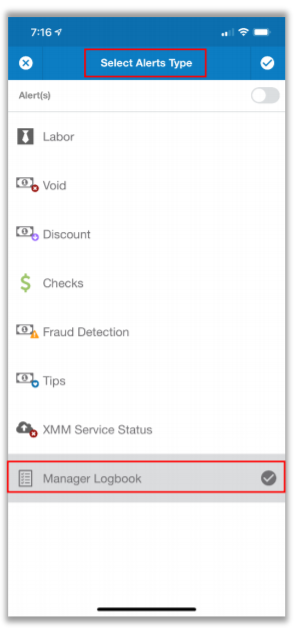
HMM-2571 – Added Push Notifications for Manager Logbook
Description: We have added push notifications for a wide scope of
actions in the Manager Logbook.
Details: With the addition of the Manager Logbook, we also
introduce corresponding push notifications so that you can easily see
additions and changes to the logbook. You can enable notifications for the
following Manager Logbook actions:
- New task or note created: Push notification will include a date/time
stamp and the name of the person who created the entry. - Comment added to existing entry: Push notification will include a
date/time stamp and the name of the person who commented. - Task marked as complete: Push notification will include a date/time
stamp and the name of the person who completed the task. - Incomplete task is within one day of the target completion date:
Unless a task has already been marked as complete, push notification
will be sent at 7 AM the day before the target date, and will indicate
that the task is due tomorrow. - Entry is read: Push notification will include a date/time stamp and the
name of the person who read the entry.
All notifications will be sent to only designated persons. Clicking a
notification will take you to the associated entry’s details.
HMM-2822 – Refined Push Notification Trigger for Tasks Within One Day of Target Date
Description: We have improved the behavior of target date push
notifications.
Details: Push notifications for tasks within one day of target date will only be triggered if the associated task is not yet marked complete.
HMM-2622 – Defined Roles and Permissions for Manager Logbook
Description: Roles and permissions in Manager Logbook are dependent on user type.
Details: Roles and permissions in Manager Logbook differ depending on which user type is assigned.
Only “Store Owners” have access to Manager Logbook and can view, edit, and delete all notes and tasks.
Comments can be deleted only by the person who created it.
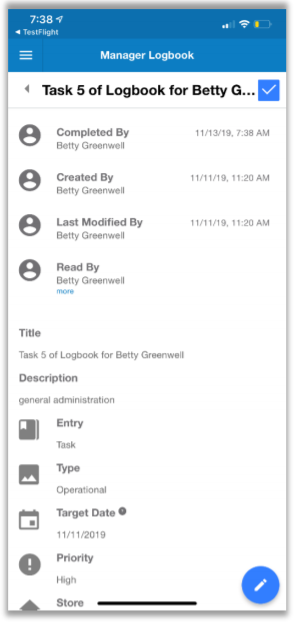
HMM-2572 – Added View Details Option to Manager Logbook Entries
Description: We have added an option to view details for existing Manager Logbook entries.
Details: You can view details for existing Manager Logbook entries by clicking the ellipses icon symbol
next to the entry in the logbook list. Doing so opens a new page for the entry, and displays the following details:
- Created By
- Last Modified By
- Read By
- Completed By
- Description
- Entry Type
- Priority
- Stores
- Attached to Reports\
A back arrow in the upper left corner of the page will return you to list of all logbook entries.
HMM-2628 & 2670 – Added Icons to Indicate Real-Time
Status of Entries Listed in View Mode
Description: Manager Logbook displays status icons on entries list
view.
Details: To facilitate quicker, more convenient identification of
an entry’s status, the Manager Logbook displays icons along with listed
entries.
- A blue dot indicates a NEW and UNREAD entry.
- A triangle with an exclamation mark indicates priority, with each priority having a unique color.
- A paperclip indicates that the entry is attached to a report.
- A counter indicates the number of attached notes.
- A copy icon allows you to copy an entry.
- A marked checkbox indicates a completed task.
- A speech bubble icon indicates one or more comments have been made.
- An orange dot replacing any of the above icons indicates that the affected component of the entry is being updated by another user.
The icons listed with entries in Manager Logbook update in real time so you can immediately see updates and changes, even as the changes are being made. For example, if someone else comments on one of your entries, you can view the comment immediately
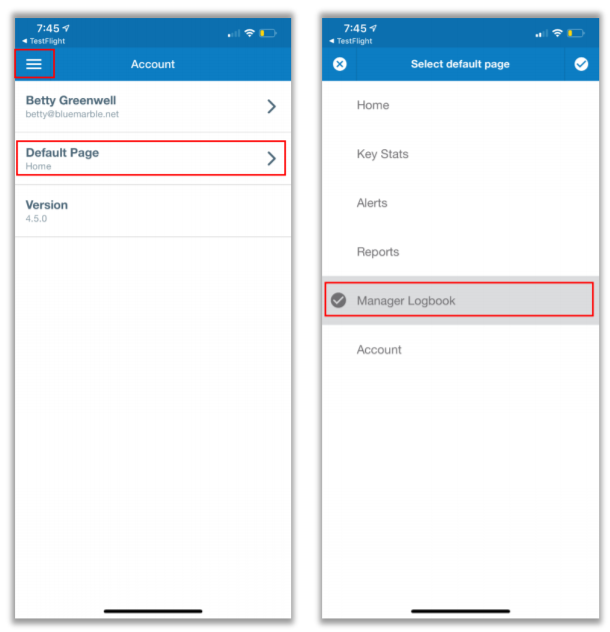
HMM-2573 – Added Option to Set Manager Logbook as Home Page in Mobile App
Description: You can set Mobile Manager to display the Manager Logbook as the default page.
Details: We have added the option to set your default landing page in the mobile app. To do this, once
you are logged into the mobile app, go to Accounts, select the Default Page tab, and select Manager
Logbook from the list.
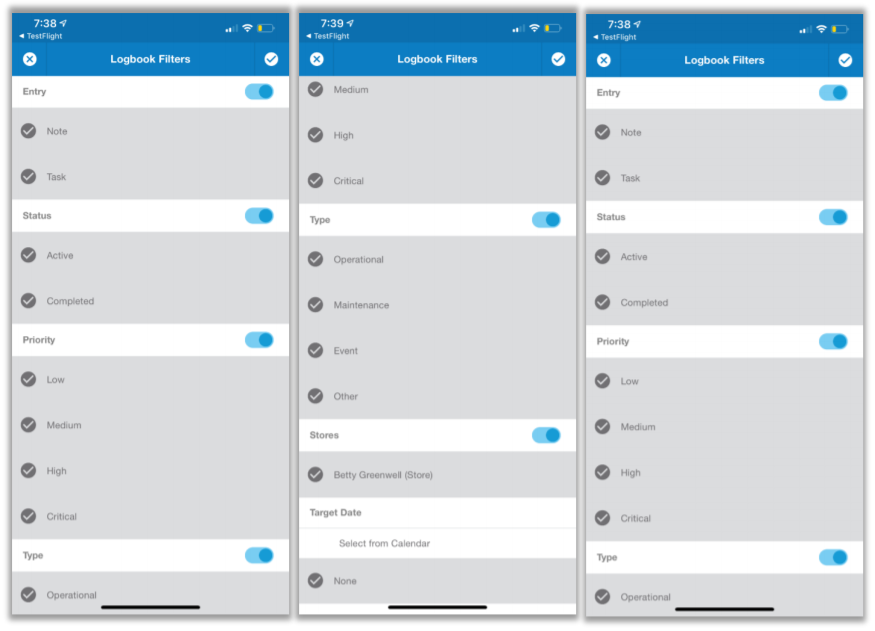
HMM-2584 – Added Filtering to Manager Logbook View
Description: We have added a filter to the Manager Logbook view.

Details: You can filter entries in Manager Logbook view so that it shows only entries matching your
criteria. Available filters include Entry type, Created by, Status, Stores, and Target Date.
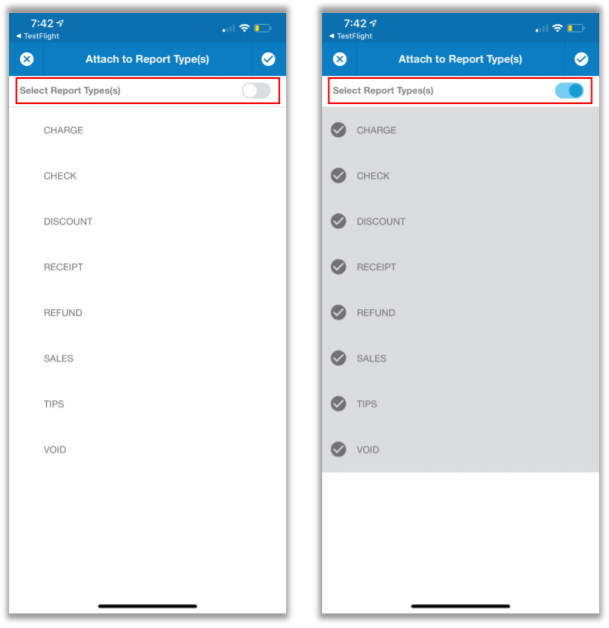
HMM-2639 – Added Select All / Deselect All Toggle to Mobile App Pages
Description: We have added the ability to select all or deselect all to pages in mobile app.
Details: You can now select all or deselect all in the mobile app on the following pages:
- Manager Logbook filter list page
- Key Stats page
- Reports page
- Alerts Store page
- Alerts Type page
This feature eliminates the need to select/deselect each entry individually.
HMM-2640 – Added Search to Manager Logbook View
Description: We have added an option to search existing Manager Logbook entries.
Details: You can edit use search criteria to find matching Manager Logbook entries by typing desired value in the Search box. The program will find entries with matching title or description elements. You can search by as few as one character, but there is no maximum constraint.
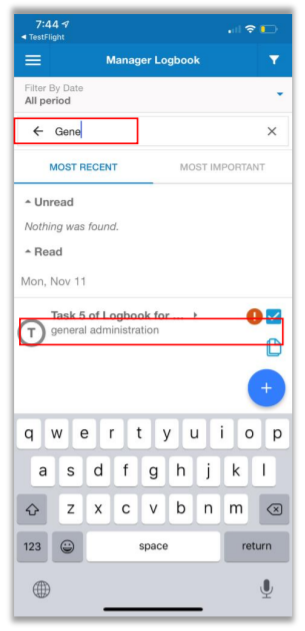
- The Search box displays in view mode.
- The Search box does not display in select mode.
- If no matching entries are found, the program will display a message reading, “Nothing was found.”
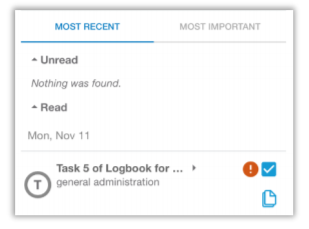
HMM-2641 – Added Read/Unread Selection to Manager Logbook View
Description: We have added Read and Unread headings to the Manager Logbook view.
Details: We have added Read and Unread headings to the Manager Logbook view. Unread items display first so that they will receive more attention.
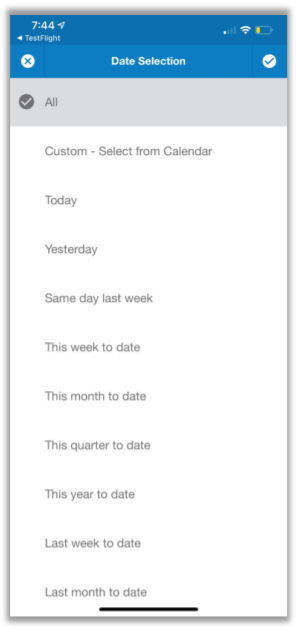
HMM-2642 – Added Date Filter to Manager Logbook View
Description: We have added an option to filter existing Manager Logbook entries by date.
Details: You can filter existing Manager Logbook entries by date. The program will display a calendar so you can make your selections. As well as selecting a specific date range, you can choose from the following options:
- All
- Today
- Yesterday
- Same day last week
- This week to date
- This month to date
- This quarter to date
- This year to date
- Last week to date
- Last month to date
- Last quarter to date
- Last year to date
- Last week
- Last month
- Last quarter
- Last year
HMM-2762 – Added Option to Clear Target Date When Creating, Cloning or Editing Manager Logbook Entries
Description: We have created a Clear option to the Manager Logbook date selection calendar.
Details: When creating, cloning, or editing a Manager Logbook entry, you can easily clear the selected
date in the date selection calendar by tapping the Clear button. This will empty the target date field.
HMM-2643 – Changed Behavior When Creating New Notes in Manager Logbook to Facilitate Attaching to Reports
Description: We changed behavior when creating a new note to facilitate attaching to reports.
Details: We have added the option to attach a new note to a report as you are creating the note.
HMM-2646 – Added Cancel / Discard Option When Adding New Entry in Manager Logbook
Description: Cancel and discard options are now present on the new entry creation page in Manager Logbook.
Details: If, while on the New Entry page of Manager Logbook, you click the X without saving your
changes, the app will prompt you with the question, “Are you sure you want to discard the changes?”
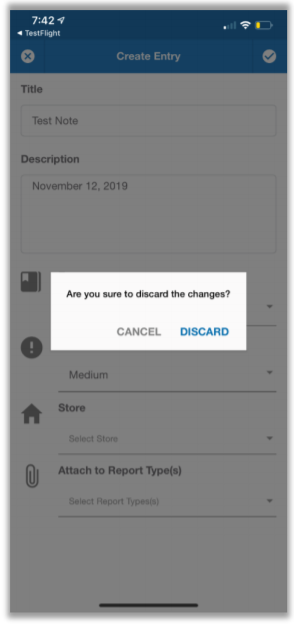
Selecting Cancel closes the prompt and returns you to the New Entry page to continue where you left off.
Selecting Discard closes the prompt, discards changes, and returns you to the list of existing entries.
HMM-2638 – Changed Button Style of Alert Cancel Button
Description: We have made the font on the Cancel button gray and bold in all suitable pages of the app.
Details: In all pages with alerts where a Cancel button is present, we have set the font to gray and bold.
HMM-2645 – Added Task Entry Option to Manager Logbook
Description: We have added a task entry type to Manager Logbook.
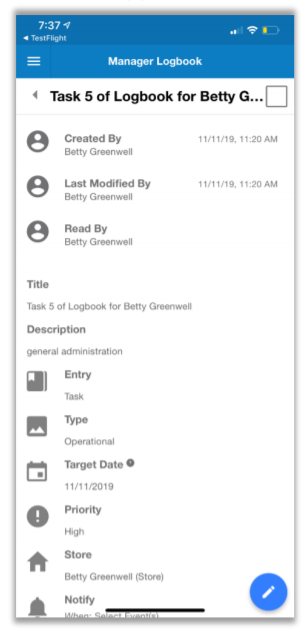
Details: You can now create Task entries in Manager Logbook, and assign them to users. You can assign each task a priority (critical, high, medium, low) and a target completion date, as well as track the task’s status. If desired, you can set alerts to notify you of task status changes.
HMM-2647 – Added Sorting by Priority and Creation Date to Manager Logbook View
Description: You can now view Manager Logbook entries in descending order by creation date or priority.
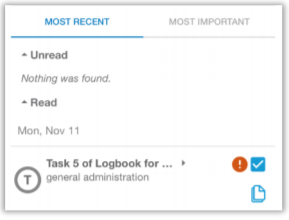
Details: We have added Most Recent and Most Important tabs to the Manager Logbook. Both tabs sort entries in descending order so that you will see the most recent and most important items first.
HMM-2648 – Added Icons to Selected Mode in Manager Logbook to Facilitate Common Actions
Description: The Manager Logbook features icons for common actions.
Details: To facilitate common actions, we have added icons to Selected Mode in Manager Logbook. Actions accessible via these shortcuts include:
- Counter
- Copy (displays only when a single item is selected)
- Mute notifications
- Delete (displays confirmation prompt)
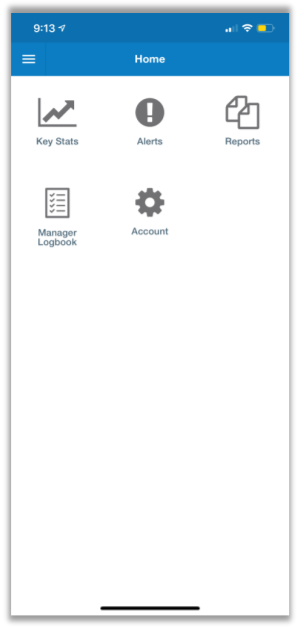
HMM-2667 – Added Icon to Manager Logbook on Home Page
Description: We have added an icon to the Manager Logbook on the home page.
Details: We have added a logbook icon to the Manager Logbook option on the mobile app home page to make it more easily identifiable, and to be more consistent with the appearance of other home page options.
HMM-2792 – Implemented Uniform Font Size for Date Filter Title Across All Pages
Description: We have made uniform the font size for the mobile app’s date filter across all pages.
Details: In previous versions, the date filter title’s font size varied among various pages. With this
release, all such titles display in consistent size across all pages.
HMM-2749 – Added Ability to Collapse/Expand Text Fields in Manager Logbook View
Description: You can expand and collapse Manager Logbook entry descriptions. The Admin Console now
displays information for deleted entities when you hover over the Info icon.
Details: By default, Manager Logbook displays only the first two lines of any entry descriptions. If there
is more text to display than fits in this restraint, it will display an ellipses icon followed by “more” indicating there is more text than is currently displayed. To expand, simply click in any area of the text zone, and the description will display in its entirety with an ellipses icon and “less”. To return to collapsed view, click again in any area of the text zone.
HMM-2781 – Added Alert Icon to Target Date When More Than One Time Zone is Involved
Description: The Manager Logbook now displays an exclamation mark alert icon to indicate time zone
differences between the user’s time zone and that of the entry’s store.
Details: To avoid confusion when time zone differences between user and Manager Logbook entry’s
store come into play, we have added an exclamation mark alert icon that, when selected, displays the pertinent time zone information