Overview
This document contains explanation for the following enhancements and updates:
- Mobile App
- Admin Console
If you have questions regarding the updates described in this document, please contact Heartland Mobile
Manager Support by email at hmm@heartland.us.
Enhancements
The following release notes detail the enhancements we have included in this release. We have divided
the updates by project area.
Mobile App
HMM-450 – Filter Alerts by Type and Date
Description: In the mobile app, you can now filter alerts by alert type and date.
Details: At the top of the Alerts screen, we have added the Filter by Type list and the Filter by
Date list. If you tap the Filter by Type list, the app will display the Select Alerts Type screen, with a list of
the following alert types: Labor, Void, Discount, Checks, Fraud Detection, Tips, and HMM Service Status.
If you tap one of the alert type options, the app will only display alerts of that type in the Alerts screen. If
you tap the Filter by Date list, the app will display the Date Selection screen, with a list of time range
options, such as Today, Yesterday, Same day last week, and so on. If you tap one of the date range
options, the app will only display alerts that occurred within the selected date range in the Alerts screen.
HMM-455 – Force Immediate Log-Out of Deleted Store Owners or Admins
Description: The mobile app will automatically log out deleted store owners or admins.
Details: The mobile app will now log out Store Owners and Admins whose accounts have been
deleted, thereby preventing them from viewing sensitive data. The app will notify the user that their
account has been deleted and will redirect them to the Mobile Manager App log-in page.
HMM-624 – Allow Dismissal of Push Notifications in Mobile App
Description: The mobile app will allow users to dismiss Push Notifications by swiping right or left.
Details: In previous versions of the mobile app, users were required to open each Push
Notification before proceeding with any other actions within the app. With this release, users can now
swipe to dismiss these notifications, and continue to work within the app.
Admin Console
HMM-175 – Display User's Email Near the User Name
Description: You can now view user’s email address on all pages.
Details: In previous versions of the Admin Console, when viewing users on Stores page, Stores
Setup page, Reports page, and Reports Setup page, you couldn't differentiate between users of the same
name without clicking into their details. In this version, the program will now display user’s email
addresses when the cursor hovers over the user’s name.
HMM-451 – Filter Entities by Status
Description: In the Admin Console, you can now filter all entities by status.
Details: You can now filter entities by status in order to facilitate faster searching. By default, the
program will display entities with “Active” status on any given page upon opening. You can select “All” to
display all statuses within a given entity, or narrow results by selecting a single status, such as “Deleted”
or “Purged”.
HMM-452 – Additional Detail on all Entity Pages
Description: In the Admin Console, we have added sortable columns of data to all entities.
Details: We have added the following columns to Users, Clients, Stores, Reports, and Dealership
pages: "Created Date/Time", "Updated Date/Time", "Created by" and "Status. You can sort these
columns by clicking the sort icons in the column headings. We have also fixed an issue that prevented
horizontal scrolling by adding a horizontal scroll bar so that you can navigate to columns that are not
visible.
HMM-542 – Allow Editing of Default Settings for Labor Push Notifications
Description: Users can now edit Default Settings for some Labor Push Notifications.
Details: In previous versions of the Admin Console, users had to edit default settings for all Labor
Push Notifications in Store setup page. With this release, you can now edit Labor Push Notifications for
the following events via Default Settings:
- If an employee has a continued shift of more than a specified number of hours without a break.
- If an employee is approaching weekly overtime in a specified number of hours within 40 hours.
As with previous versions, you must go to Store setup to edit the Labor Push Notifications settings for the
following events, and the program will display messages to that effect:
- If labor percentages fall outside a specified range.
- If an employee clocks out after a specified hour.
HMM-550 – Notify Dealer When Store is Deleted or Restored
Description: The Admin Console will now send dealers notifications when stores are deleted or
restored.
Details: In previous versions, the Admin Console only notified dealers when a new store was
created. With this release, the Admin Console also sends notifications for when stores are deleted or
stored, informing dealers immediately of such status changes.
HMM-1629 – Improve Behavior when Creating New User in Store Setup
Description: We have improved the behavior of the Admin Console when a new user is added in Store
Setup.
Details: We have simplified the process of adding a new user in Store Setup, and have added a
confirmation prompt so that the dealer can be sure that the new user was created.
- Add new user by entering First Name, Last Name, and Email, then click the green check to confirm.
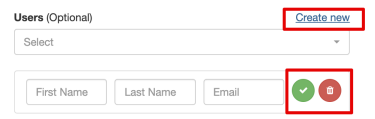
- Click the Update button. The user will be created with “Invited” status.

The program will now display a confirmation message, “User Joe Frank – joe.frank@email.com
Successfully Created. The user will be activated once he/she responds to the email invitation from
Heartland Mobile Manager to create a password for the account.”
Updates
The following release notes detail the updates we have included in this release. We have divided the
updates by project area.
Mobile App
HMM-64 – Clarify Validation Notifications (Log-In / Password Reset)
Description: We have improved the way Mobile Manager validates and responds to data entered at
Log-In and Password Reset screens.
Details: In previous versions, the Mobile Manager app was displaying inaccurate messages when
users entered erroneous values into user and/or password fields. In some cases, this prevented the user
from correcting the errors and trying again. In the current version, the app now validates values entered,
requires both fields to contain data, and enforces a standard email format (user@company.com). When
errors are detected, the app displays a message specific to the error, and offers the user an opportunity
to correct the error and try again.
HMM-445 – Display Composite Values in Key Stats Drill-Downs
Description: The mobile app now uses a single method of displaying composite values in the Key
Stats screen.
Details: We have modified how the mobile app displays composite values in the Key Stats screen. In previous versions, the app may have separated the labels and totals of composite values differently in different key stats. In some stats, the app would separate the labels and the totals with two separate slashes (“/”), while in other stats, the app would group a label and its totals and separate the group from another group with a single slash. We have modified the app to use a single consistent method of displaying composite values, grouping each label with its total and separating them with a single slash.
HMM-605 – Exclude Voided Refund Transactions from Refunds in Key Stats
Description: We now exclude Voided Refund Transactions from the Refund screen in Key Stats.
Details: In previous versions of the mobile app, Key Stats included Voided Refund transactions in
all screens. With this version, we have removed these transactions from the Refund screen of Key Stats
since they are of $0.00 value. The app will continue to include these transactions in the Sales, Void, and
Receipt screens of Key Stats.
Admin Console
HMM-300 – Clarify Error Message when Updating Key Stats Values
Description: We have improved the way the Admin Console validates and responds to data entered in
Key Stats values.
Details: In previous versions of the Admin Console, when users tried to update Key Stats using
invalid values (such as a blank name, or an invalid selection from a list), the program displayed an
unclear message after the “Update” button was clicked. With this release, we have replaced the unclear
message with one that is easily understood ("This field is required.") so that errors and omissions may be
corrected.
HMM-306 – Display 'Name' and 'Email ID' in Confirmation Prompts
Description: The program now displays name and email ID in confirmation prompts when entities are
created, updated, or deleted.
Details: In previous versions, when you created, edited, or updated entities, the Admin Console
displayed generic confirmation messages in that it only identified the type of entity (user, client, store,
report, dealership) being created, updated, or deleted (“Are you sure you want to update this user?”) In
this version, the confirmation prompt includes the specific name of the entity being manipulated (“Are you sure you want to update Joe Frank (joe.frank@company.com)?”).
HMM-377 – Multi-Selection Functionality for Users in Store Setup
Description: The program now allows you to multi-select when adding users to a store.
Details: In previous versions of Admin Console, you were able to add only one user at a time to
any given store, and you were required to click “Add User” for each user you wished to add. We have
improved this process by allowing you to multi-select users from the list of existing users when adding to
stores, thereby adding all desired users in one process.
HMM-398 – Display 'Day Parts is outside of 'Date Time Range'' as Info Message
Description: We have changed the color of the “Day Parts is outside of ‘Date Time Range’” message
from red to blue.
Details: In previous versions of Admin Console, the message displayed in red when the time
range for a day part fell outside of the date/time range. Red messages usually indicate an error that must
be corrected before saving changes. Since this message is merely information, we have changed it so
that it now displays in blue.
HMM-447 – Validate User Name when Creating a Store
Description: The Admin Console now validates User Name data when a new store is created.
Details: In previous versions, the Admin Console did not search/validate User Name when creating a new store. The result was that, if you entered a non-existent user, the program would create store, but not the user. With this release, the program now searches and validates data entered in the User Name field and, if it does not find a match, it displays “Create New” so that you can easily add the user.
HMM-638 – Change Behavior when Adding New User in Store Setup
Description: We have added a “Create user” option to Store Setup page.
Details: In previous versions of the Admin Console, the process for creating new users in Store Setup required you to scroll down to the bottom of the screen to click the Update button. With this release, we have simplified the process by adding a “Create user” option.
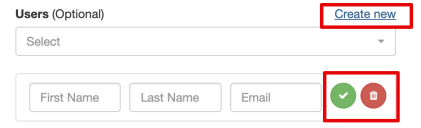
Once you have entered the required values, you simply click the green check to save, and the user will be created with “Invited” status.
HMM-642 – Improve Validation of Client, User, Report and Key Stat Names
Description: We have changed the way the Admin Console validates data entered for Client, User, Report, and Key Stat names.
Details: Previously, Admin Console did not allow last names with fewer than three letters. As well, it did not verify or limit the length of values entered for Report and Key Stat names. With this version, all such name fields must adhere to the following rules:
- This field is required.
- This field must contain at least characters.
- This field must contain no more than characters.
- Only the following characters are allowed: a-z A-Z 0-9 & % $ # - _ . : , ( ) ` " '
The program will display an appropriate message when requirements are not met.