Overview
This document contains explanations for the following enhancements and updates:
- Mobile App
- Admin Console
If you have questions regarding the updates described in this document, please contact Heartland
Mobile Manager Support by email at hmm@heartland.us.
Enhancements
The following release notes detail the enhancements we have included in this release. We have
divided these by project area.
Mobile App
Improved Splash Screen When Loading App
With this release, we have enhanced the splash screen by resizing the logo to suit the current device,
and by streamlining the loading process.
Added ‘Approval Requests’ Notification Type
With this release, we have added a new notification type for the newly added Approval Requests.
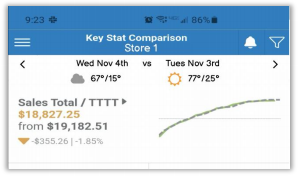
Reflect Current Weather Data in Key Stats
Since weather often factors into sales, the mobile app now includes weather data in Key Stats. This allows you to easily see any such correlation when viewing historical data.
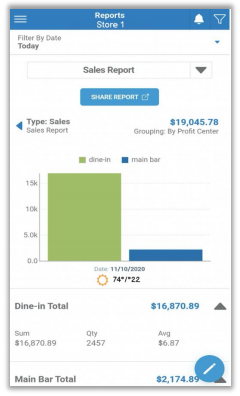
Reflect Current Weather Data in Reports
Since weather often factors into sales, the mobile app now includes weather data in Reports. This
allows you to easily see any such correlation when viewing historical data.
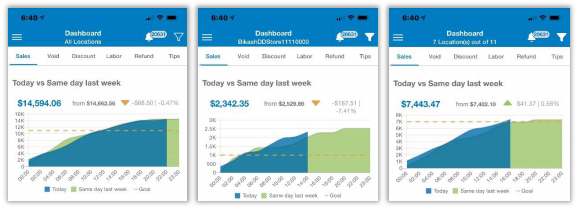
Improve Store/Location Heading When Filtering
We have improved the way the mobile app displays location information when using the filter. If you
have filtered to a single store, that store’s name will display. If you have filtered in a manner to include
more than one store but not all stores, the heading will read to that effect; for example, “7 Location(s)
out of 11”.
Removed User Agreement Screen
To eliminate unnecessary steps, we have removed the User Agreement screen from the mobile app.
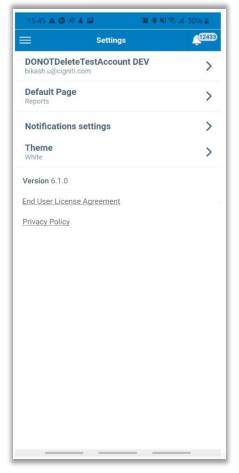
Added Privacy Policy & EULA to Settings Page
So that users can easily view the privacy policy and EULA at will, we have added access to these to
the Settings page of the mobile app.
Implemented ‘What’s New’ When Loading App
With this release, the mobile app now displays ‘What’s New’ slides upon loading for the first time after
an update. These slides inform users of new features and enhancements to the app by version. Users
can either select Next to scroll through and view the slides, or they can select Skip All to bypass the
slides and proceed to the app.
Implemented ‘LIVE’ Module
So that users may easily view current online sales data related to their stores and thereby keep a
finger on the pulse of sales activity, we have implemented a ‘LIVE’ module. This page displays
location information for all stores associated with the current user, along with weather and sales totals
for the current day, as defined by ‘start day’ and ‘end day’ values.
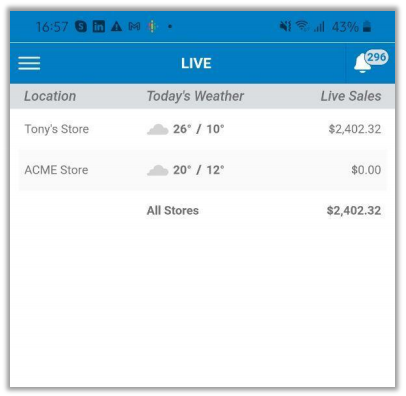
- The sales total is calculated as for Key Stats, and will automatically update at least every ten
seconds. - The weather will display for sites with the necessary location information (time zone and zip
code), and will automatically update every three hours.
Added ‘LIVE’ to Sidebar Options
So that users can easily navigate to the ‘LIVE’ page, we have added it to the top of the Sidebar
screen menu.
Added ‘LIVE’ to Default Page Options
As with several other pages in the mobile app, you can now set the ‘LIVE’ page as your default
landing. To do so, from the Sidebar menu, tap Settings, Default Page, then LIVE.
Implemented Checks Drill-Down in ‘LIVE’
Along with the LIVE module, we have added the option to drill down to view individual checks. To do
so, simply tap a row on the LIVE page, and the app will open the ‘All Checks’ page showing the
following components:
- A back button which returns the user to the LIVE page
- The store name and total value of sales
- A list of all checks, including check number, check total, staff person, and time
Improved Reports Layout
With this release, we have improved the ‘Reports’ screen layout by removing duplicate report and
grouping titles, and enhancing the background color of the rows. As well, the report column headings
for 'Approval Requests' are now titled ‘Time’ and ‘Event’.
Improved ‘Update Password’ Screen Behavior & Layout
We have improved the layout and behavior of the ‘Update Password’ screen for a more user-friendly
experience.
Added Back Button to Notifications Settings Screen
We have added a back button to the ‘Notifications Settings’ screen so that users can more easily
navigate.
Added Search Functionality in Key Stats Check View
With this release, we have added search functionality to the Sales Total check view page of Key
Stats.
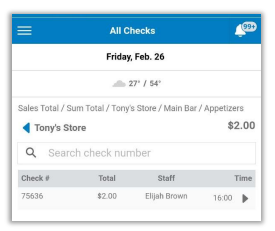
To use this feature, simply type desired characters in the search field and Mobile Manager will
automatically filter the list to include only checks whose numbers include the specified characters.
Implemented Non-Graph / Graph Tab in Key Stats
With this release, we have added the option to toggle between non-graph and graph data
representations in Key Stats.

The non-graph data displays on the left tab and the graph data on the right.
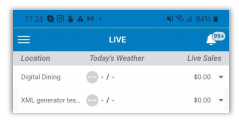
Show Cutty Number for Unread Notifications
In cases where the number of unread notifications is 100 or greater, Mobile Manager now displays
‘99+’ to represent those numbers.
Implement Heat Map in LIVE Page
With this release, we introduce a heat map on the LIVE page, indicating sales volume for each store,
broken down by hour.
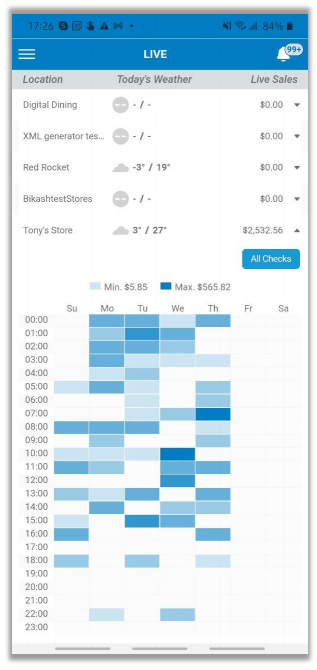
Mobile Manager displays only defined business hours for any given store. For example, if a store is
open from 8AM to 10PM, the heat map grid will include rows for only those hours. You can tap
individual boxes on the heat map to view sales detail for the hour it represents.
Remove Release Notes from New Version Notification
In previous versions, Mobile Manager displayed release notes along with the new version notification
and update prompt. Since this is redundant, we have removed the release notes from the notification.
Allow Expansion of Store Rows in LIVE Page
You can now expand and collapse store rows in the LIVE page.
For users with multiple stores associated with their account, the LIVE page will show a collapsed list
of their stores with down-pointing triangles on the right side of each entry. To expand a store, tap the
down-pointing triangle. Mobile Manager will then display the heat map for that store as described in
HMM-5916 and the triangle will reverse to point up. To collapse a store, tap the up-pointing triangle.
You can expand multiple stores simultaneously.
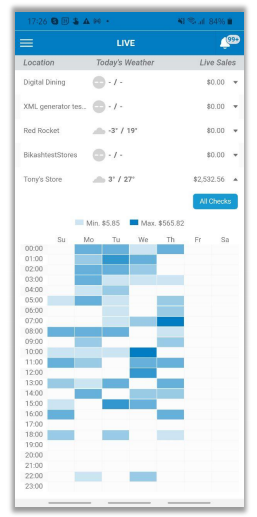
For users with only one store, the LIVE page will display an expanded view of the store by default,
with an up-pointing triangle on the right side.
Implement Info Toast for LIVE Heat Map
With the introduction of the heat map, we have also implemented the ability to view sales detail for
any hour displayed in the grid. To do so, simply tap the desired cell and Mobile Manager will display a
toast message at the bottom of the screen including all relevant information for the selected hour.
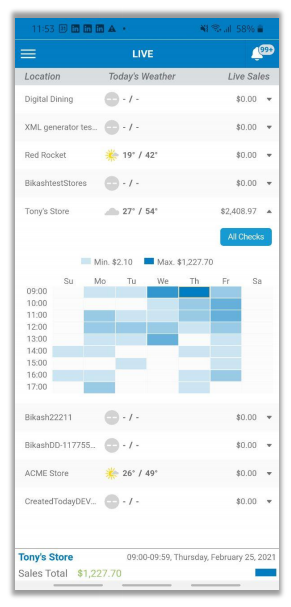
Selected cells are highlighted in white until the toast message disappears.
Do Not Display ‘All Stores’ on LIVE Page for Single-Store Users
Since it serves no purpose and may cause confusion, we have removed the ‘All Stores’ heading from
the LIVE page for users with only single stores.
Enforce Unique Salesforce Identifiers
To ensure that there are no conflicts between Mobile Manager and Salesforce, Mobile Manager now
enforces unique values for the following Salesforce identifiers:
- SalesForceID
- Dealer Salesforce ID
- Client Salesforce Identifier
Implement ‘All Checks’ Button in LIVE Page
We have added an All Checks button to expanded store display on the LIVE page so uers can easily
navigate to the ‘Notifications Settings’ screen so that users can more easily navigate to and view
checks.
Show Collapsed Checks on LIVE Page
Mobile Manager now shows a collapsed check list on the LIVE page with the total sales value in the
upper right corner, and including each check’s check number and subtotal.
Mobile App + Admin Console
Added New Report Type for ‘POS Alerts’
We have added new report type to the Admin Console and mobile app to show activity related to the
newly added POS Alerts. Please note that this feature is currently only supported by Mobile Manager
and not by POS.
Added New Report Type for ‘Approval Requests’
We have added new report type to the Admin Console and mobile app to show activity related to the
newly added Approval Requests. Please note that this feature is currently only supported by Mobile
Manager and not by POS.
Added Date to Time Column in Reports
Along with the time of day, we now include the date in the time column of reports.
Admin Console
Increase Allowable Purge Time to 366 Days
In previous versions, the Admin Console allowed you to purge data for up to only 45 days. With this
release, you can now purge data for as many as 366 days.
Added Zip Code Field to Store Page
To accommodate the zip code for stores with Salesforce IDs, we have added a zip code field to the
Store page of the Admin Console.
Added Country Field to Store Page
To accommodate country data for stores with Salesforce IDs, we have added a country field to the
Store page of the Admin Console.
Added Privacy Policy & EULA to User’s Profile Page
So that users can easily view the privacy policy and EULA at will, we have added access to these to
the Profile page of the Admin Console.