Overview
The current Milestone release contains updated versions of the following components:
- Admin Console
- Mobile App
If you have questions regarding the updates described in this document, please contact Heartland
Mobile Manager Support by email at hmm@heartland.us.
Enhancements
The following section includes detailed descriptions of the enhancements included in this Milestone:
Admin Console
Display List of Assigned Stores and Dealership on Client Update Page
To provide more information and facilitate more efficient navigation, the Admin Console now lists
assigned dealership and stores on the Client Update page.
- Active assigned entities are displayed in blue font.
- You can click active assigned entities (stores and dealership) to view their pages.
- Deleted stores are displayed in gray, strike-through font, and are not clickable.
- If the client has no dealership or stores assigned, the Admin Console will display a message
indicating this.
Show Message on Key Stats and Reports if Store Owner Is Not Assigned
As in the mobile app, the Admin Console now displays a message on Key Stats and Reports pages
informing store owners if their account is not yet assigned to any stores, and instructs them how to
correct this. (“This account isn't attached to a store yet. Please contact your Admin/Dealer to attach
store(s) to this account and see real-time data on the app.”).
Added Highlighting to Primary Grouping Totals in Report Tables
To clarify and better highlight report groupings and totals, we have added bold font to totals for all
primary groupings, and have thickened the borders that separate these groupings.
Upgraded Store Owner Page with Device Layout
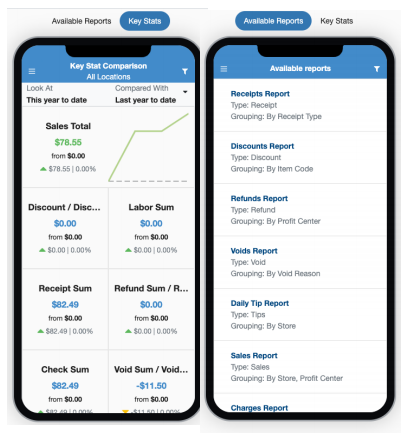
The Admin Console now simulates the Reports and Key Stats screens of Mobile Manager, captured in
a device likeness displayed on the Store Owner page. The device image will display either to the right
of, or below, the Push Settings section, depending on browser resolution.
- The Reports screen shows available reports and is not clickable.
- The Key Stats screen shows key stats and is clickable.
- Changes made to parameters in Mobile App are immediately reflected in Admin Console.
- Changes made to parameters in Admin Console are immediately reflected in Mobile App.
Improved Notifications Settings‘Reset to Default’ Confirmation Prompt
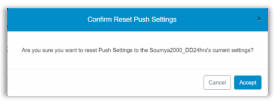
In previous versions of the Admin Console, the confirmation prompt when using Reset to Default was
unclear. With the current release, we have clarified the message, and included the affected store name.
Added ‘Hit Preview to Refresh’ Prompt to Reports Page
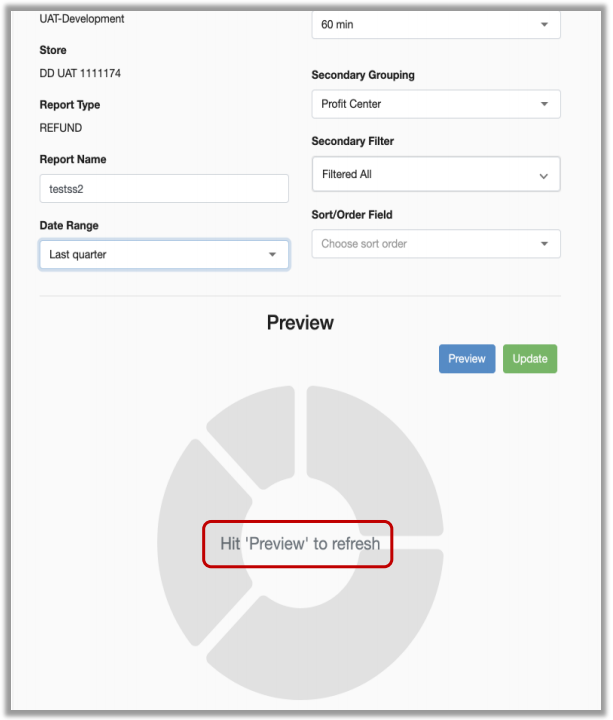
We have added a Hit ‘Preview’ to refresh prompt to the Reports page. This displays any time the
report that is currently displayed is deemed to be not up to date, either because parameters have been
changed, or because new XML data has been received.
Added ‘Heartland Restaurant’ and ‘Heartland Retail’ to POS Types
We have added “Heartland Restaurant” and “Heartland Retail” to the available POS types for new and
existing stores on the Admin Console.
Updated Report Grouping Headings to Match Mobile App
For the more clarity and consistency between the Admin Console and the mobile app, we have updated report group headings in the Admin Console to match those in the mobile app.
Updated User Interface for Entities Created in Central API
So that they may be more easily identified, each entity page now displays a prefilled Salesforce ID field
for entities created in the Central API.
- Store page for stores created in Central API will include Store Salesforce ID above the
Registration Number. - Dealer page for dealers created in Central API will include Dealer Salesforce ID below the
Name. - Client page for clients created in Central API will include Client Salesforce Identifier below the
Brand.
Added Option to Change Linked Client for Stores and Store Owners
You can now change linked clients for stores and store owners. If you change the client for a store, it
automatically unlinks the existing Store Owner, and resets all Reports, Key Stats, and Push settings to
default values.
Allow Editing of Salesforce ID Fields with Validation Rules
You can now edit the Salesforce IDs for entities. When you enter a new value for any of these fields
(Store Salesforce ID, Dealer Salesforce ID, or Client Salesforce Identifier), the program will
automatically validate the newly entered ID and will display an appropriate message when requirements
are not met.
- If you do not enter a value in a required field: 'This field is required.'
- If you do not enter both letters and numbers for an alphanumeric field: 'This field must contain
both letters and numbers.' - If you enter fewer than 18 characters: 'This field must contain at least 18 characters.'
Added Salesforce ID Fields to ‘Create Entity’
We have added a Salesforce ID field to all ‘create entity’ forms, with names as described in the
previous enhancement. The Admin Console will validate all entries upon saving, with validation rules as
described in HMM-3960 above, and will only save validated data.
Implemented New Module for Promotional Messages
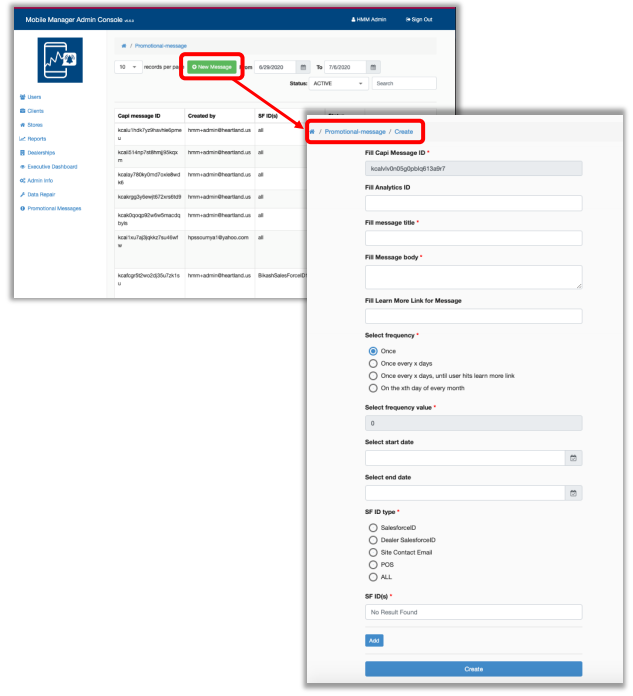
We have added a new module for creating and sending promotional messages to mobile app users.
You can configure these messages with a Learn More button linked to an external pop-up, and track
whether or not a user taps the button. You can also configure messages to be resent with regular
frequency until a user taps the Learn More button.
Added Data Processing of Promotional Messages
We have added the ability to process user interaction with promotional messages (for example, if/when
they click Learn More), and to view the status of each message (for example, expired or deleted).
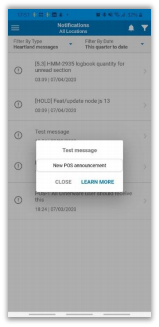
If a user tries to open an expired or deleted message on the mobile app, the program will inform them
of this.
Display Deleted Entities
So that users have more information about linked entities, the Admin Console now includes deleted
entities in all pages. These entries are listed in grey strikethrough font and are unclickable.
Clarified ‘Confirm Updating’ Message
In previous versions, the confirmation message when updating store assignments was unclear. With
this release, we have clarified the message so that users can easily understand the actions indicated
before saving.
Improved Validation Process in ‘Create Dealership’ Page
To minimize errors and confusion, we have improved the validation process in the Create Dealership page so the user can easily see what is required when creating a new dealership.
Removed ‘For Store’ Labor Push Settings from Store Page
Since it served no purpose, we have removed the For Store selection from Labor Push Settings on
Store page.
Implemented ‘Create Key Metric’ Feature
You can now create key metrics via the Admin Console. To do so, simply click the + button at the end
of the existing key metrics. Enter a name for your entry, select a Report Type and Primary Value, and
click Create. The new key metric will be at the end of the list, just before the + button.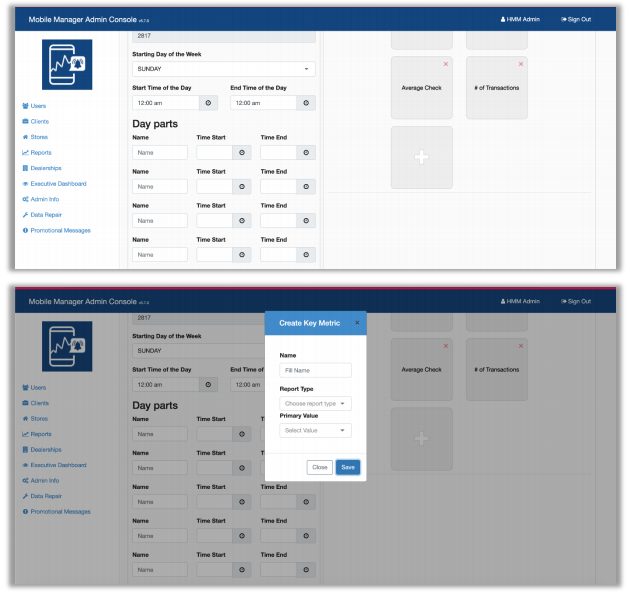
Please note that you can reorder key stats, but the + button will always be in the last spot.
Implemented ‘Delete Key Metric’ Feature
You can now delete key metrics via the Admin Console. To do so, simply click the red X icon that
corresponds to the key metric you wish to delete. Answer the confirmation prompt to finalize the action.
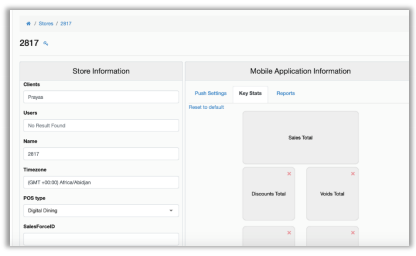
Please note that if you delete any but the last of the key metrics on a screen, the remaining metrics will
move back one space to fill the gap left by the deleted entry.
Implemented Feedback Management Tool
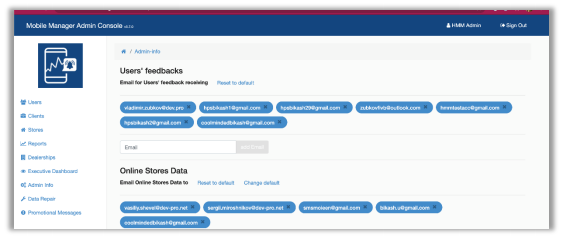
You can designate email recipients for feedback submitted via the mobile app’s new Help module.
When a user submits a help message, the designated recipients will receive an email titled ‘User
Feedback’ containing the message body, system log, screenshot, and any other attachments the user
included.
Added Alerts on Create / Update / Delete Actions
As a failsafe, we have added alerts with the warning, ‘Please click “Update” to save your changes’ to
some actions.
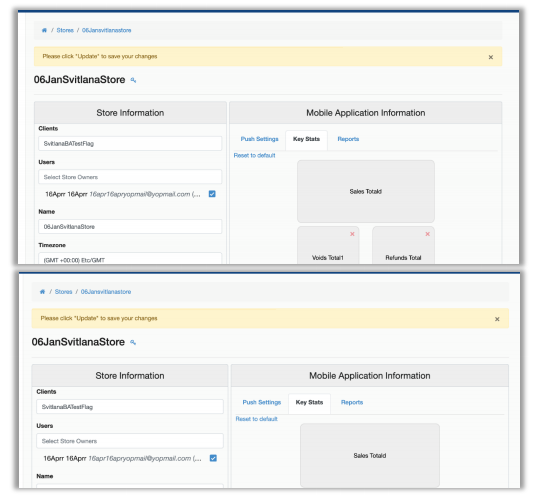
In each scenario, you can tap the X on the message box to exit without saving.
Assign Google Analytics ID to Promotional Messages
To facilitate the tracking of actions related to promotional messages, we can now assign Google
Analytics IDs to these messages. This allows users to see if and when a message has been opened,
and whether the recipient clicked OK to dismiss it, or if they opted to Learn More.
Sync Salesforce ID Between Store and Assigned Promotional Messages
We now sync Salesforce ID for stores with that of assigned promotional messages. This ensures that, if
an admin edits a store’s Salesforce ID, the Salesforce ID of the assigned promotional message will also
update to match the new value so that the program can continue to deliver the messages successfully.
Added Data Processing of Promotional Messages
We have added the ability to process user interaction with promotional messages (for example, if/when
they click Learn More), and to view the status of each message (for example, expired or deleted).
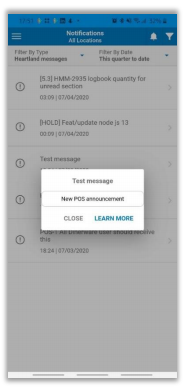
If a user tries to open an expired or deleted message on the app, the program will inform them of this.
Display Deleted Entities
So that users have more information about linked entities, the Admin Console now includes deleted
entities in all pages. These entries are listed in grey strike-through font and are unclickable.
Clarified ‘Confirm Updating’ Message
In previous versions, the confirmation message when updating store assignments was unclear. With
this release, we have clarified the message so that users can easily understand the actions indicated
before saving.
Improved Validation Process in ‘Create Dealership’ Page
To minimize errors and confusion, we have improved the validation process in the Create Dealership
page so the user can easily see what is required when creating a new dealership.
Removed ‘For Store’ Labor Push Settings from Store Page
Since it served no purpose, we have removed the For Store selection from Labor Push Settings on Store page.
Mobile App
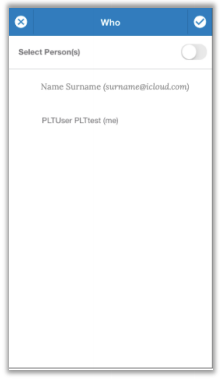
Added Email Address to ‘Who’ Views
In previous versions, the mobile app displayed only users’ names on the Notify Who selection and
Created By filter screens of Manager Logbook, with no other identifiers. In cases where two or more
users had the same name, it was impossible to differentiate between them
 .
.
In recent releases, the mobile app now displays email addresses along with names so that you may
easily identify and select the desired profile. Both of these screens will display the current user as
FirstName LastName (me).
Require Store Selection on ‘Create Entry’ Page of Manager Logbook
Along with Entry type, the Create Entry page of Manager Logbook now requires you to select a Store
when creating a new logbook entry. It then displays data specifically related to the selected store.
Added ‘Refresh’ Feature to Reports
In the current version of the app, if you wish to refresh the report that is currently displayed in Mobile
Manager, you can do so by using a pull-down gesture on the report screen. While processing the
request, the app will display a “Refreshing…” note at the top of the screen, along with a cloud overlay
in the middle of the screen. Once the report has refreshed, the note and cloud disappear and the report
will reflect updated data.
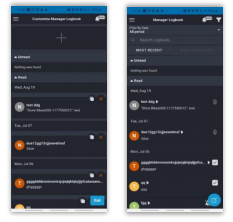
Added Statuses for Notifications
The mobile app now differentiates notifications by ‘read’ status.
- Unread messages display in bold font with a grey background.
- Read messages display in normal font with a white background.
Allow Store Owner to Edit Titles Only for Entries Created by Them
Previous versions of the mobile app allowed you to edit titles of all Manager Logbook entries,
regardless of who created them.
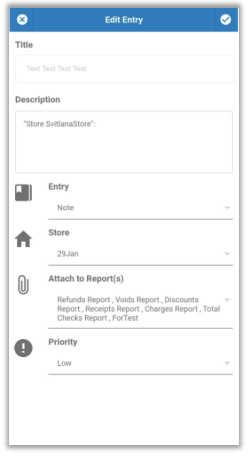
In recent releases, only the person who created any given entry is allowed to edit the title. For all other
users, the title is not clickable.
Require Task ‘Target Date’ With ‘One Day Before the Target Day’ Notification
Previous versions of Mobile Manager allowed you to leave the Target Date blank, even if you selected
to be notified “One day before the target day” for the task. With the current version, if you request such
notification, Mobile Manager will display a message under the Target Date field indicating that it is
required, and will not allow you to save the entry until you make a selection. Additional validation.
Improved Behavior When Deleted Logbook Entries Are Selected
We have improved the behavior of Mobile Manager when a user tries to open a deleted Manager
Logbook entry. It now displays a clear message, indicating that the entry was deleted, and citing the
user who deleted it. As well, it directs you back to the Manager Logbook entry list.
Implemented Real-Time Updating for Reports
Mobile Manager now updates reports in real time, immediately taking into account any changes to
reports configuration performed on the Admin Console, such as the addition or removal of a report. As
well, report figures will update in real time to reflect newly received XML data.
Implemented Real-Time Updating for Alerts
With the current release, if you are working within the mobile app and alerts are triggered by another
user, the alerts will display on your device automatically and in real time, without requiring you to
refresh.
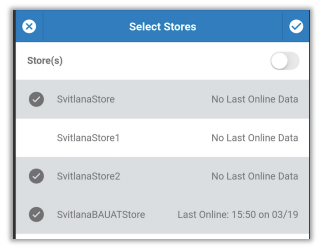
Implemented Real-Time Updating for Store Selection Page
The Mobile Manager app updates store list on Store Selection page in real time, and displays a toast
message immediately when the current user has a store assigned or unassigned. As well, it will update
the user’s store list on the Store Selection page in real time as assignment changes occur.
Implemented Real-Time Updating for Key Stats Mosaic
Mobile Manager now automatically checks for changes such as saved changes to Key Stats
configuration on the Admin Console, and newly received XML data. Mobile Manager automatically
updates all Key Stats mosaic components to reflect such changes in real time, or approximately 10-
second intervals, with the exception of graphs, which are updated approximately every 30 seconds.
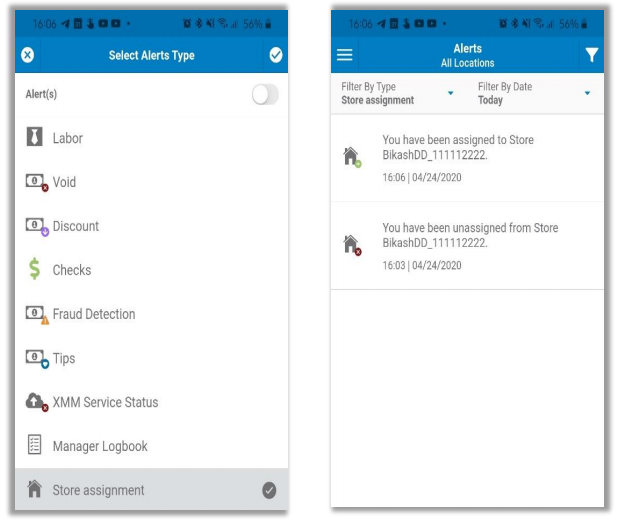
Implemented Store Assignment Alert
So that you can receive alerts when a user is assigned to, or unassigned from, a store, we have added
push notifications for such actions.. This alert will display with a home icon with a symbol on top. A
green + sign indicates a user has been assigned to a store. A red X sign indicates a user has been
unassigned from a store.
Added Edit Feature to Reports
For added convenience, the mobile app now allows store owners to edit existing reports and save
changes directly in the app. To edit a report, simply touch the edit icon in the lower right corner.
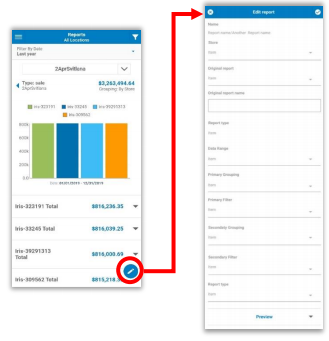
This opens the edit screen where you can make desired changes.
Added Edit Feature to Key Stats Parameters
For added convenience, the mobile app now allows store owners to edit Key Stats metrics and save
changes directly in the app. To change parameters, simply touch the edit icon in the lower right corner.
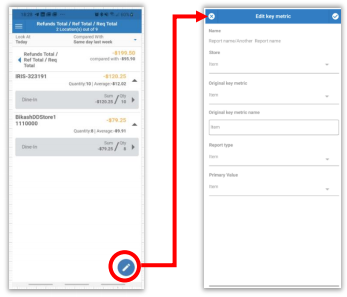
This opens the edit screen where you can make desired changes.
Added Preview Function to Edit Report Screen
So that store owners can more easily choose the report configuration that is most to their liking, we
have added a Preview function to the Edit Reports screen.
Added Notification for Simultaneous Editing of Key Stats Metrics
The mobile app now notifies you if you and another user are simultaneously editing Key Stats metrics.
When this occurs, if one user saves changes, the app will inform the other user with a message
reading, “This key metric was updated by UserName who saved changes. Continuing will overwrite
these changes. Do you want to continue?”. If you select Cancel, the app will return you to view mode
with a confirmation prompt reading, “Are you sure you want to discard your changes?” If you select OK,
the app will keep you in edit mode.
Added Notification for Simultaneous Editing of Reports
The mobile app now notifies you if you and another user are simultaneously editing Reports. When this
occurs, if one user saves changes, the app will inform the other user with a message reading, “This
report was updated by UserName who saved changes. Continuing will overwrite these changes. Do
you want to continue?”. If you select Cancel, the app will return you to view mode with a confirmation
prompt reading, “Are you sure you want to discard your changes?” If you select OK, the app will keep
you in edit mode.
Implemented ‘Edit Notifications’ Feature
You can now edit push notification settings directly via the mobile app, using the same rules as the
Admin Console.
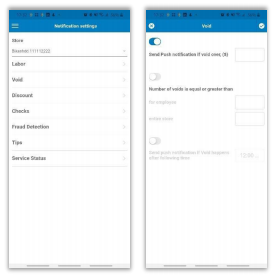
Once you have made changes and saved, you will receive a toast confirmation message. If you make
changes and attempt to exit the page without saving, the program will notify you and give you the
option to return to the page to save or Discard.
Added Create Report Feature
You can now create reports with new configurations directly in the mobile app. To do so, select the +
icon in the lower right corner of the Reports page.
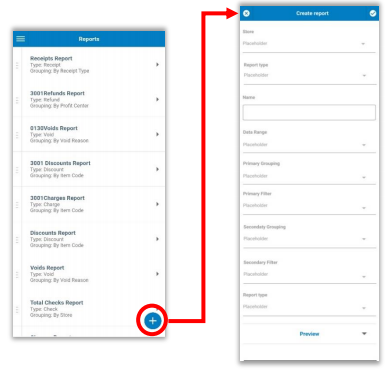
This will open the Create Report page where you can set parameters as desired.
Added Delete Report Feature
You can now delete reports directly in the mobile app. To do so, highlight the report you wish to delete
from the Reports page and then select the delete (trashcan) icon in the upper right corner of the screen.
This will open the Delete Report page to confirm the action.
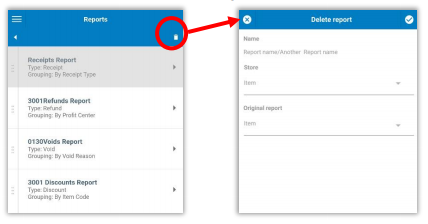
Please note: You can only delete one report at a time.
Added New Notification Type for Heartland Messages
We have added a new notification type for Heartland promotional messages called Heartland
Messages. You can enable/disable these notifications by toggling on/off from the Notifications settings
page.
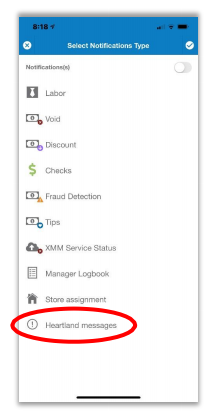
When a notification displays, you can tap it to display the associated promotional message.
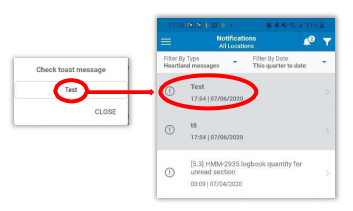
Implemented Interactive Toast Messages
The mobile app’s toast messages are now interactive. This means, if you tap a toast message, the
mobile app will redirect you to the related view. For example, if you tap a toast message related to a
notification, the program will take you to the notifications list view so that you may easily view the related
entry.
Implemented Unread Notifications Counter
The mobile app now tracks and displays the number of unread notifications. It displays this number along
with a bell icon at the top of the page, indicating the number of unread notifications for the current user. If there are no unread messages, the bell icon will display without a number.
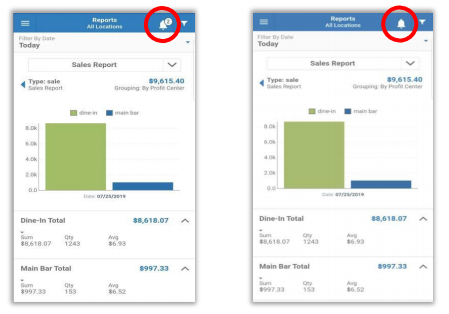
Please note: The unread counter displays the total of ALL unread notifications, regardless of date filter.
Renamed Page Titles and Headings
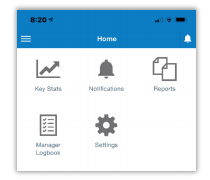
We have given more suitable names to the Account and Alerts pages in the mobile app.
- Account is now Settings.
- Alerts is now Notifications.
Improved ‘Pull to Refresh’ for Screens with Real-Time Updating
We have improved the behavior when using Pull to Refresh function in mobile app. If you select Pull to
Refresh at the top of any of these pages, once the refresh is complete, a Real-Time heading replaces
Pull to Refresh. This allows users to see that the data is already up-to-date and that they do not need to
refresh.
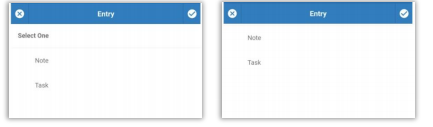
Removed ‘Select One’ Heading
Since it served no purpose, we have removed the Select One heading from pages with a single
selection view, as in the Manager Logbook creation page pictured here.
Implemented ‘Share Report’ Feature
You can now share mobile app reports with others by tapping the Share Report button after generating
the report. This button opens sharing options as defined on your device, thereby allowing you to share
via SMS, MMS, email, social media, etc.
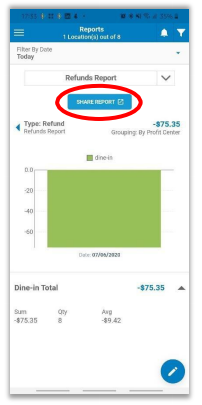
Please note: The shared report is simply a snapshot and will not reflect new data.
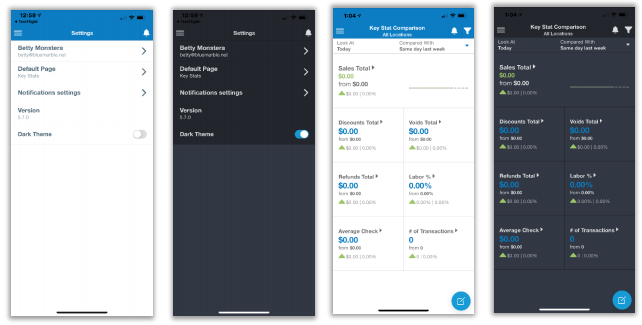
Implemented Dark Theme
With this release, we have added the option to use dark theme. To enable this function, go to
the Settings page and toggle Dark Theme.
Improved ‘Pull to Refresh’ for Screens with Real-Time Updating
In previous releases, the app did not indicate whether data was up-to-date on Reports, Manager
Logbook, and Notifications pages. With recent releases, we have changed the behavior to
indicate the status of the data.
- Real-Time at the top of the page indicates current data.
- Pull to Refresh at the top of the page indicates data is not current, and allows you to
quickly refresh.
Using Pull to Refresh will refresh the report data and the heading will then change to RealTime. Once more data is available, it will revert to Pull to Refresh. This allows users to see that
the data is already up-to-date and that they do not need to refresh.
Removed ‘Home’ Screen
Since the options found on the home screen were also available on the sidebar menu, we have
deemed the home screen as redundant and have removed it from the app. Users previously
configured with the home screen as their default landing page will now be taken to Key Stats
which will also serve as the default landing page for new users.
Moved Selection Tick to Right Side of App Pages
We have moved the tick selection indicator to the right side of all pages within the mobile app,
with the exception of the filter page where it remains on the left side.
Removed Copy Option from Manager Logbook Entry List
We have removed the copy option from the Manager Logbook entry list. The option to copy
logbook entries is now present only in the Manager Logbook customization screen, as
described in HMM-4164.
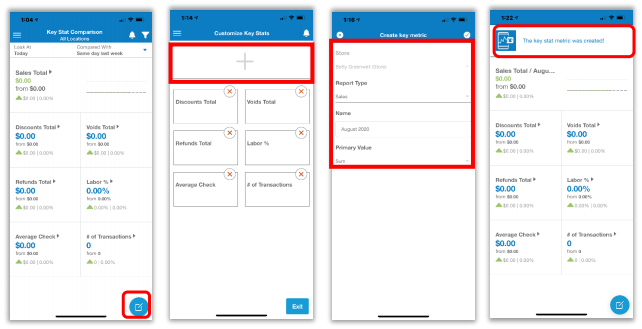
Implemented ‘Add Key Metric’ Feature
You can now create key metrics in Key Stats directly in the Mobile Manager app. To do so,
follow these steps:
- From the Key Stats page, tap the blue button in the lower right corner of the screen.
- On the Customize Key Stats page, tap the + button at the top.
- On the Create key metric page, select Store if required (if multiple stores are assigned),
select desired Report Type from the list, assign a Name, and then select desired
Primary Value from the list. - Upon clicking the checkmark icon, the app will display a toast message indicating that
your key stat metric was created.
Implemented ‘Delete Key Metric’ Feature
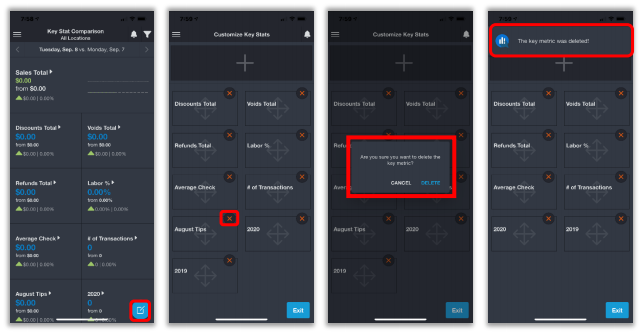
Much like the process to create a key metric, you can now also delete key metrics via the
Mobile Manager app. To do so, follow these steps:
- From the Key Stats page, select the edit icon at the bottom right. This opens the Key
Stats customization page. - Tap the red X button for the key metric you wish to delete.
- Answer the confirmation prompt.
- The app will display a toast message indicating that your key stat metric was deleted.
Expanded Sidebar Menu with Icons
For a more user-friendly experience, we have expanded the sidebar menu to include icons.
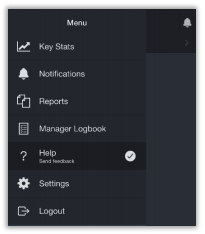
Added ‘Help’ to Sidebar Menu
To facilitate access to the feedback submission page, we have added a Help option to the main
sidebar menu. This opens the Send Feedback page as described in HMM-4105.
Updated Service Status Name on Sidebar Menu
For consistency and accuracy, we have updated the name of the service status option on the
main menu from XMM Service Status to HMM Service Status.
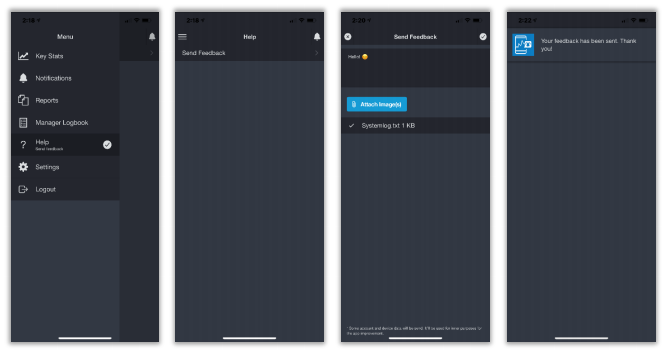
Implemented ‘Help : Send Feedback’ Feature
So that end-users may easily request help or share feedback, we have added a Help option to
the main menu of Mobile Manager. To use this feature, tap the option from the menu, and then
select Send Feedback from the Help page. Type your message into the provided text box,
attach any images you wish to share, then tap the checkmark icon in the upper right corner to
submit your message. The app will display a toast message indicating that your feedback has
been sent.
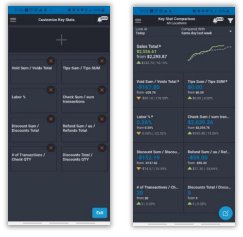
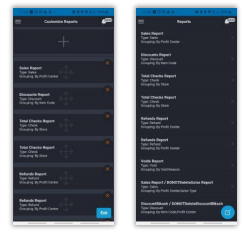
Implemented Screen Customization Options
Users can now customize various screens to their liking. To customize a screen, select the
screen, then tap the edit icon in the lower right corner. This will open the customization screen.
- Add and delete Key Stats.
- Add, rearrange, and delete Reports.
- Add, edit, or delete Manager Logbook entries.
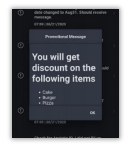
Reflect Promotional Message Updates in Real-Time
If editable components of a promotional message are updated on the Admin Console, the
mobile app will reflect the changes in real time. For example, if you change the description of an
existing message from 'Your sale is 25%! Hurry up!' to 'Your sale is 100%! Hurry up!', the mobile
app will reflect this in the notifications list, and in the pop-up description for the message.
Use Default CSS Style for Elements of Body in HTML
We have implemented default CSS styles for elements (lists, links) in the body in HTML promotional messages. We will continue to use the mobile app’s styles for the font.
Improved Behavior with Unread Expired Promotional Messages
We have improved the way the mobile app handles user interaction with
unread expired promotional messages. If a user has such a message and tries to open it, the
app will display a toast message ('The message has been expired or deleted.') and then marks
the message as read.
Updates
- Fixed Error for Dealers Created Before CAPI Boarding