Overview
This document contains explanation for the following enhancements and updates:
- Admin Console
If you have questions regarding the updates described in this document, please contact Heartland Mobile
Manager Support by email at hmm@heartland.us.
Enhancements
The following release notes detail the enhancements we have included in this release.
Improved Pop-Up Message Format
Description: We have updated the format of the pop-up messages to be more user-friendly.
Details: The old pop-up message format was a narrow rectangle with center-justified text, as in
the example on the left. The new format is wider, with left-justified text, as in the example on the right.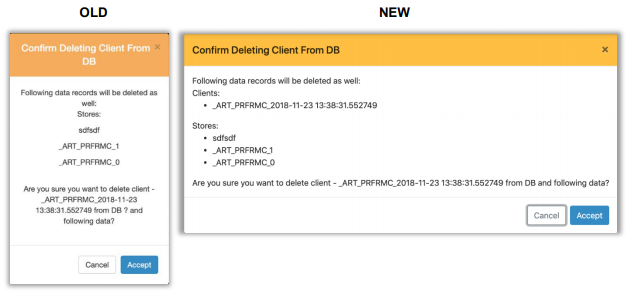
Display Only Relevant Action Icons on Entity Pages
Description: The Admin Console now displays only usable action icons on all entity pages.
Details: In previous versions, the Admin Console displayed all action icons on entity pages, and it
grayed out those operations that were unavailable due to entity status; for example, Restore was
irrelevant for active entities, so it was grayed out for such entities. With this release, the Admin Console
displays only those action icons that are relevant to entity status, and hides all others.
Improved Search Behavior
We have enhanced the behavior when using search fields. In previous versions, the searched text would
disappear after you viewed a record from the search results and clicked Back, as outlined in this
example:
- Open Users page.
- Fill any text into Search box.
- Observe results.
- Open any record from the list.
- Click Back.
The old result was an empty Search box, and a list of ALL records. With this release, the Search box
maintains text from the previous filter, and only matched records are listed.
Improved Behavior when Deleting and Restoring Dealership
Description: We have improved the Admin Console’s behavior when deleting or restoring a
dealership.
Details: With this release, when you delete a dealership from the Admin Console, it will
automatically delete all dealers associated with the dealership. Likewise, when you restore a dealership,
all associated dealers are automatically restored along with it. This makes the process more efficient and
ensures that dealers’ access to the Admin Console follow the status of their dealership.
Behavior is as follows:
- Delete Dealership: All links remain intact, and all linked dealers (active/invited) are deleted.
- Restore Dealership: All links remain intact and all linked dealers (active/invited) are restored.
- Delete Dealership from DB: All linked dealers are deleted from DB along with the dealership, and all linked clients unlink from dealership.
The Admin Console will display a confirmation prompt for all such actions.
Added Tracking of Users’ Access to Stores
Description: We now track and display users’ access to stores on the Stores Page of Admin Console.
Details: We have added tracking of users’ access to their stores to the Stores Page of the Admin
Console. This data is displayed in a new column called Access to mobile app last week. Instances of
access are counted as follows:
- Store Owner kills the application and launches it again: application counts +1
- Store Owner logs out and logs in: application counts +1
- Store Owner minimizes the app (but do not close) and resumes the app: application counts +
Please note:
- This feature is available in Mobile Manager mobile app version 4.3.0 and later.
- This feature is meant to provide a simple count; it does not record or report session length.
Added Requirement that Dealers be Assigned to Dealership
Description: The Admin Console now requires that you assign a dealership to all new dealers before
saving.
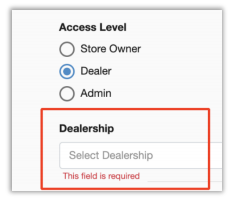
Details: In order to adhere to HMM standards, the Admin Console now requires that all dealers be
associated with a dealership. With this release, when you add a new User and assign Dealer access, the
Admin Console requires that you also select a Dealership before saving.
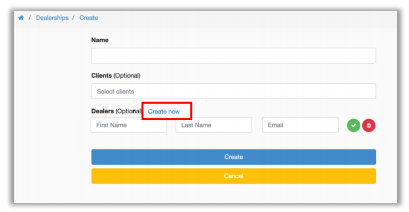
We have also added a Create New option within the Dealership setup page so that you can add new
dealers at the same time you create a new dealership.
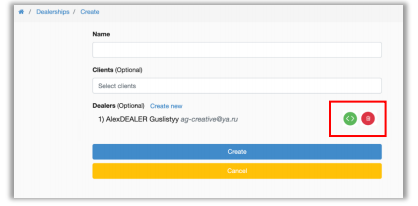
We have also changed the available functions for existing dealers so that you can easily reassign
(change dealership) by clicking the green icon, or delete by clicking the red icon. The Admin Console will
display a confirmation prompt for both actions.
Added Option to Edit Email Address
Description: The Admin Console now allows you to edit email addresses for newly created users.
Details: Previous versions of the Admin Console did not allow you to edit email addresses for
newly created users with INVITED status. Because of this, when errors were made, you had to delete the
entity and start anew. We have now added the option to edit email addresses for newly created users so
that errors can be easily and quickly corrected. As well, once an email address has been updated for
such a user, the program invalidates the link sent to the incorrect email address, and immediately sends a
new link to the new email address.
Improved Validation Process and Message for Data Repair Page
Description: We have improved the way Admin Console responds when a client requests a data
repair without selecting a store.
Details: Previously, the Admin Console did not require you to select a store before requesting a
data repair. This resulted in failures accompanied by unclear messages stating that there were no stores
available. With this release, the Admin Console requires that you select a store before making requests. If
you do not select a store before clicking Send, it will show a red alert banner reading, "No data was sent",
and a message in red reading, "This field is required", under client and store.
Added ‘Info’ (Preview) Button for Non-Editable Entities
Description: We have added an Info button for non-editable entities so that their data can be viewed.
Details: We have introduced an Info button for entities whose status deems them non-editable
(such as Inactive or Deleted) so that you can still view their data.

Clicking this button will open the entity’s page, but the data displayed will not be editable.
Alphabetize Lists and Add AutoComplete Functionality
Description: The Admin Console now displays lists in alphabetical order, and will search for matching
entries as you type in the search field.
Details: The Admin Console now sorts lists alphabetically, and allows you to search by typing in a
character, or a string of characters, from the keyboard when a list is open.
Please note: The alphabetical sorting applies to all lists with the exception of weekdays and dayparts;
these will continue to be sorted chronologically.
Improved Behavior when Creating New Client in Dealership Page
Description: We have moved the Create New button into the Clients dropdown list on the Dealership
page.
Details: In previous versions of the Admin Console, the Create New button on the Dealership
page was located below the Clients dropdown list and to the far right. With this release, in the interest of
comfort and ease, we have moved this button to the top of the dropdown list.
Added Export Button to Clarify Export Process
Description: The Admin Console now displays an Export button on all entity pages.
Details: To improve the export process, we have added an Export button to all entity pages on
the Admin Console.
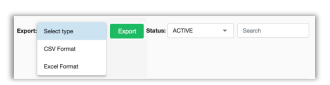
This button is clickable only after required selections have been made, and will begin the export process
immediately upon being clicked.
Improved Behavior when Creating New User in Client Page
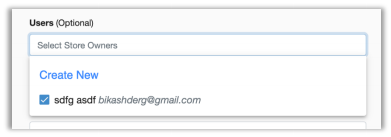
Description: We have moved the Create New button into the Users dropdown list on the Client page.
Details: In previous versions of the Admin Console, the Create New button on the Client page
was located below the Users dropdown list and to the far right. With this release, in the interest of comfort and ease, we have moved this button to the top of the dropdown list.
Clarified Labor Push Notification Setup Headings
Description: We have clarified the naming of selection list headings in push notification setup.
Details: We have added “store” and “daypart” to the names of their corresponding selection lists
to clarify the purpose of the lists and the selections being made.

Added Test Account Checkbox for Store Owners
Description: We have added a checkbox to designate store owners as test accounts.
Details: We have added a Test Account checkbox to the Store Owners page so that users can
designate test accounts as such, and so that they can easily identify these accounts. This checkbox is
located below the Demo Account checkbox.
Display Entity Associations in Columns on Entity Page
Description: You can now see detailed information for all entities on entity pages.
Details: The Admin Console now displays entity associations such as dealership, client, etc., on
all entity pages.
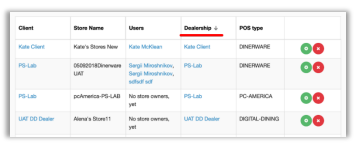
With this detailed information readily available, users can more efficiently analyze information.
Improved Store Owner Selection in Store Setup
Description: The Admin Console now displays store owners in a dropdown list in the Store Setup
screen, and it filters out owners who are already assigned to the selected store.
Details: Previous versions of the Admin Console displayed owners in a simple unfiltered list with
checkboxes. With this release, owners are displayed in a dropdown list, and are filtered to list only those
who are available and unassigned.
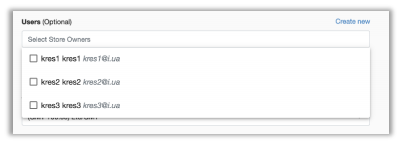
To assign an owner, simply check the checkbox by the owner’s name. Owners already assigned to a
store will be listed below the dropdown list box, and can be unassigned by unchecking the corresponding
checkbox.
Improved Cursor Behavior when Creating New Dealership
Description: The cursor automatically displays in the First Name box when adding a new dealership.
Details: The Admin Console now automatically places the cursor in the First Name box when
adding a new dealership so you can more easily enter the required data.
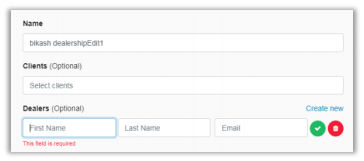
The program will do the same when you update an existing dealership.
Differentiate Inactive Entities on All Entity Pages
Description: We now display inactive entities in gray and with a strikethrough so that their inactive
status is clear.
Details: Previously, the Admin Console displayed all entities in the same manner, regardless of
status. With this release, inactive entities (those that are deleted or unsubscribed) display in gray with a
strikethrough so that you can easily discern their status.
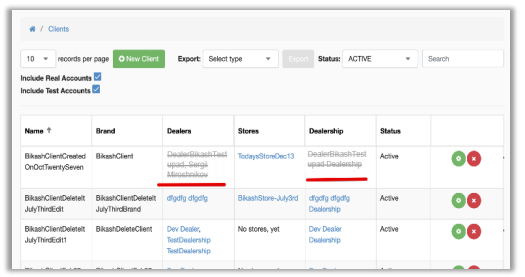
All such entities remain clickable, and clicking them will display their data, but the data will not be
editable.
This change affects the following pages:
- Client list page
- Report list page
- Store list page
- Dealership list page
- Store Owner Edit page
- Dealer Edit page
Allow Dealers to Update Other Dealers Created by Them
Description: The Admin Console now allows dealers to edit dealers that they themselves created.
Details: Previous versions of the Admin Console did not allow dealers to edit other dealers with
that were created under their dealer login. Since there are instances where a dealer may need to update
information, or resend an invitation, we have changed behavior to allow access to and editing of newly
created dealers by those dealers who created them.
Clarified No Store Owner Message in Reports Screen
Description: We have clarified wording in the Reports screen.
Details: In cases where there were no store owners assigned to the selected entity, the program
would display the message, “Not available store owners.” Since this was unclear, we have replaced it
with, “No store owners available.”
Display Key Stats Data for Store Owner Role
Description: Store owners can now view Key Stats data from the Admin Console.
Details: We have introduced a Setup | Preview toggle in the Key Stats setup page of the Admin
Console so that you can now preview Key Stats from the Admin Console.
This allows dealers to observe and analyze all clients’ data, and to support clients more efficiently.
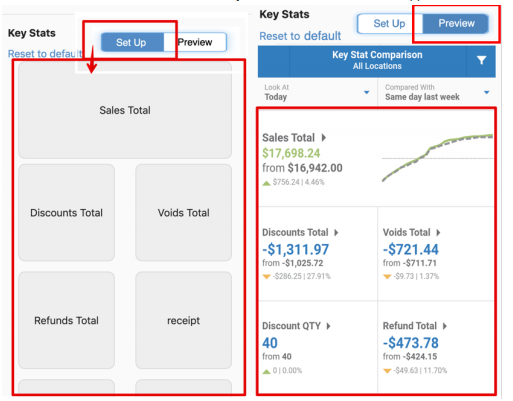
- This feature is available to all roles.
- Preview Mode is only to observe data and any manipulations will not affect the mobile app.
- As with the mobile app, if there is no data for selected store(s)/date(s), Preview Mode displays empty cells.
Added Linked Breadcrumb Navigation to All Pages
Description: We have added linked breadcrumb navigation to all entity pages.
Details: The Admin Console now uses linked breadcrumb navigation so that you can easily return
to higher level pages in one click. With this architecture, when you browse from a level one page to a
level two page, and then from there to a level three page, the Admin Console creates breadcrumb links
for each level except the current one, and displays these at the top of the page.
Navigation example: Dealerships | Dealers | Individual Store
In the example above, if you had stopped your navigation at the “Individual Store” page, the “Dealerships”
and “Dealer” pages would become clickable links.
- If you hover over a breadcrumb link, it displays with an underscore.
- Clicking a breadcrumb link returns you to that page.
Reposition Checkbox for Demo Account on Store Owner Page
Description: We have repositioned the Demo Account checkbox on the Store Owner page.
Details: We have repositioned the Demo Account checkbox to a higher location on the Store
Owner page so that, regardless of the number of linked entities, this value is easily visible on the page. It
is now positioned immediately above the Client field, along with the Test Account checkbox.
Display Information for Deleted Entities when Hovering over Info Icon
Description: The Admin Console now displays information for deleted entities when you hover over
the Info icon.
Details: With this release, if you hover over the Info icon for a deleted entity, the Admin Console
will display information about the entity, including deletion and purge time/date stamps.
Allow Dealers to Create New Dealer
Description: Dealers can now create new dealers within their own dealership.
Details: In previous versions of the Admin Console, Dealers were not able to add new dealers to
their dealership without involving Admin. With this release, dealers can add new dealers to their
dealership, and the Admin Console will automatically link the newly created dealer to the appropriate
dealership.
What’s Coming Next?
- Add Manager Logbook to Mobile Manager app