Overview
The following release notes contains updated versions of the following files:
If you have questions regarding the updates described in this document, please contact Heartland Restaurant’s Support Department by email (hrpossupport@heartland.us ) or phone (1-833-844-HPOS).
What’s New?
The following release notes detail the updates we have included in this release.
HR-2104 Customer Feedback in Scan to Pay
We have added features to the Scan to Pay confirmation webpage to enable customers to provide feedback regarding their payment experience.
In the Scan to Pay confirmation webpage, we have added the Product Feedback option.
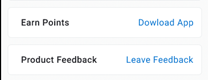
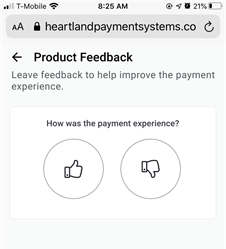
If a customer clicks Leave Feedback, the site will display the Product Feedback page, which includes a prompt for the customer to rate their payment experience. The customer my tap either the Thumbs Up or Thumbs Down button to provide a basic positive or negative rating.
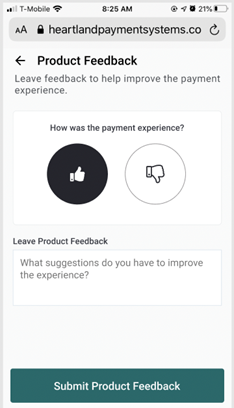
After the customer taps one of the Thumbs buttons, the program then displays the Leave Product Feedback box. In this box, the customer can type a detailed description of their positive or negative experience, and then click Submit Product Feedback to send the message to the site’s data.
You can review customer feedback in the Customer Feedback Report. In the Admin Console’s Main Menu, click Reports, then click Customer Feedback. In the Customer Feedback Report screen, in the Reviews list, click Scan to Pay Product. Click the Date box to set an appropriate date or date range. Then click Print or Export to generate the report.
HR-2485 Support for Instant Deposit
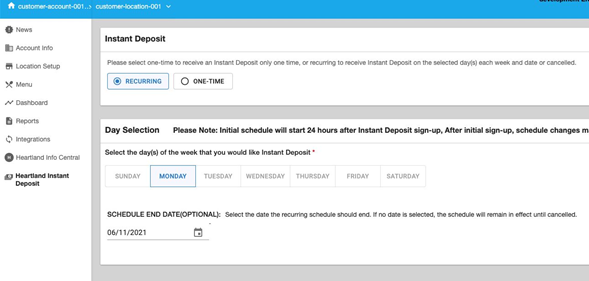
We have added the Instant Deposit feature to Heartland Restaurant. Using this feature, clients who sign up for Instant Deposit can schedule adjustments and one-time override payments from within Heartland Restaurant’s Admin Console. Clients can configure schedule for one-time or recurring instant deposit transactions, so they can receive funds from their credit card batches immediately after they close.
You can set up and schedule instant deposits in the Admin Console. In the Admin Console’s Main Menu, click Heartland Instant Deposit. The Instant Deposit screen displays, and it includes controls that enable you to set up a one-time or recurring instant deposit transaction. In the Instant Deposit area, select Recurring to set up a recurring series of instant deposits or select One-time to set up a single instant deposit.
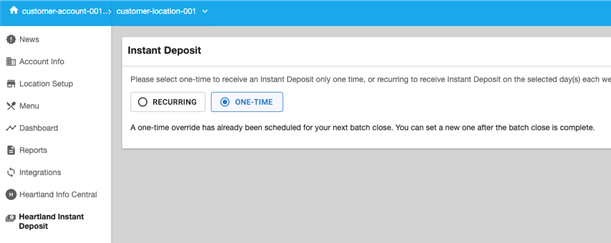
In the Day Selection area, select one or more days of the week when you want to receive the instant deposit. If you are setting up a recurring instant deposit, you can click the Date box and select the specific date when the instant deposits will stop. If you do not select a date in the Date box, the program will perform the recurring instant deposits indefinitely.
HR-4293 “Paid Time” Sort Option for Tickets on KDS
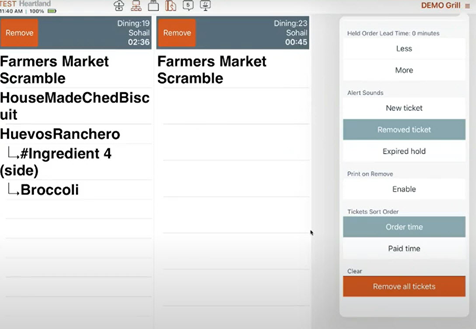
You can now change the sort order of tickets in the KDS display. You can now set the POS to sort tickets by the time each order is paid. In the POS, access the KDS screen, then tap  . In the KDS Settings panel, we have added the Ticket Sort Order options. If you tap Order time, the POS will sort tickets in the KDS by the time the orders were made. If you tap Paid time, the POS will sort tickets by the time the orders were paid. This option can be more useful for sites that feature multiple order lanes.
GPR-540 Audit Trails Added to Authorized Tablets Screen
We have added an audit trail to the Authorized Tablets screen. In the Admin Console’s Main Menu, click Location Setup, then click Authorized Tablets. In the Authorized Tablets screen, click  (in the bottom left corner). The program will display the audit trail, a list of all changes made to any record in the Authorized Tablets screen. For each event in the list, the program displays the time of the change, the name of the user who performed the change, the specific settings that were changed, the old value of each changed setting, and the new value of each changed setting.
GPR-1355 Option to Disable Server Checkout Report
You can now set the POS to not automatically print Server Checkout Reports when a server closes a cash drawer or checks out a server bank. In the Admin Console’s Main Menu, click Location Setup, then click Job Types. In the Job Type Settings screen, we have added the Server Checkout Report list. If you select Always, the POS will automatically print the Server Checkout Report when a server closes a cash drawer or checks out a server bank. If you select Prompt, the POS will display a prompt (“Print Server Checkout Report?”) asking the server if it should print the report. If you select Never, the POS will never print the report.
Updates
The following release notes detail the updates we have included in this release.
HR-1346 Online Ordering Site Adds Discounts Properly
In previous versions, on sites using the Online Ordering service, you may have encountered a problem with discount and required item promotional tags. In certain circumstances, if a customer ordered all items tagged as required to receive a discount, the Online Ordering site may have failed to add the discount to the order. In such cases, the Online Order site displayed an error stating that the requirements for the discount were not met, even when all required items were ordered. We have corrected this, and the Online Order site now adds discounts properly when all required items are ordered.
HR-3059 Accurate Totals for Tips in Server Checkout Report
In previous versions, the POS may have printed inaccurate tip totals in the Server Checkout Report. In certain circumstances, the program may have miscalculated the totals for “Server Owes Merchant” and “Merchant Owes Server”. For instance, the program may have listed a negative total for “Server Owes Merchant”, when the accurate total was a positive amount. We have corrected this, and the POS now prints accurate totals for “Server Owes Merchant” and “Merchant Owes Server” in the Server Checkout Report.
HR-3544 Accurate Totals for “All Pay Ins/Outs” in Server Cashout Report
In previous versions, the POS may have miscalculated the totals for “All Pay Ins/Outs” in the Cash Drawer Summary section of the Server Cashout Reports. Specifically, the POS may have doubled the accurate amount of the “All Pay Ins/Outs” total. Consequently, the total for “Expected Amount in Drawer” would be inaccurate. We have corrected this, and the POS now calculates drawer pay ins and pay outs accurately, and prints accurate totals for “All Pay Ins/Outs” in the Server Cashout Reports.