Overview
This document contains explanations for the following enhancements:
- Mobile App
- Admin Console
If you have questions regarding the updates described in this document, please contact Heartland Mobile Manager Support by email at hmm@heartland.us.
Enhancements
The following release notes detail the enhancements we have included in this release.
Mobile App
HMMC-8091 Implemented 'thread' view
In previous versions, notifications were only available in a List view displaying as a one by one list. With this enhancement, you can now choose to see notifications in a List view or in a Thread view where you can review the notifications in the same way you would on your mobile device and review them quickly by type.
- From the Mobile App Menu, select Notifications then select the Settings
 icon from the bottom right corner.
The Notification settings screen displays.
- From the Notification settings screen, you can see the switch and choose to view your notifications in the Thread or List view.
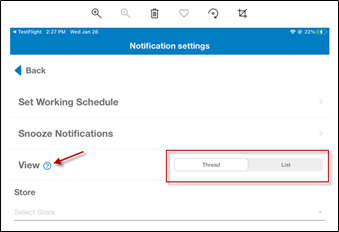
Tip: Press the ? symbol to see a reminder of the two ways to view notifications.
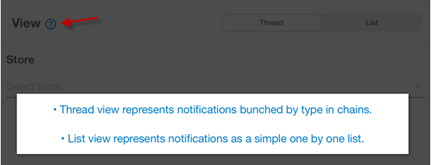
A couple of things to note on Thread view:
- Within the thread body, the most recent notification attributes (text, time, date) are shown
- Notifications related to all stores are shown in a thread
- The most recent notification message always appears at the top
HMMC-8027 Added 'open time' and/or 'close time'
In previous versions, when checks and the Total Check Report were shared only the open date and time were visible. With this enhancement, you can now see ‘open time’ and/or ‘close time’ on shared checks and on shared Total Check Reports allowing you to see the same details and specifications you see on your in-app master ones.
HMMC-3654 Added filter by type
With this enhancement, you can now filter reports by type allowing you more flexibility choosing what data you want to focus on.
- From the Mobile App Menu, select Reports then select the arrow in the top right corner.
The Select Report Type menu displays.
- From the Select Report Type menu, you can use the slide switch to select All Types of reports or press to select one or more individual types.
- Select the checkmark in the top right to display your filtered results.
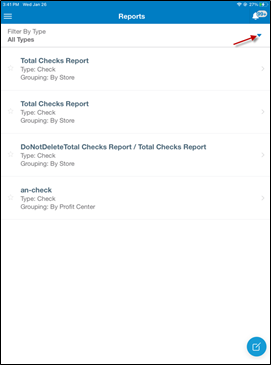
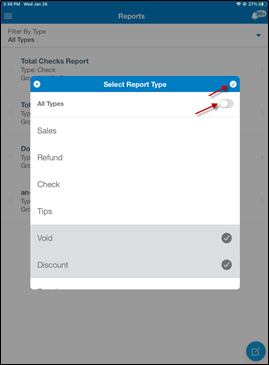
Reports can be filtered by all or any of the following types:
- Sales
- Refund
- Check
- Tips
- Void
- Discount
- Receipt
- Charge
- Notifications
- POS Alerts
- Approval requests
HMMC-8191 Implemented ‘Read All’ feature for notification threads
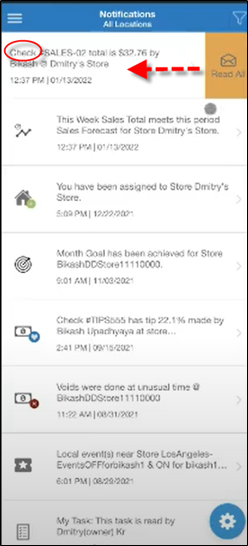
With this enhancement, in addition to implementing the new ‘thread view’ of notifications (discussed at the beginning of this document), we have also added a Read All button allowing you to easily mark all unread notifications as read.
From the Mobile App Menu, when notifications are in Thread view, you can swipe left to reveal the Read All button.
In the example below, the top thread is check notifications, swiping left displays the Read All button and pressing the Read All button marks all the check notifications as read.
A couple things to note on the Read All button:
- The Read All button is only available in the thread view
- If new notifications come in after you’ve selected the Read All button, they will display as unread so there’s no danger that using this functionality might cause you to miss a new notification
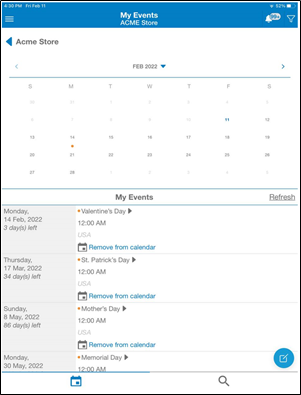
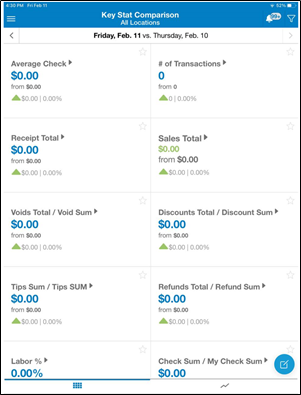
HMMC-7100 Unified tabs display
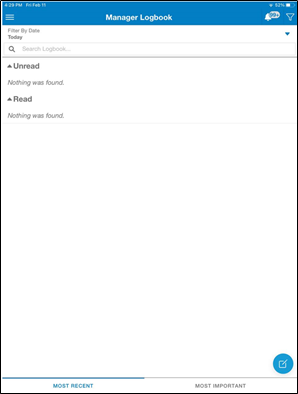
In previous versions of the Mobile App, the placement of the tabs was not uniform appearing at the top of some screens and at the bottom of others. With this enhancement, the tabs have been unified within the Mobile App allowing you to navigate quickly between them. Manager Logbook, Key Stats, and Events now have bottom oriented tabs.
Mobile App and Admin Console
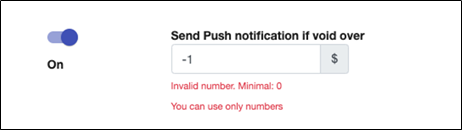
HMMC-8061 Make an error text improvement
In previous versions, in the Void section, Send Push notifications if void over and Number of voids is equal to or greater than would allow a dash to be entered (e.g. -1) so the error message displayed as ‘Invalid number. Minimal -1’ resulting in confusion if the dash signified a negative value (e.g. -1, -2…) or if the dash was just for emphasis. To eliminate any confusion, the fields no longer allow a dash to be entered. The error message now displays using a colon so the user clearly sees Invalid number. Minimal: