Overview
The following release notes contains updated versions of the following files:
If you have questions regarding the updates described in this document, please contact Heartland Restaurant’s Support Department by email (hrpossupport@heartland.us ) or phone (1-833-844-HPOS).
What’s New?
The following release notes detail the updates we have included in this release.
HR-1224 Customizable eGift Descriptive Footer
You can now set Heartland Restaurant to insert a block of customized descriptive text to the footer of emailed eGift cards sent to customers. In the Admin Console’s Main Menu, click ‘Location Setup’, then click ‘Online Ordering’. In the Online Ordering screen, click the ‘Online Ordering’ tab. In the ‘General Settings’ area, we have added the ‘eGift Description’ box.
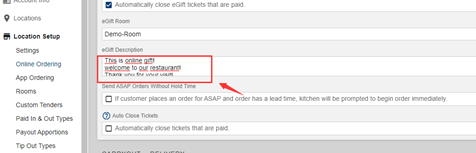
If you enter descriptive text into this box, the POS will include this text in the footer of any emailed eGift cards sent to customers. In the email, the text displays beside the QR code.
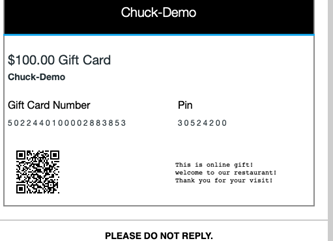
We recommend using this feature to include a short paragraph describing how to redeem the eGift card. For example, “QR Code can only be scanned by the merchant or at the Kiosk (if available) or in the Guest App (if available).”
HR-1347 Time Zone Setting for Resellers
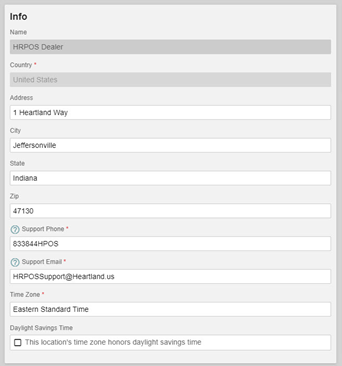
You can now associate resellers with specific time zones, enabling resellers to receive support alert emails at the appropriate time within their respective time zones. In the Admin Console’s Main Menu, click Reseller Info. In the Reseller Info screen, in the Info area, we have added the Time Zone list and Daylight Savings Time check box.
In the Time Zone list, select the time zone in which the reseller operates. This setting enables resellers in different time zones to receive support alert emails at the appropriate time. After you set a reseller’s time zone, that reseller will receive support alert emails at 9:00 AM within that time zone.
If you select the Daylight Savings Time check box, the program will adjust the reseller’s time zone automatically after daylight savings time.
HR-4990 Verifying PAX Payments After Timeout
On sites using the Heartland processor with a PAX device, we have modified how the POS verifies card payments after a timeout or cancellation. When a PAX payment timeout occurs, the POS now automatically queries the gateway to determine if the payment was successful. If it was successful, the POS automatically records the transaction data to update the ticket and reporting accordingly. If it was not successful, the POS displays the Decline or Timeout message from the original failed request.
HR-4993 Tickets Automatically Accessed After POS Crash
If the POS closes while processing a payment, the POS now immediately accesses the ticket when the server logs back in. If the POS closes while processing a payment, it will lock and save the ticket. When the ticket's server logs back in, the POS will immediately access the ticket with the interrupted payment and display an alert “The POS was exited while a payment was in progress. Please retry the same payment request now”.
Updates
The following release notes detail the updates we have included in this release.
HR-2271 Corrected Font Color in Guest App
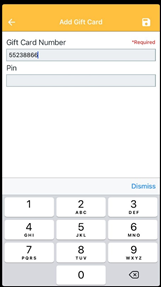
In previous versions, if a customer used the Guest app while running their iOS operating system in “dark mode,” the app may have displayed certain labels improperly. Specifically, if the customer added a gift card and accessed the Add Gift Card screen, the app would display text entered in the Gift Card Number and PIN boxes with a white font, which was difficult to see clearly. We have corrected this, and the app now displays text in the Gift Card Number and PIN boxes with a black font.
HR-5316 Cash Drawer Opens for Pay In and Pay Out Transactions
In previous versions, if a staff member tried to perform a “pay in” or “pay out” transaction, the POS may have failed to print a confirmation slip or open the cash drawer. In such cases, the POS may have included a “pay in” or “pay out” transaction in its check reports, even if the cash drawer never opened. We have corrected this, and the POS now prints a confirmation slip and opens the cash drawer when you perform a “pay in” or “pay out” transaction.