Overview
This document contains explanations for the following enhancements:
- Mobile App
- Admin Console
If you have questions regarding the updates described in this document, please contact Heartland Mobile Manager Support by email at hmm@heartland.us.
Enhancements
The following release notes detail the enhancements we have included in this release.
Mobile App
HMMC-341 Improve flow with screen related to a Labor Notification
With this enhancement, when a Store Owner sees a Labor notification, if the Labor Key Stat does not exist or has been deleted, Mobile App will display a pop-up message with the choice of Close or Settings. Selecting Settings will open the Create key metric page and the user can create a key metric.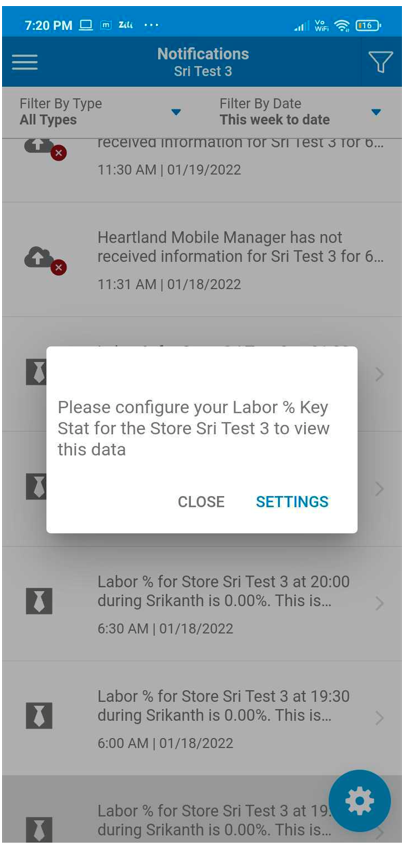
HMMC-4123 Added switch off 'compared to' functionality on Key Stats
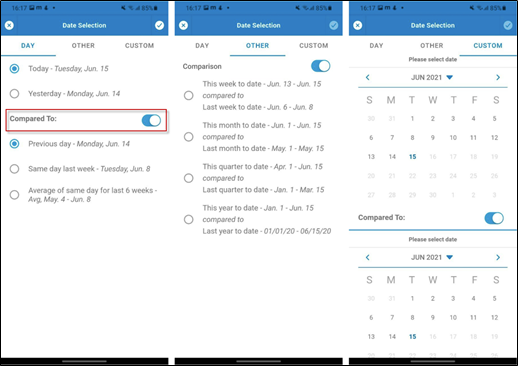
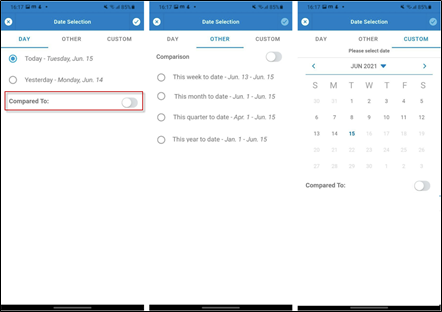
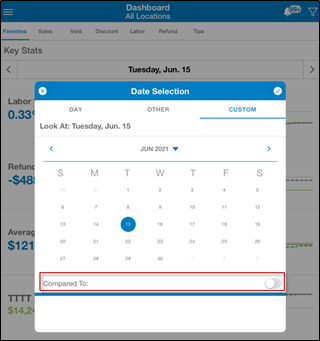
With this enhancement, a Compared To switch has been added to the Key Stats. By sliding the switch to the left, all comparison data is hidden allowing you to focus on analyzing your target numbers.
Compared To (on position):
Compared To (off position):
Note that with the switch off, comparison data is now hidden on all three tabs (DAY, OTHER, CUSTOM).
If you switch to the chart view on the Key Stats Comparison page, with the Compared To switch off, you can see the chart view of a single day’s data or select a custom date range and only see the main data selected without any comparison data. Drilling down a level (for example, by selecting Receipt Total / Receipts) produces the same results, only your main data is visible.
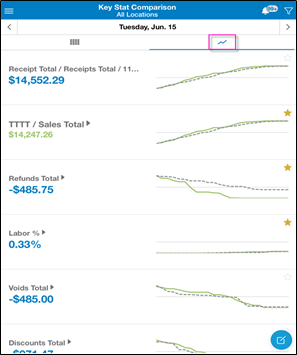
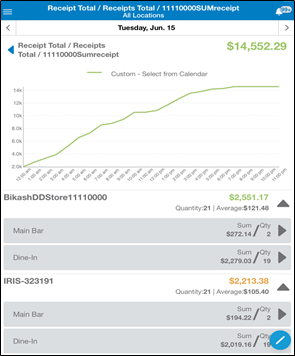
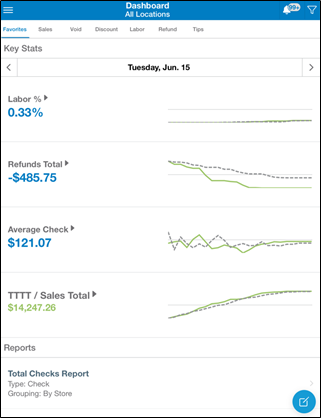
The Compared To switch functionality is also available on the Dashboard. With the Compared To switch off, only your main data is visible.
HMMC-7673 Added ability to view ‘forecast’ graph on the Dashboard drill down
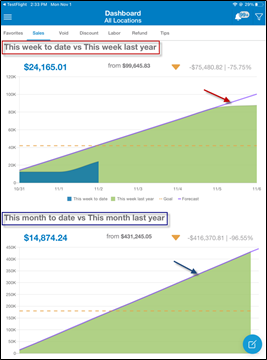
From the Dashboard, the Sales tab allows you to see your sales forecast for:
- This week to date vs This week lasts year
- This month to date vs this month last year
- This year to date vs Last year
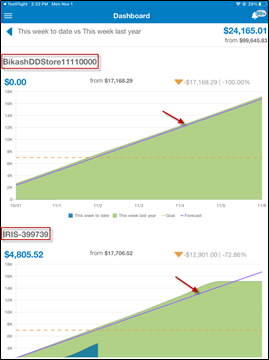
With this enhancement, when viewing the sales forecast (purple line) from the Dashboard, you can select any of these options and drill down a level to see the forecast breakout for each store.
In the following example, we selected This week to date vs This week last year and can see an automatic breakout of the forecast for each of stores.
HMMC-7674 Added pop-up notification for Goal
HMMC-7464 Added pop-up notification for Forecast
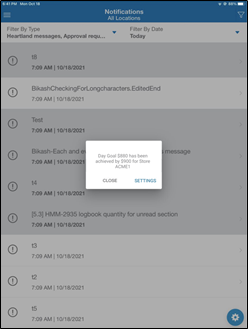
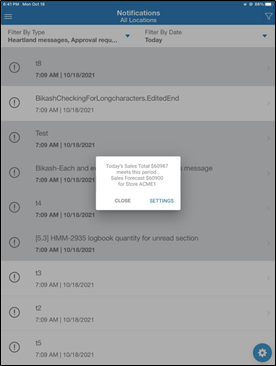
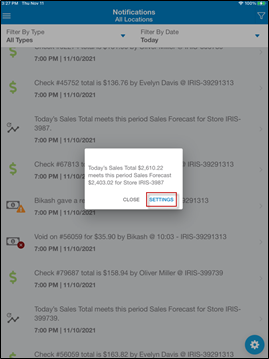
With this enhancement, now when a user’s Sales Goal and their Daily and Weekly Sales Forecast is met, a pop-up notification will display containing detailed information.
Example Day Sales Goal pop-up Notification:
Example Day Sales Forecast pop-up Notification:
Example Weekly Sales Forecast pop-up Notification:
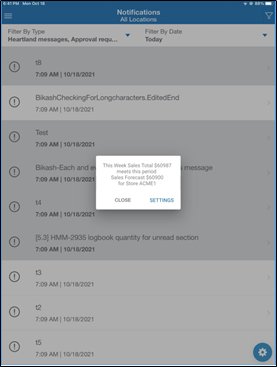
Within the Mobile App, Sales Goals and Forecast can be set by navigating from the Dashboard to the Sales tab, selecting the ‘float’ button on the bottom right of the screen, then selecting Sales Forecast or Sales Goal to set these milestones. With the new notification enhancement, you can click on Settings within the Goal or Forecast pop-up and jump right to the settings to make any adjustments.
HMMC-7724 Quick Action Menu; added options
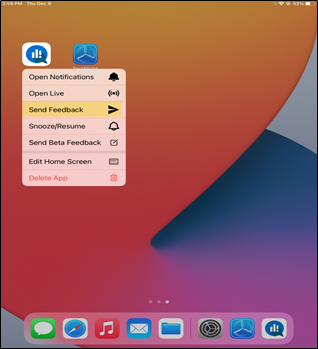
With this enhancement, a Quick Action Menu is now available in the Mobile App. Performing a long press on the Mobile App icon displays the Quick Action Menu. From here, you can easily jump straight to some common features without the need for extra steps. In the example below, we’ve selected Send Feedback from the Quick Action Menu and the Send Feedback screen automatically displays. Note that the Quick Action Menu feature is available for IOS and Android devices.
HMMC-7721 Implemented 'snooze <-> resume notifications' flow
With this enhancement, Store Owners can snooze and resume notifications for the Mobile App for specified periods of time allowing them not to be disturbed during their days off, rest periods, important calls or meetings, etc.
Setting Snooze Notifications
- From the Mobile App Menu, select Notifications then select the Settings
 icon from the bottom right corner.
The Notifications settings screen displays. - Select Snooze Notifications.
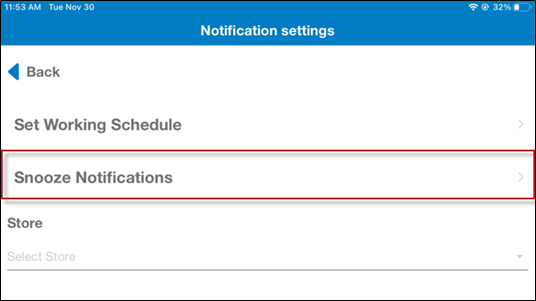
- From here, you can choose from snoozing all notifications:
- For 1 hour
- For 2 hours
- Until tomorrow – meaning all notifications are snoozed from the time you make this selection until your specified start of business tomorrow
- Set Snooze Setting until – with this option you can snooze notifications until a specified date and time
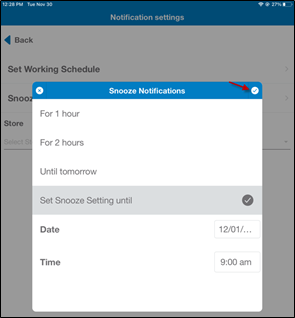
Note: Select the arrow in the top right corner to confirm the setting.
Notifications Bell Icon
You can easily see when notifications are snoozed. The bell icon clearly displays ‘Zz’s’ to help reduce the chance of accidently setting snooze and then forgetting to resume notifications.

Resuming Notifications
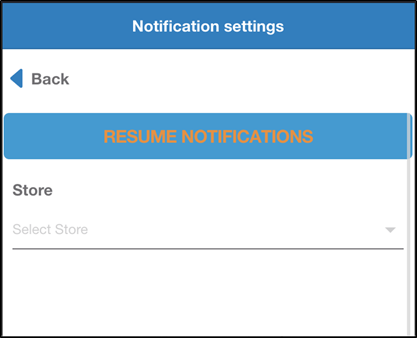
If notifications are snoozed and you want to resume immediately, from the Notifications settings screen, select RESUME NOTIFICATIONS.
HMMC-7723 Implemented 'working schedule' feature
With this enhancement, Store Owners can now set up a time schedule to specify when they want to receive Mobile App notifications. This working schedule feature allows you to receive notifications when you choose and not be bothered with repeatedly changing or snoozing your settings.
- From the Mobile App Menu, select Notifications then select the Settings
 icon from the bottom right corner.
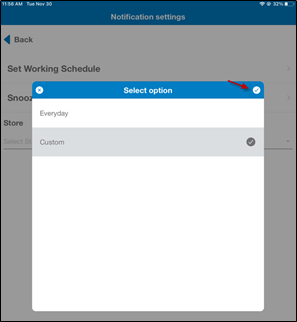
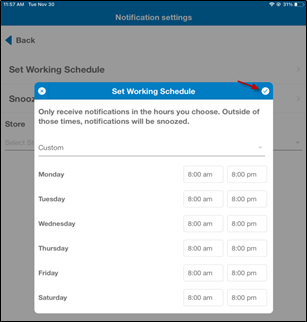
The Notifications settings screen displays. - Select Set Working Schedule to receive notifications every day or set up custom notifications. Refer to the Set Working Schedule section below for a detailed description of this functionality.
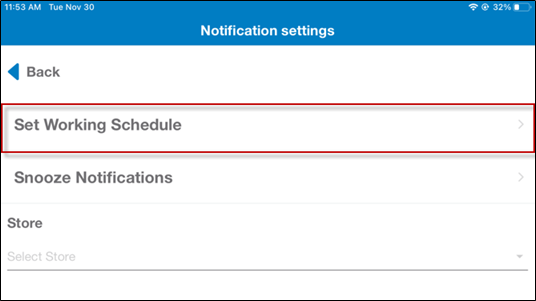
Set Working Schedule
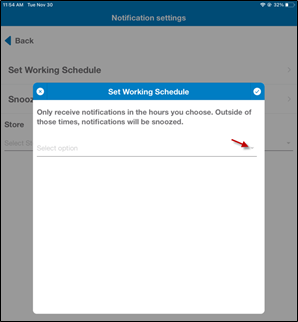
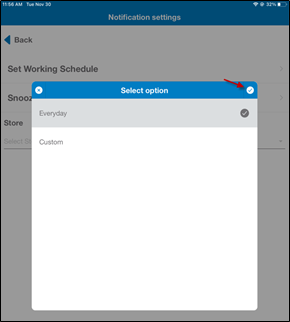
When selected, this option displays the following text: Only receive notifications in the hours you choose. Outside of those times, notifications will be snoozed. From here, selecting the drop-down arrow allows you to choose from Everyday or Custom.
- Everyday to receive notifications each day (including Saturday and Sunday). Note that 8AM to 8PM are filled by default, but can be changed. Select the arrow in the top right corner to confirm the setting.
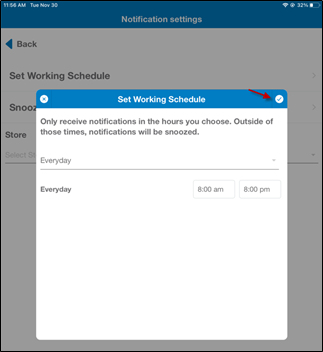
- Custom to receive notifications in the hours you choose. Outside of those times notifications will be snoozed. Note that 8AM to 8PM are filled by default, but can be changed. Select the arrow in the top right corner to confirm the setting.
HMMC-8002 Improve behavior for notifications related to Stores unassigned from the current Store Owner
With this enhancement, when a Store Owner attempts to open details related to a notification for a Store they are unassigned from rather than opening a separate screen, they will now see the more informative message: Store connected to the Notification is not available. This change will help users understand why specific details are available or not available to them.
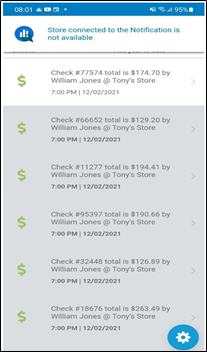
The new Store connected to the Notification is not available also displays when the following notification types are selected:
- Labor
- Void
- Discount
- Checks
- Fraud Detection
- Tips
- Manager Logbook
- Local Events
- Sales Goal (Day, Week, Month)
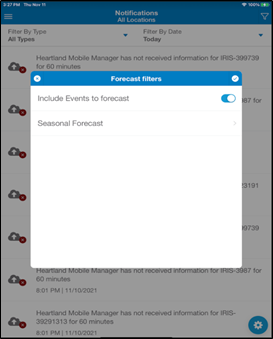
- Today’s Forecast Filters Screen
Admin Console
HMMC-7378 Added links for Reports on Store page
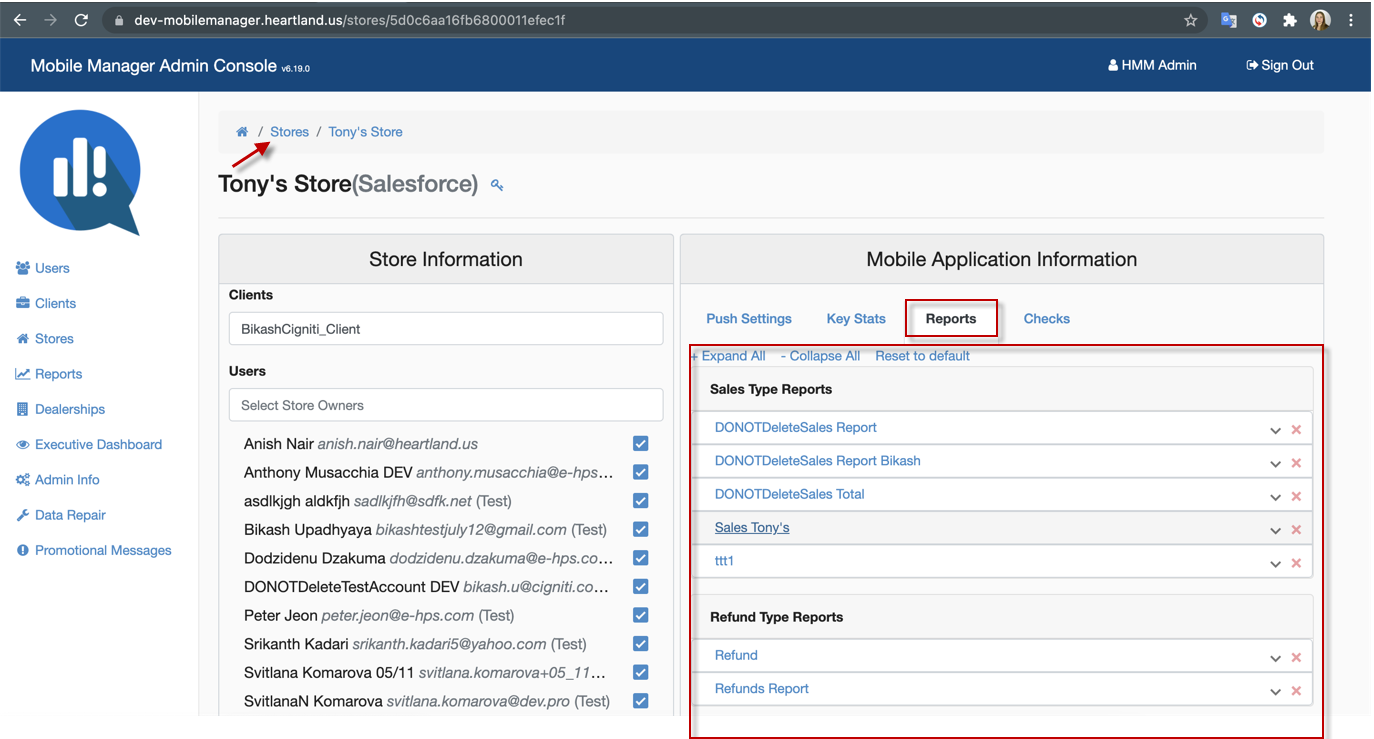
With this enhancement, Store Owners, Dealers, Support, Admin, and Super Admin users can open store reports while on the Stores page by selecting the Reports tab. All available reports are clearly displayed. Selecting the drop-down arrow allows you to enter your criteria and generate the report.
HMMC-7511 Added ‘Client Admin’ role
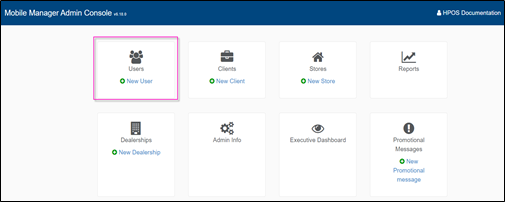
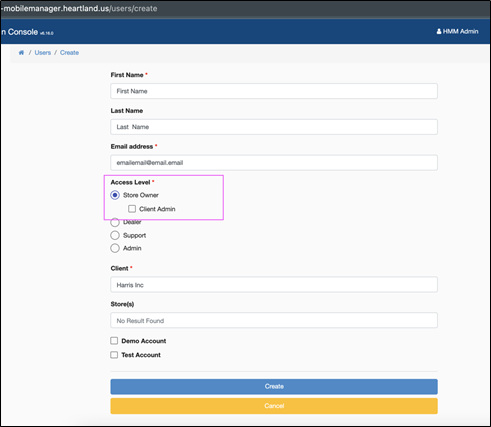
If you have a multi-location site and need to manage users for any of the stores under your client, designating a Client Admin gives them the ability to do so. With this enhancement, Client Admin has been added to the access levels within the New User form. Under the Access Level heading, a checkbox has been nested under Store Owner. Note that the box is unchecked by default. Selecting the checkbox makes the Store Owner a ‘Client Admin’.
Only users with Dealer, Support, and Admin access level can create Client Admins. The Client Admin access level cannot create other Client Admins; however they can create Store Owners.
HMMC-7630 Added ‘Select Client Admin’ section
With this enhancement, from the Client Admin page, you can now change existing Store Owner permission to Client Admin and vice versa.
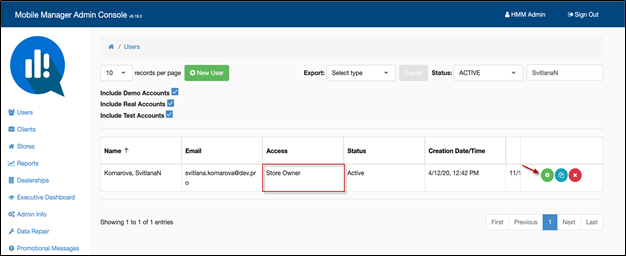
In the example below, you can see on the Users page that the user has Store Owner access. We’ll give them Client Admin access.
Selecting the green Settings icon takes you into the user’s record.
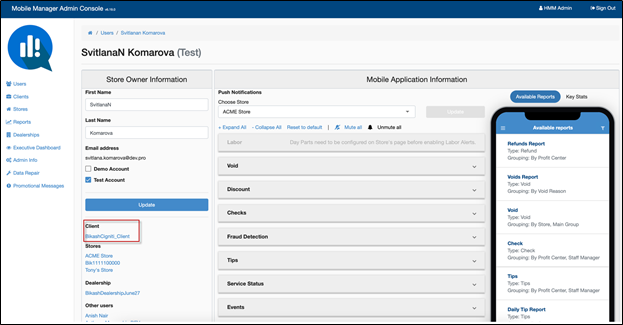
Under the Client heading, select the link and the Clients page displays.
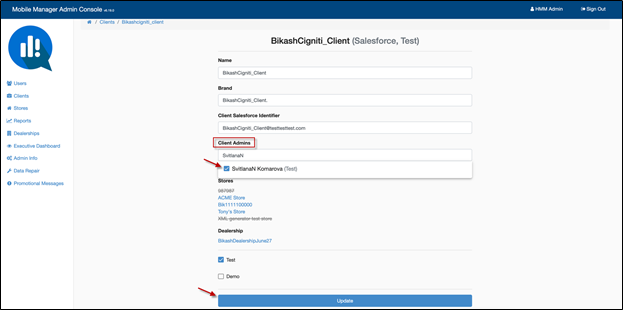
From the Clients page, under the Client Admins heading, use the drop-down arrow and select the checkbox for the user you want to update then select the Update button to save your changes.
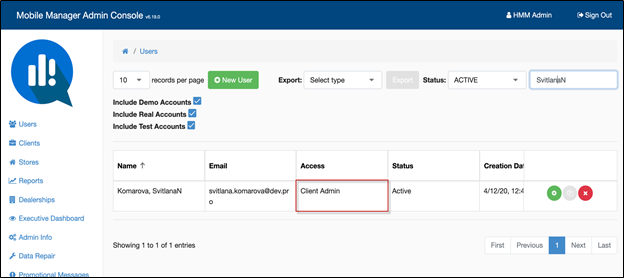
From the Users page, you can see the user now has Client Admin access.
This process can be repeated to remove the Client Admin access level from a Store Owner.
HMMC-7614 Added environment prefix in an email title (DEV & UAT)
With this enhancement, when a Store Owner, Dealer, Support, Admin, Super Admin, or Client Store Owner receives an Invitation to Heartland Mobile Manager email or the Reset Password email, the subject line will contain the environment prefix (e.g. DEV-Password Recovery) to easily distinguish what environment the email generated from. This enhancement is intended to easily identify any testing emails a user might receive in error and can disregard.
Note that emails generated from the Production (PROD) environment are not changing; these emails will not contain a prefix.
HMMC-7711 Allowed ‘+’ for names
Previously, when an Admin or Super Admin attempted to create or update a Client, Store, or Dealership that included the ‘+’ symbol in the name, the system displayed an error message. For example, an attempt to enter: Adam + Alice Bagels would generate the following error:
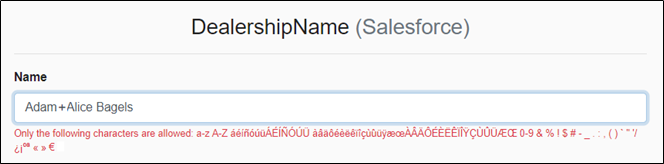
With this enhancement, the ‘+’ symbol has been included in the list of special characters allowing users with Admin or Super Admin access to create or update Client, Store, and Dealership names to include the ‘+’ symbol as intended.

HMMC-7720 Hide 'mute all/unmute all' notification feature
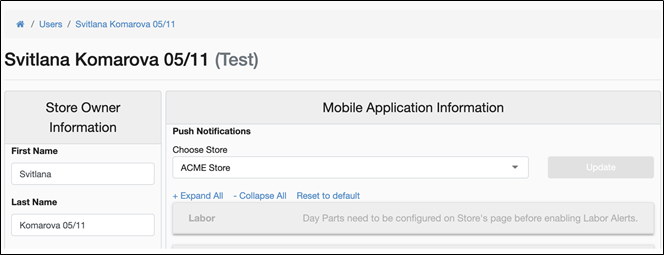
With this enhancement, for All Admin Console Users, the Mute all / Unmute all notification feature has been hidden from the Store Owner page. Removing this features helps eliminate confusion that may have resulted from the duplicate ‘pause notifications’ feature on the Mobile App.

HMMC-3142 Show 'full email on hover on Store Owner
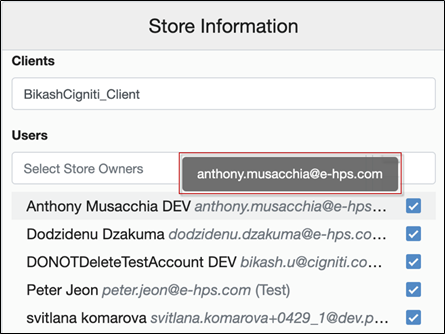
With this enhancement, you can now hover on a Store Owner’s name/email in the list of assigned Store Owners on the Store page allowing you to see the full email address. This is helpful in cases where the email address is long or appears truncated due to a smaller screen.
HMMC-3483 Add 'single quotes' to highlight entities individual data in notifications, eror, texts, etc.
With this enhancement, ‘single quotes’ are now visible throughout the Admin Console to highlight individual data. You’ll see this change applied to:
- Entities - User, Store [Day Part, Report], Client, Dealership, Report, and Promotional Message
- Components - system alerts [alert-success, alert-danger], error messages, and confirm-modal
- Actions - Create, Update, Delete, Copy, Restore, Delete from database
- Confirm model - to highlight individual information you’re being asked to confirm prior to clicking Accept
The following examples show individual information in ‘single quotes’ the way you’ll see them used in some common scenarios throughout the Admin Console.
User deleted a Store named StoreForTest. The alert displays the store name in single quotes to highlight that ‘StoreForTest’ was successfully updated:
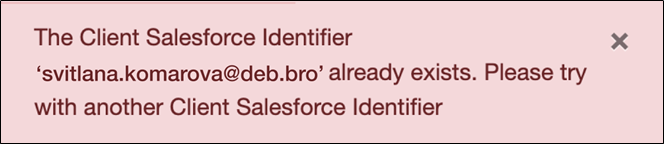
User attempted to update a Client Salesforce Identifier named svitlana.komarova@deb.bro, but it already exists. The alert displays with the Client Salesforce Identifier name in single quotes to warn you that ‘svitlana.komarova@deb.bro’ already exists:
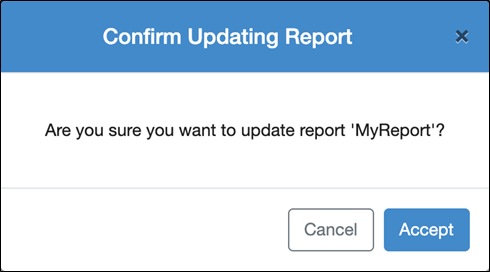
User attempted to update a report named MyReport. The confirmation box displays with the report name in single quotes asking to cancel or accept that you are updating ‘MyReport’:
HMMC-8076 Correct condition 'Fraud Detection: No Sale'
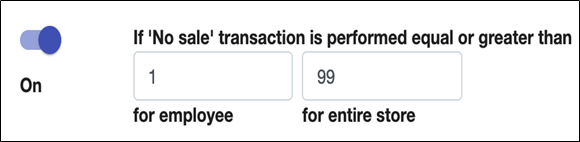
In previous versions, the Fraud Detection alert notification only alerted you if the ‘No sale’ transaction was greater than <any number> for employee and greater than <any number> for entire store limiting you to only receiving Fraud Detection notification when there was more than 1 ‘No sale’ transaction.
With this enhancement, we have updated to allow a ‘No sale’ transaction range that is equal or greater than. By including equal in the range, you can now enter the lowest possible number (i.e. 1) in the field to reflect if ‘no sale’ transaction is performed that is equal or greater than 1 for employee and/or equal or greater than 1 for entire store, that you want to receive notification.
HMMC-2155 Add 'link' on 'Edit' button
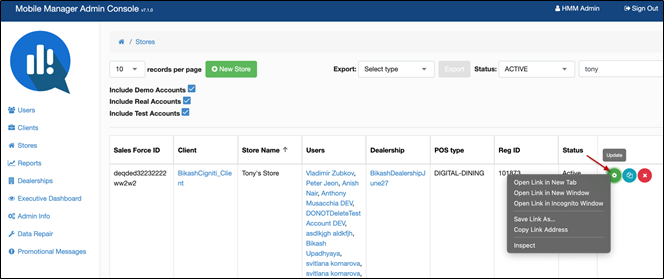
This enhancement allows all User (all types), Store, Client, and Dealership entities to double click or (alternatively press the CTRL key on the keyboard and click) on the green Update icon  to open the user information page in a separate tab. This improved functionality allows the user to easily open the information in a new tab rather than having to copy-paste the URL.
Note: If you make changes on the new tab you have opened, you must refresh the initial open Admin Console tab to see those changes reflected.
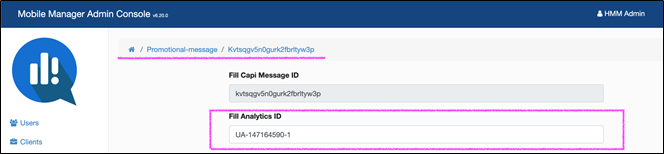
HMMC-7914 Remove Google Analytics track
With this enhancement, the Fill Analytics ID field for promotional messages has been removed and new promotional messages are no longer tracked in Google Analytics. The Google Analytics tracker is no longer used for Admin Console or the Mobile App. It was replaced with Pendo which accurately captures everything that needs to be tracked.
Mobile App and Admin Console
HMMC-7504 Specify open/close check data/time
With this enhancement, all checks open date/time and close date/time are now clearly visible in the Admin Console and Mobile App allowing you to better understand key stats and checks and reports data.
In previous versions, Close Time was sometimes captured as the time the check was generated. With this release, Close Time is now captured throughout Heartland Mobile Manager as the time the check was closed. This change provides consistency throughout the application.
Example Check Detail: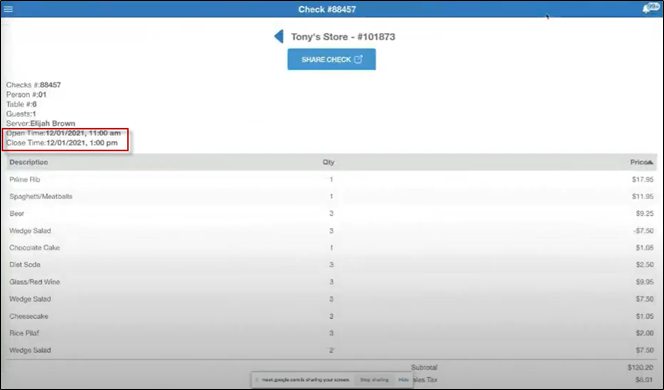
HMMC-8031 Remove 'Information' word
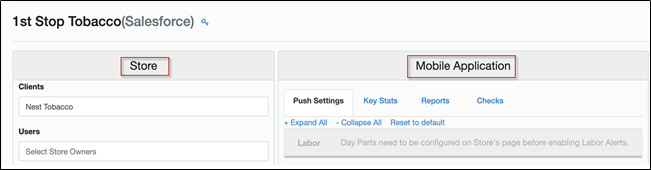
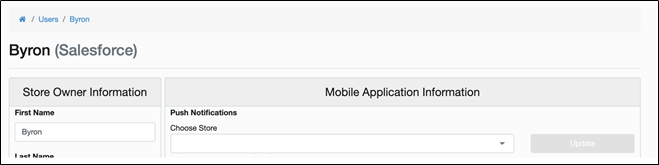
With this enhancement, both Store and Store Owner screens have been updated to remove the word ‘Information’ making the interface cleaner. There are no changes to the functionality.
Example Store:
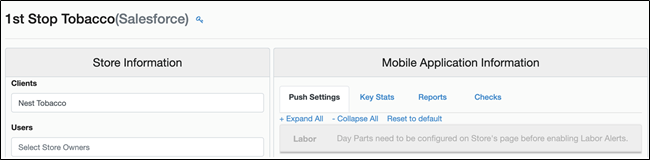
Example Store Owner:

HMMC-2315 Correct conditions for Push Notifications
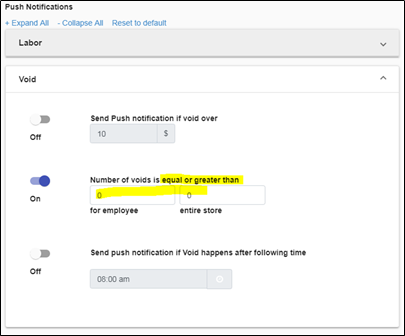
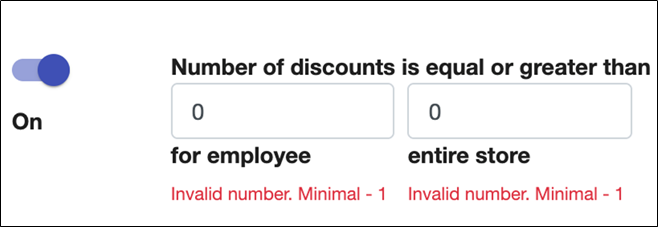
Previously, for Push Notifications, the Void, Discount, and Fraud Detection sections all used ‘equal or greater than’ language and allowed for a ‘0’ value to be entered’ into the fields. With this enhancement, users with access to Push Notifications will no longer be able to select ‘0’ in any field as a valid value for Push Notification settings that use numbers as a unit of measurement. Entering ‘0’ will result in the validation error message: Invalid number Minimal – 1. All values entered in these fields must be 1 or greater. Note that the field only accepts whole numbers and does not allow for the entry of decimal points. This update allows for cleaner conditions for Push Notification settings.
Example Previous versions:
Example Updated with error message:
HMMC-8003 Update text for a Store Owner with no Stores
Previously, if a Store Owner was not assigned to any Store the text below the Mobile App and the Store Owner’s page device simulator on the Admin Console displayed the following message:
This account isn't attached to a store yet. Please contact your Admin/Dealer to attach store(s) to this account and see real-time data on the app.
With this enhancement, the wording was updated simply to remove the word ‘yet’ so the message now reads:
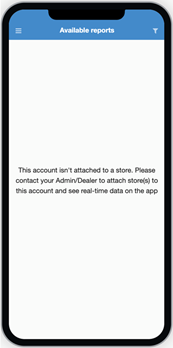
This account isn’t attached to a store. Please contact your Admin/Dealer to attach store(s) to this account and see real-time data on the app.