Overview
The following release notes contains updated versions of the following files:
- AdminSite
- Guest
- POS
If you have questions regarding the updates described in this document, please contact Heartland Restaurant’s Support Department by email (hrpossupport@heartland.us ) or phone (1-833-844-HPOS).
What’s New?
The following release notes detail the updates we have included in this release.
HR-4567 Include or Exclude Deleted Menu Items from Copied Account Data
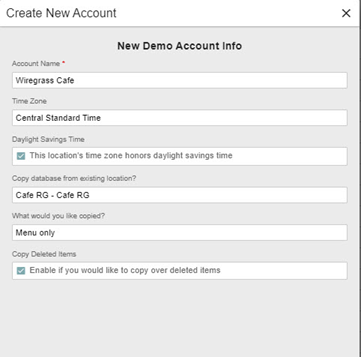
When copying menu data for a new account, you can now include or exclude deleted menu items in the copied data. In the Admin Console, click Accounts in the Main Menu, then click New Demo Account or or New Customer Account. In the Copy database from existing location? list, you can select an existing set of account data to copy into the new account. After selecting such an account, if you then select Menu only or Both in the What would you like copied? list, the program now displays the Copy Deleted Items check box. If you select this check box, the program will include records of deleted menu items when it copies the selected account’s data for the new account.
Updates
The following release notes detail the updates we have included in this release.
HR-510 Scan to Pay & Scan for Points Loyalty Interaction Type
We have modified the label of the Scan for Points loyalty interaction type. In the Admin Console, click Loyalty Setup in the Main Menu, then click Loyalty. In the Loyalty screen, if you select the Use Loyalty check box, the program displays the Loyalty Interaction Type list. In this list, we have relabeled the Scan for Points option to Scan to Pay & Scan for Points to indicate that the option includes both scan-to-pay and scan-for-points interactions.
HR-1143 All Split Checks Print on Delivery Dispatch
In previous versions, if you set the POS to print checks when a check is assigned to a delivery driver, the POS may have failed to print split checks properly. Specifically, if you opened a check in a delivery room, split a check, then assigned the checks to a driver, the POS may have only printed one of the split checks. In such cases, the printed check would have no items listed, and the ticket’s total would have printed as “0.00”. We have corrected this, and the POS now prints all split checks, with accurate items and totals, when you assign them to a delivery driver.
To set the POS to print checks when you assign them to a delivery driver, log into the Admin Console and access the appropriate account. In the Main Menu, click Location Setup, then Settings, then select the Print Check on Delivery Dispatch check box in the App Settings area.
HR-5565 Cashback Paid In/Out Type No Longer Displays
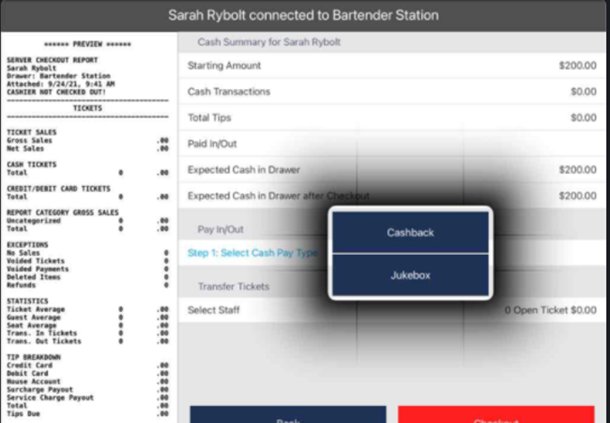
In previous versions, when you performed a Paid In/Out transaction in the POS, the app may have displayed a Pay In/Out Type option that was not created in the Admin Console. In the POS, if you tapped the button, then tapped Cash Drawer, then tapped Pay In/Out, the app would display a list of available Paid In/Out types. However, in previous version, the POS may have included a Cashback option in this list, even if you had not created it in the Admin Console. We have corrected this, and the Cashback Paid In/Out type will no longer display in the list of available Paid In/Out types.
HR-5719 Monetary Scan to Pay on Guest App
If your site uses the Scan to Pay feature with Monetary on the Guest app, you may have encountered a problem. In previous versions, if a customer accessed a check and then tried to add a credit card, the Guest app may have been unable to verify the card, even if it was valid. Specifically, if the customer tapped Add a Credit Card and entered the necessary payment information, the POS would fail to verify the payment information and display an error message (“Oops! Something went wrong on our end!”). In such cases, customers using the Online Ordering website encountered no problems. We have corrected this, and customers can now add a credit card without errors using the Scan to Pay feature on the Guest app.
HR-6064 Paying with Pre-authorized Cards Do Not Crash POS
In previous versions, if you tried to pay the full amount of a ticket with a preauthorized credit card on file, the POS may have abruptly quit. If you restarted the app and tried to pay the ticket again with the same card, the POS would have generated an error message (“transaction already in batch”) without applying payment to the ticket. We have corrected this, and now when you use a preauthorized card to pay the full amount of a check, the POS processes the payment properly.
HR-7027 Admin Console Displays Full Version Numbers of POS Apps
In previous versions, users may have been unable to view the complete version number in the Authorized Tablets screen. In the Admin Console, click Location Setup in the Main Menu, then click Authorized Tablets. In the Authorized Tablets screen, in the Version column, the program displays the version number of the POS app running on each device. In some cases, the version number has three sections (such as “7.11.1”). However, in previous versions, the program may not have displayed the third section of the version number (such as “7.11”). Thus, users could not see the accurate version numbers of the apps on their devices. We have corrected this, and the Admin Console now displays the full version numbers of the POS apps running on their devices.