Overview
This article describes how to configure a Heartland Retail site to process card payments via Datacap using a supported Datacap device.
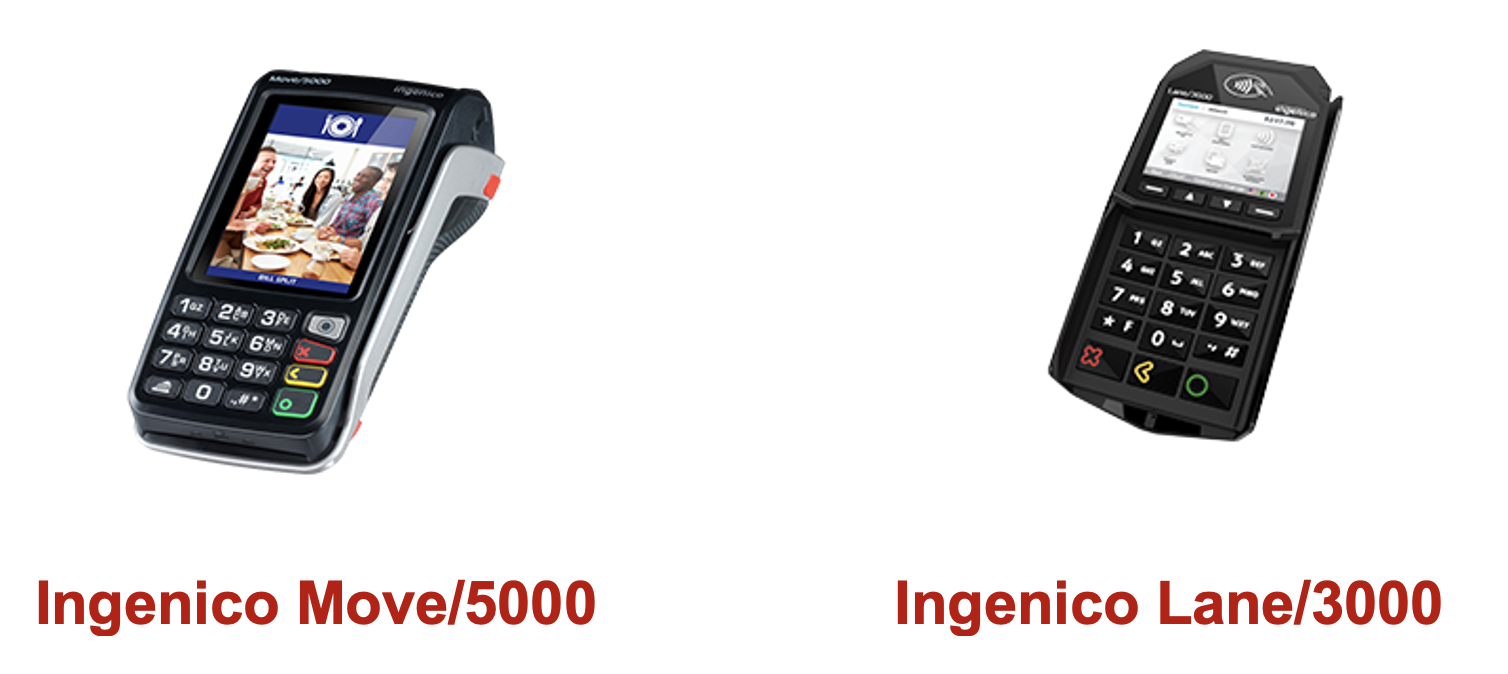
Please refer to the corresponding Datacap Setup Guide for instructions on installing your pinpad:
Requirements
Merchant must be running version 6.60 or later of both Heartland Retail 6.60 (including Web and iOS platforms) and Heartland Retail Connect.
Heartland Retail POS devices and Datacap payment devices must connect to same WiFi network.
Merchants must meet the following minimum hardware specifications:
- iPad | Sixth | 9.7" | A10 | 2018 | 15.1 | discontinued September 2019
- iPad Mini 4 | Fourth | 7.9" | A8 | 2015 | 1 | discontinued March 2019
- iPad Air | Third | 10.5" | A12 | 2019 | 1| discontinued September 2020
- iPad Pro 12.9" | Third | 12.9" | A12X | 2018 | 1 | discontinued March 2020
Minimum Operating System:
- PC: 64-bit Windows 10 (Windows 11 is not supported yet)
- Mac: Mac OS X 10.15 or newer
- iPad: iOS 14 or newer
Configuring Heartland Retail
For each location, follow the steps below to configure Heartland Retail with Datacap Gateway.
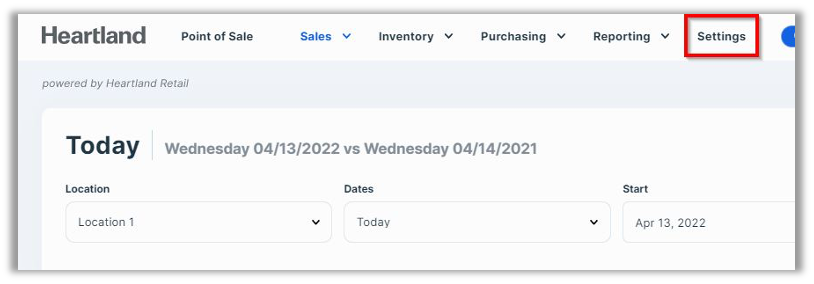
- Go to Settings.
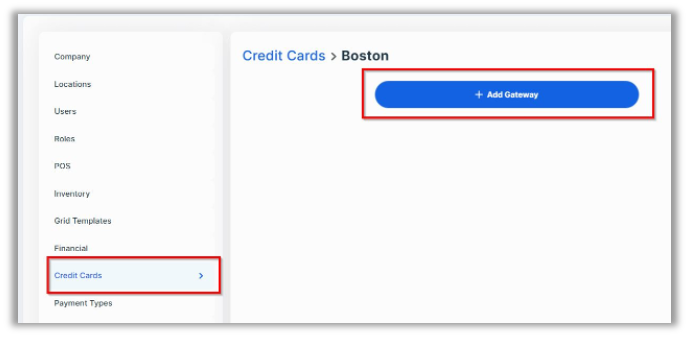
- Go to Credit Cards and then select Add Gateway.
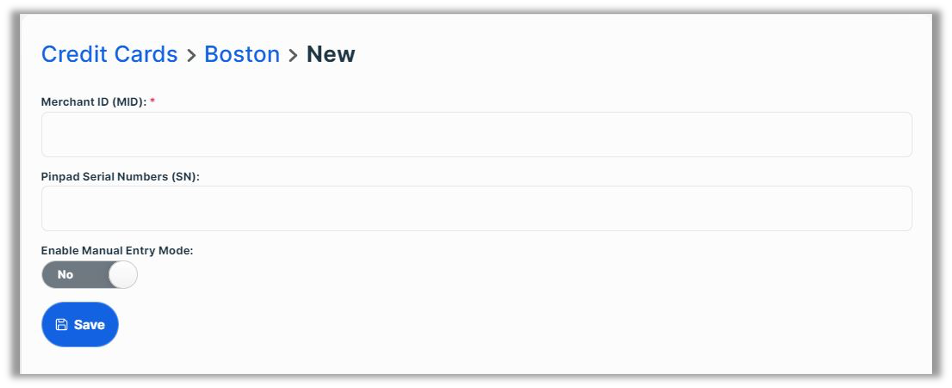
- Select Datacap from the list, then enter the Merchant ID and Pinpad Serial Numbers (separated by a comma) in the modal that displays, and select Save.

- Go to POS Settings and choose the Datacap device from the Payment device dropdown.
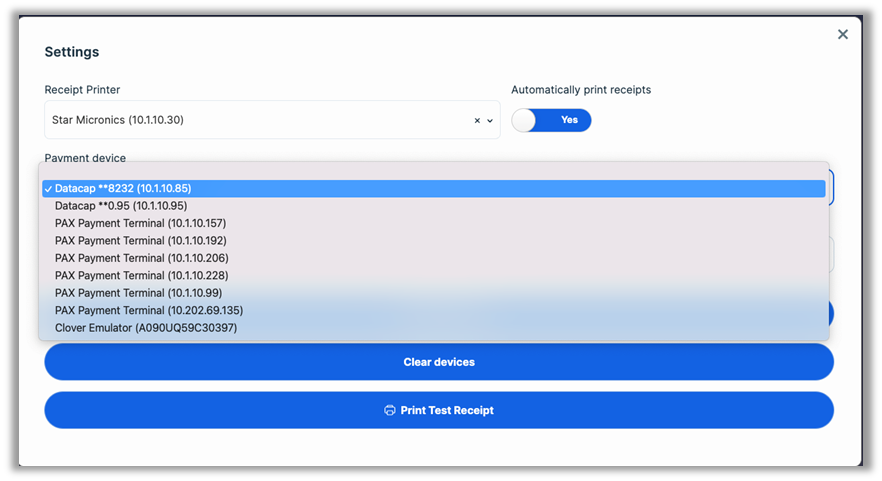
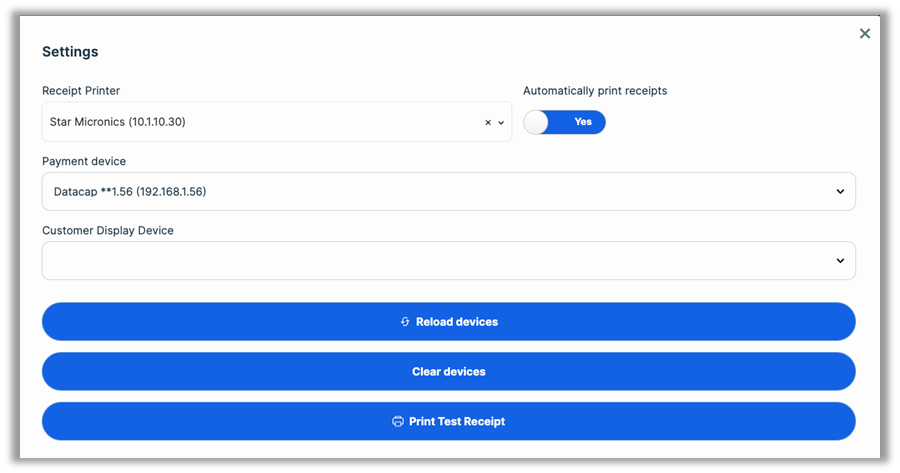
Transaction Operations
Payments & Voids
- To add a credit or debit card payment:
- For in-store sales, tap the Tender button at the bottom of the screen.
- For sales orders, tap the Add Payment button along the right side of the screen.
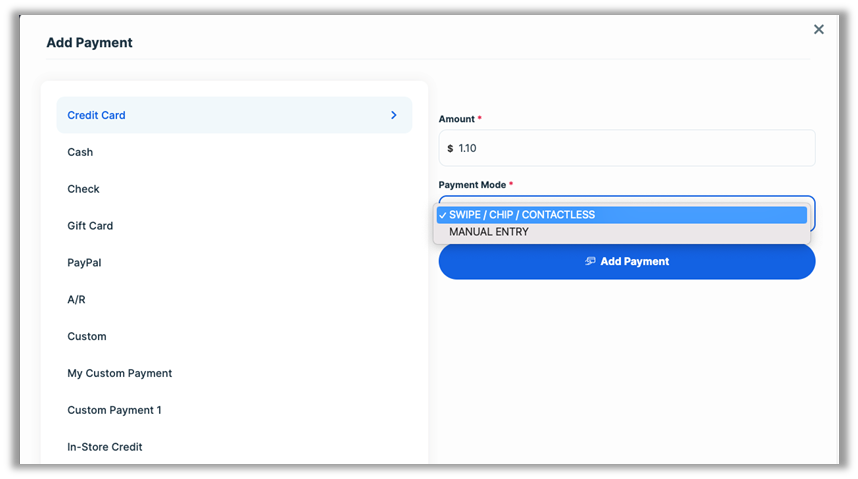
- On the window that opens, tap the Add Payment Please note that the amount will default to the balance due. Should you wish to process a partial payment, simply enter the amount of the desired payment in the Amount box before processing the payment.
- Follow instructions on the payment device to complete the payment.
- To void a transaction:
For credit card payments, tap the Void button next to the transaction detail in the lower portion of the screen.
For debit card payments, use the Return option as detailed in the next section
Returns
- To process a return, after selecting the desired ticket, tap the dropdown button to the left of the item to be returned and select Return.
- On the window that opens, tap the Add Return button. Please note that the amount will default to the full amount paid. Should you wish to process a partial refund, simply enter the amount of the desired refund in the Amount box before processing the refund.
- Follow instructions on the payment device to complete the transaction.
Manual Card Entry
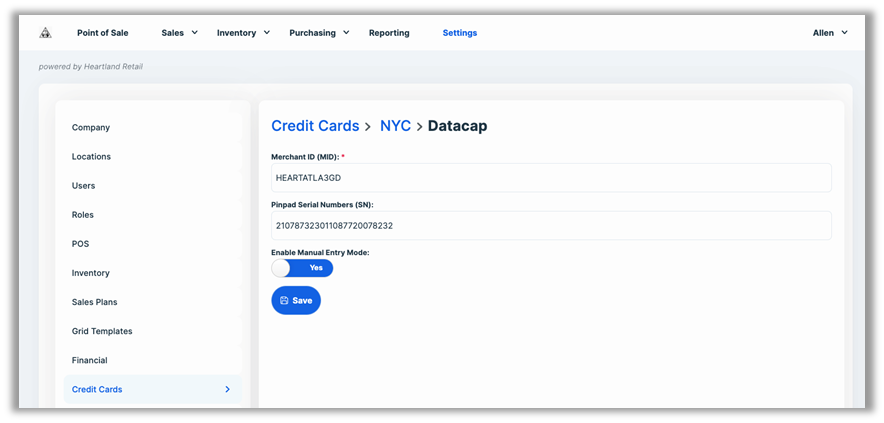
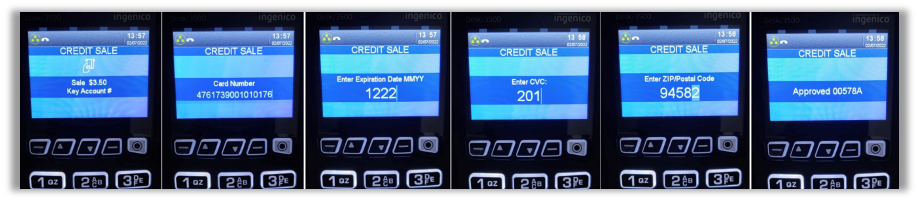
Merchants running Heartland Retail version 7.15 and higher can now manually process credit and debit card transactions with Datacap DC Direct. If you wish to take advantage of this feature, you must enable Manual Entry Mode.
Payments & Voids
- Follow steps 1 and 2 in the previous Payments & Voids section.
- Enter desired value in the Amount box and select Manual Entry from the Payment Mode
dropdown. - When prompted by the pinpad, enter card details to complete the transaction.
Returns
- Follow steps 1 and 2 in the previous Returns section.
- Enter desired value in the Amount box and select Manual Entry from the Payment Mode
- As with manual transactions and voids in the previous section, when prompted by the pinpad, enter card details to complete the transaction.