Overview
This article describes how to configure a Restaurant Essentials network to use the PAX A920 device to process payments. The A920 terminal is an Android based, multilane transaction processing and mobile smart terminal. This service is only supported by Heartland Payment processing.
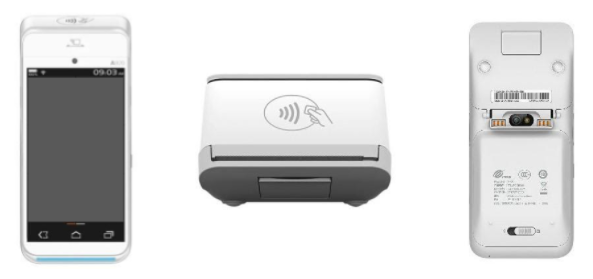
Connecting the A920 Device to a Local Network
You will need to set the A920 device to connect to the site’s wireless network.
- Turn the device on.
- In Home Screen, tap Settings.
- Enter the password (9876 or pax9876@@), then select OK.
- Tap Wi-Fi.
- Select your local network.
- Enter the network’s password, then tap Connect.
- Wait until the device connects, then tap the Wi-Fi network’s icon.
The app will display the network settings. - Record the IP address.
You will need the IP address to configure Heartland Restaurant to communicate with the device.
Connecting the A920 Device with an Ethernet Connection
To connect the A920 to a local network with an Ethernet connection, you must use the device with the L920 base. For more information on the L920 base, see “L920 Base”.
- Turn the device on.
- In the Home Screen, tap Settings.
- Enter the password (either 9876 or pax9876@@), then tap OK.
- Tap Ethernet.
- Tap Ethernet Configuration.
- Tap Static/DHCP.
The device will prompt for the IP Address, Subnet Mask, Gateway and DNS. - Enter the IP Address, Subnet Mask, Gateway, and DNS.
- After you enter the necessary information, tap Connect.
Configuring Restaurant Essentials
The following procedures describe how to configure Restaurant Essentials to use the PAX A920 device. This configuration section is also included in the Devices section of Guided Access when setting up a payment device.
Creating a Payment Terminal
- Log into the Admin Console (hrpos.heartland.us).
- In the Main Menu, click Account, then click the appropriate account.
- In the Main Menu, click Location, then click the appropriate location.
- In the Main Menu, click Location Setup, then click Payment Terminals.
- In the Payment Terminals screen, click the NEW button to add a Payment Terminal.
- In the Name box, type a descriptive name for the device.
- In the IP Address box, type the IP address of the PAX A920 device.
- If necessary, select the Prompt for Tip check box.
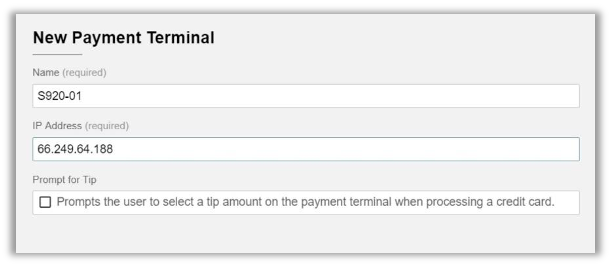
- Click save icon to save the record.

- Click the upload icon to publish changes.

- Click Yes at the prompt.
Connecting the POS to a PAX A920 Payment Terminal
These settings allow you to attach a PAX A920 to a Restaurant Essentials terminal for normal use.
- Open and log into the Heartland Restaurant POS on your iPad.
- Tap User Menu.
- Tap Manager.
- Tap Payment Terminals.
- Select the PAX A920.
When the POS connects to the device, it displays a message (“Connected”).
Using the A920 Payment Terminal
The following procedures launch the Portico application on the A920 device allowing transactions to be processed. The device should remain in this mode for the POS to complete credit card transactions.
- Double tap to launch the Portico application from the main screen.
Printing Credit Card Slips on Device
Note: The Portico Application has built in logic to print credit card slips, if preferred. The slips will not print at the POS and you can alter the design when printing.
- Double tap to launch the Portico application from the main screen.
- Select the Menu icon in the upper right corner, enter the password (either 9876 or pax9876@@).
- Select the Operation Settings.
- Enable Print Support.
Completing Payment Transactions
The following procedures describe how to process a credit card transaction with the A920 device. If the device is connected to the local network with an Ethernet connection, it must remain connected to the L920 base to process the transaction.
- In the POS, pay a ticket and select a credit card receipt.
If the app is set to prompt for a tip, it will do so. - If prompted for a tip, enter a tip amount, then tap Submit.
- When the app displays the Please Enter Account prompt, enter the card’s number.
-> If the card has an EMV chip, you can dip the card or tap it against the front sensor.
-> If the card has no EMV chip, you can swipe it.
-> If these methods are unsuccessful, you can type the card number into the Please Enter Account box, then tap Confirm. - If the site uses surcharges, the device may display a notification prompt.
- If the device displays the surcharge prompt, tap OK.
If you have dipped the card, the app will prompt you to remove the card. - If prompted, remove the dipped card.
The device will process the payment.
In the app’s settings, you can also configure the payment screen to include Apple Pay, Google Pay, and Samsung Pay as payment options.
L920 Base
The L920 base has various benefits, as it offers a place to host the A920 terminal while charging and enables you to connect the device to the network with an Ethernet connection instead of Wi-Fi. When the A920 is docked, you can configure both the dock’s Ethernet connection and Wi-Fi connection to a static IP address. When the A920 device is lifted from the L920 base, it keeps the same IP setting, preventing disconnection from the network and POS.
If you want to use the A920 as a wireless solution, we recommend that you use it with the L920 base to protect the charging cable/port and help ensure better portability.
The L920 base is not included with the A920 device. You must order from a third-party vendor.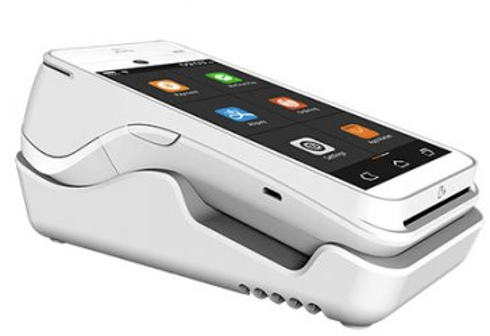
Benefits
- Offers safe charging solution.
- Wired to Wireless connection seamlessly.
- Micro USB not exposed, preventing damage.
Setting the IP Address for Wi-Fi and Ethernet Connections
- Tap Settings.
- Tap Ethernet.
- Scroll to Configure Ethernet Device.
- Select Static.
- Enter the necessary IP information.
- Tap Save.
- Go back to Settings.
- Select Wi-Fi.
- Forced press your Wi-Fi network.
- Tap Modify Network.
- Select Advanced Options.
- Scroll down.
- Tap IP Settings, then tap Static.
- Scroll down.
- Enter the same necessary IP information.
- Tap Save.