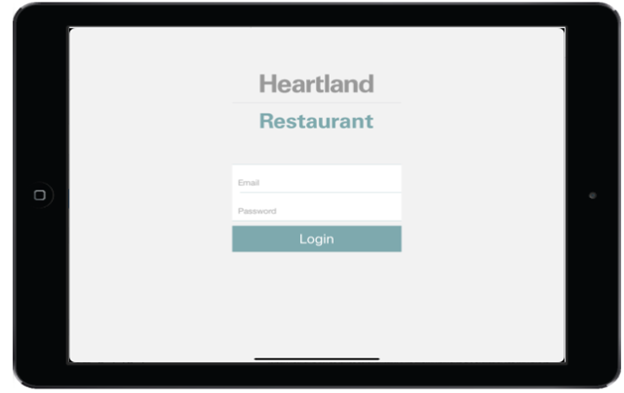
Overview
This document describes how to setup your iPad and stand. This setup guide can be used for both Restaurant Essentials and Retail Essentials.
Setting up your iPad and Stand
Your iPad and stand are packaged in the same box, as your iPad is already inserted into its stand for you. For a more polished look on your checkout counter, your iPad's USB-C to USB-A cable is also routed through the stand for you.
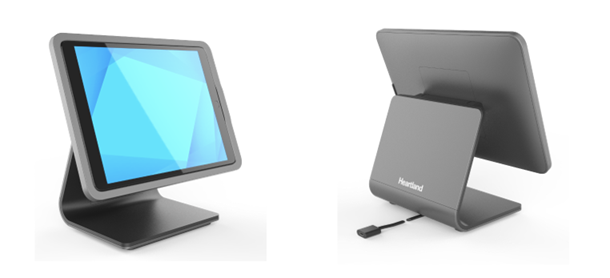
Your iPad should come pre-configured and with the Heartland Retail Essentials or Heartland Restaurant Essentials apps pre-installed. This helps you bypass most of Apple’s iPad setup and get started quickly and easily. If the iPad is not pre-configured with the Heartland Retail or Heartland Restaurant apps pre-installed, please follow the instructions below to download and install the appropriate app.
To setup your iPad and stand:
- Turn on your iPad.
* On your iPad, hold down the top button until the Apple logo appears on screen.
* Once your iPad has powered up, press the Home button to unlock your iPad. - Join your Wi-Fi network.
* On you iPad, tap Settings > Wi-Fi.
* From the right Wi-Fi panel, select your network from the list.
* Enter your password and tap Join.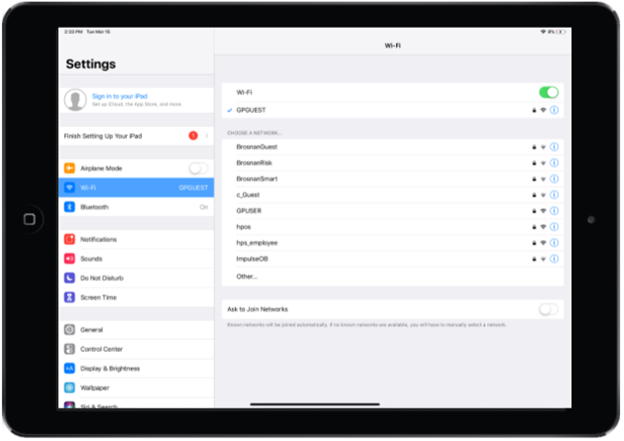
Your Wi-Fi network should now be listed under the Wi-Fi switch and have a checkmark to the left.
- Turn on Location Services.
* On your iPad, tap Settings.
* Scroll down and select Privacy from the left panel.
* Select Location Services.
* Enable Location Services.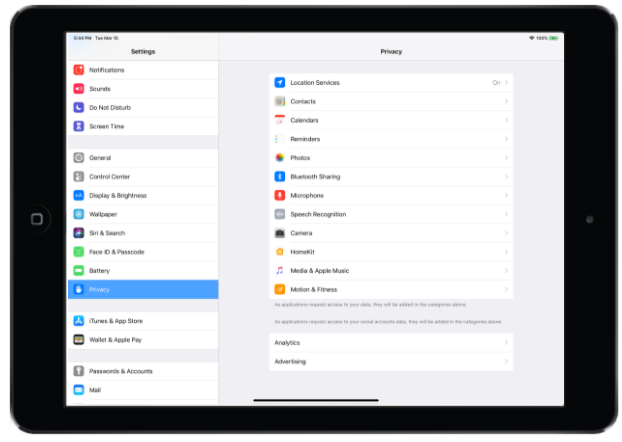
- If the applicable product app is already installed on your iPad, this procedure is complete, otherwise, continue to either the Heartland Retail or Heartland Restaurant section to install and sign in to the applicable product app.
Retail Essentials
Install Heartland Retail app
- On your iPad, tap Install.
- Tap Continue to be taken directly to the Heartland Retail app on the App Store.
- Under Heartland Retail app, tap Get.
- In the alert, tap Create New Apple ID and follow Apple’s onscreen instructions. Alternatively, you can tap Use Existing Apple ID and sign in.
Note: If you’re creating a new Apple ID, select None from the payment type options to avoid having to enter your credit card information. As your employees will be using your iPad, only use an existing Apple ID if it was created for business purposes.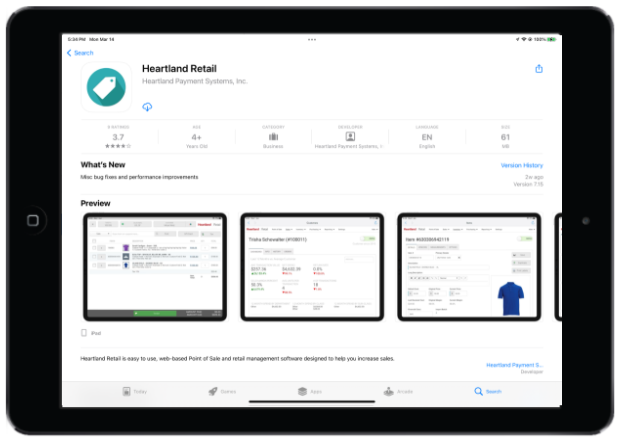
Sign in to Heartland Retail app
*Please note that you will not be able to sign in until you have created users during the Guided Setup process.
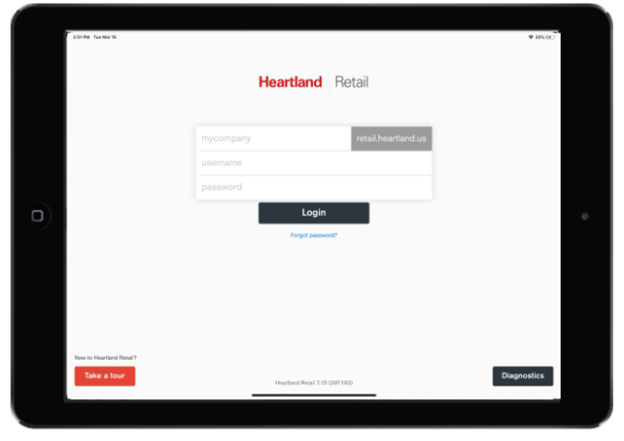
- Open the Heartland Retail app.
- Enter Company Name.
- Enter your username and password.
- Tap Login.
Restaurant Essentials
Install Heartland Restaurant app
- On your iPad, tap Install.
- Tap Continue to be taken directly to the Heartland Restaurant app on the App Store.
- Under Heartland Restaurant app, tap Get.
- In the alert, tap Create New Apple ID and follow Apple’s onscreen instructions. Alternatively, you can tap Use Existing Apple ID and sign in.
Note: If you’re creating a new Apple ID, select None from the payment type options to avoid having to enter your credit card information. As your employees will be using your iPad, only use an existing Apple ID if it was created for business purposes.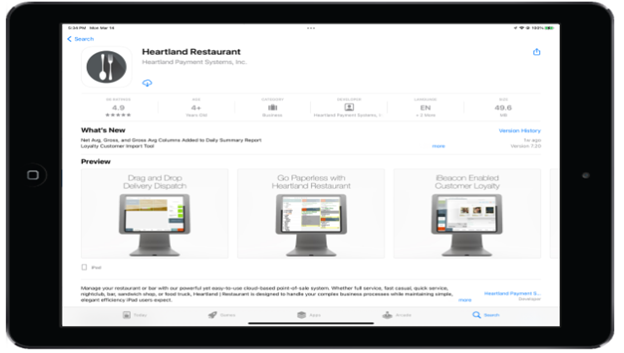
Sign in to Heartland Restaurant app
*Please note that you will not be able to sign in until you have created users during the Guided Setup process.
- Open the Heartland Restaurant app.
- Enter your Email and password.
- Tap Login.