Overview
This document contains explanations for the following enhancements:
- Mobile App
If you have questions regarding the updates described in this document, please contact Heartland Mobile Manager Support by email at hmm@heartland.us.
Enhancements
The following release notes detail the enhancements we have included in this release.
Mobile App
HMMC-7597 Moved to Store Timezone
With this release, Manager Logbook has been updated so the time and date appears in the store’s timezone. You’ll see this change in the following Manager Logbook instances:
* ‘Created By’ date/time
* ‘Last Modified’ date/time
* ‘Completed By’ date/time
* Target Date
HMMC-8520 Roll out ‘Read all’ button on the action executive beginning
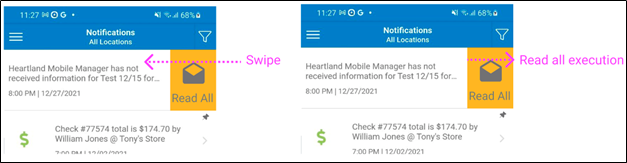
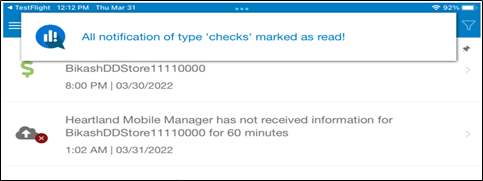
With this enhancement, when a store owner has notifications in thread view, if there are unread items in the thread when they swipe right to left, the Read All button will roll out allowing them to automatically mark all of that notification type as ‘read’. For example, if you’re reviewing ‘checks’ notifications, swiping right to left allows you to mark all checks notifications as ‘read’. Note that you will see a message at the top, confirming the action was successful.
Important: With this version of Heartland Mobile Manager, once you have swiped to Read All effectively marking a notification type as ‘read’, the action cannot be undone or reversed.
HMMC-8521 Improved swipe buttons UI
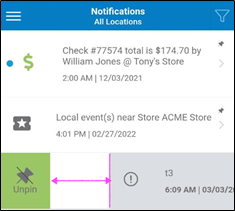
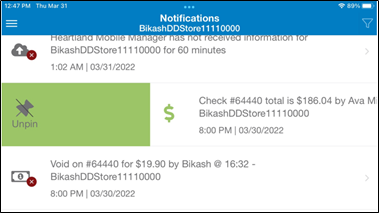
With this release, the Pin/Unpin and Read All swipe buttons have been enhanced to fill all the roll out area with the corresponding color providing a more seamless look to the interface.
HMMC-8522 Added 'HCM Knowledge Base' link
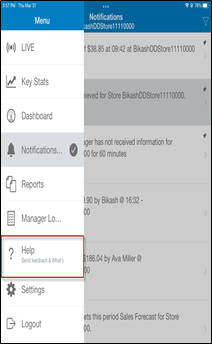
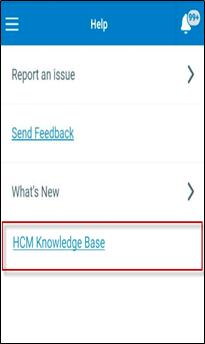
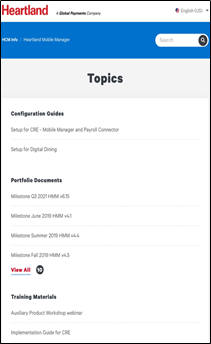
With this enhancement, a link to the HCM Knowledge Base has been added to the Mobile App Help screen allowing users to easily access guidelines and instructions related to the Mobile App. From the Mobile App Menu, select Help then select the HCM Knowledge Base link and the Knowledge Base opens.
HMMC-8534 Updated the 'Report an issue' form
With this release, we have updated the Report an issue form allowing users to provide more detail and clarity when reporting an issue.
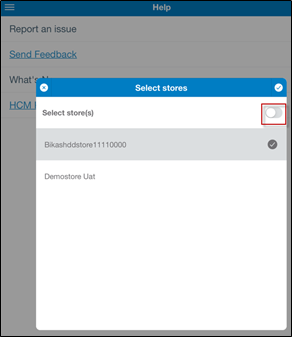
- Use the Select stores drop-down arrow to choose one or more stores that are experiencing the issue or slide the switch to the right to report that the issue applies to all stores then click the arrow in the right-hand corner to confirm your selection.
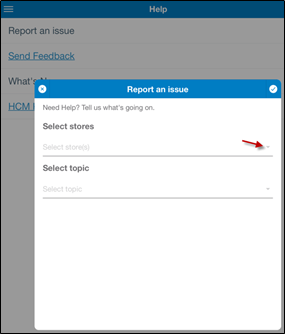
- Use the Select topic drop-down arrow to report that the issue is one of the following topics then click the arrow in the right-hand corner to confirm your selection:
* App
* Transaction Info
* Other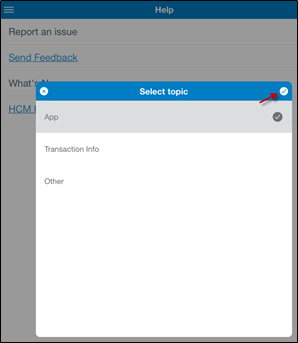
Result: The form opens with the store(s) you selected and the topic type auto-populated. Note that if you need to change your selections, you can use the drop-down arrows to right to make changes. - Refer to the appropriate section below for additional assistance completing the form.
Reporting App Issues
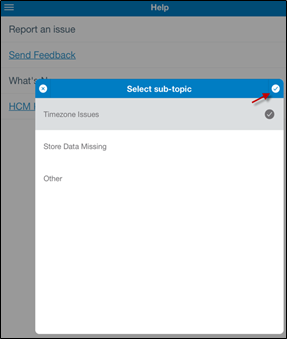
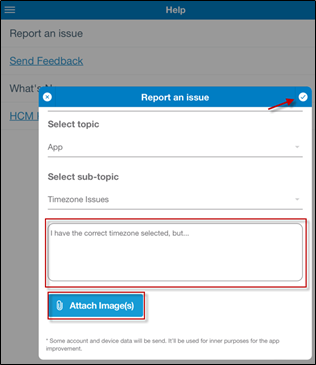
- Use the Select sub-topic drop-down arrow to choose the issue type then click the arrow in the right-hand corner to confirm your selection.
* Timezone Issues
* Store Data Missing
* Other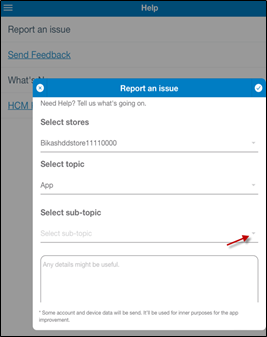
- Use the free text box to enter any pertinent details about the issue you are experiencing.
- Select the Attach Image(s) button to attach one or more screenshots, if desired, then click the arrow in the right-hand corner to submit the form.
Note that you will see a message at the top, confirming you have submitted the form successfully.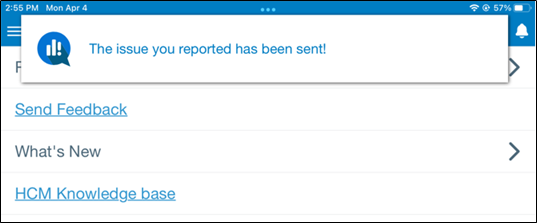
Reporting Transaction Info
- Use the Select sub-topic drop-down arrow to choose the issue type then click the arrow in the right-hand corner to confirm your selection.
* Missing Sales
* Wrong Sales Totals
* Reporting Issues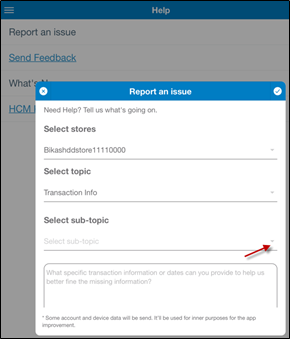
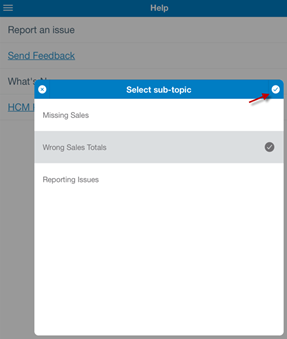
- Use the free text box to enter any pertinent details about the issue you are experiencing.
- Select the Attach Image(s) button to attach one or more screenshots, if desired, then click the arrow in the right-hand corner to submit the form.
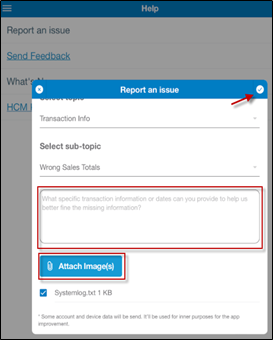
Note that you will see a message at the top, confirming you have submitted the form successfully.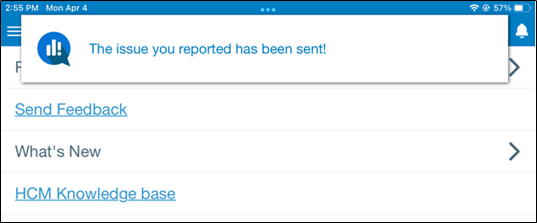
Reporting Other issues
- Use the free text box to enter any pertinent details about the issue.
- Select the Attach Image(s) button to attach one or more screenshots, if desired, then click the arrow in the right-hand corner to submit the form.
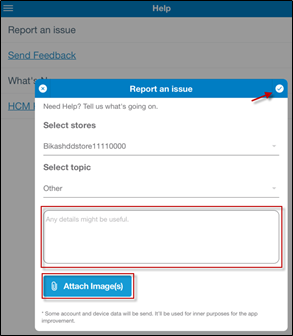
Note that you will see a message at the top, confirming you have submitted the form successfully.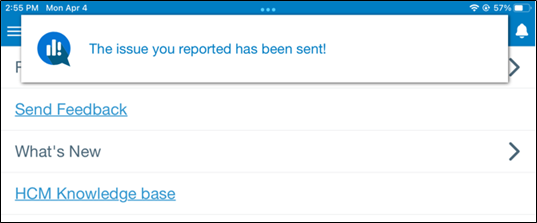
HMMC-8533 Updated the feedback email
Using information from the enhanced Report an issue form, we’ve improved the feedback email to provide recipients more information about the user’s issue. Emails will now include specific information on which stores are reporting the issue and their POS information, the topic of the issue (App, Transaction Info, Other), as well as the sub-topic, if applicable (e.g. App/Timezone Issues).