Overview
This document describes how to process test card transactions (sale and void) in Heartland Retail. We recommend preforming test transactions to ensure all devices are correctly configured and connected.
Performing Test Transactions
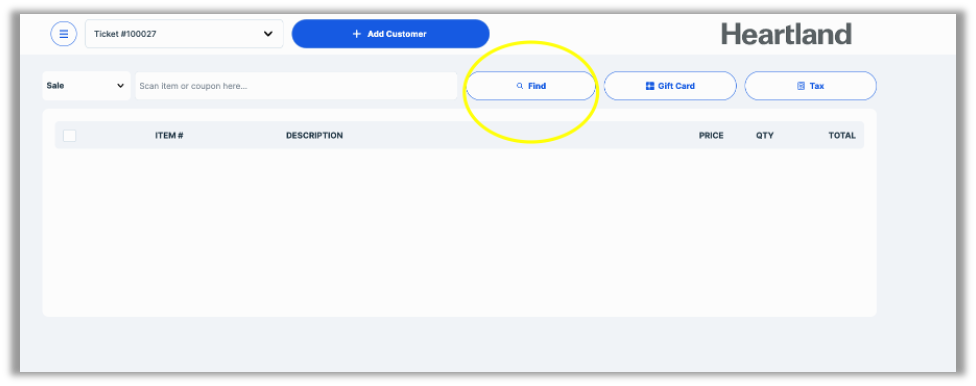
- Scan item or click Find to add one item to the ticket.
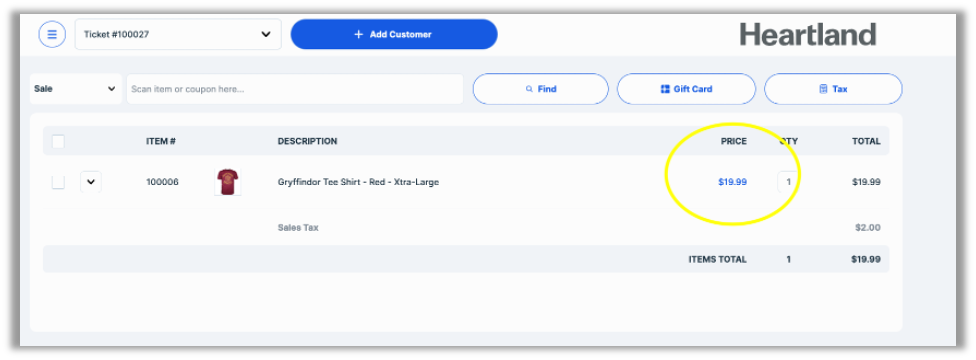
- Click the item price to manipulate the price.
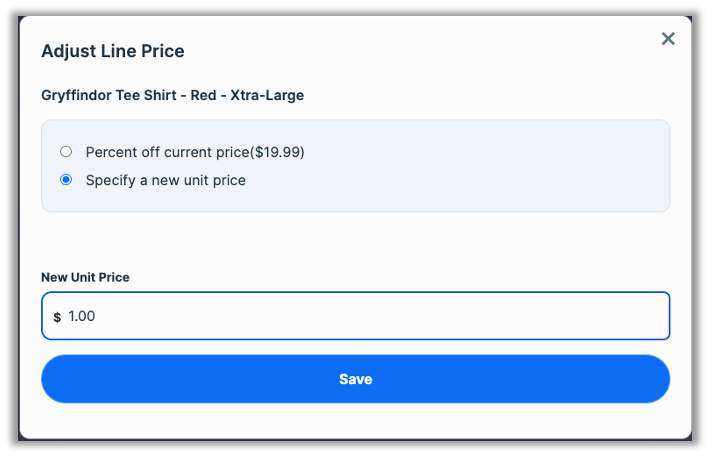
- On the new popup, select Specify a new unit price and enter $1.00.
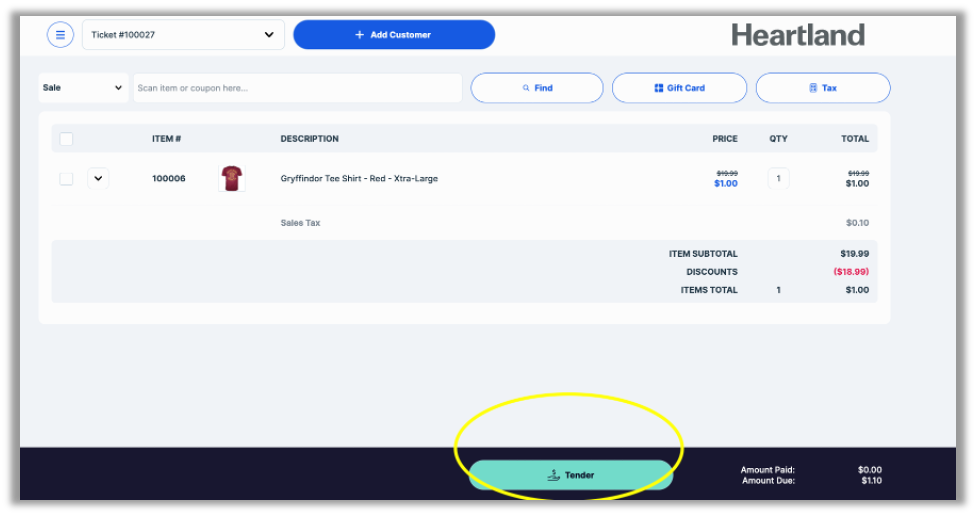
- Click the Tender button.
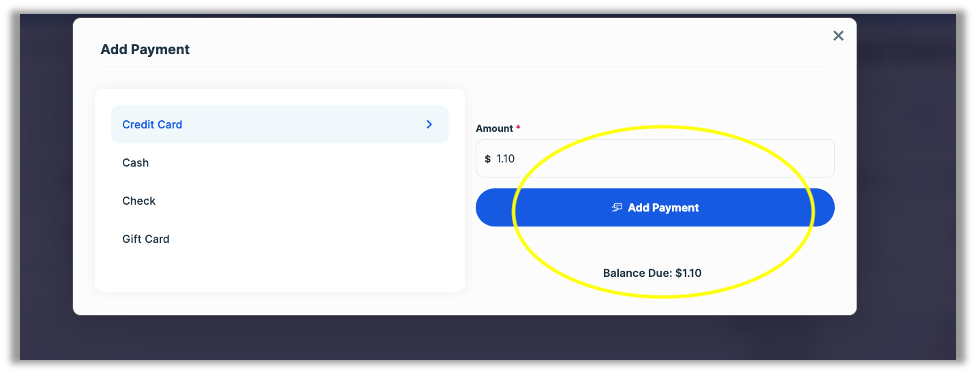
- Verify Credit Card is highlighted in blue on the left side of the screen, then select Add Payment.
- When the POS displays the following notification, proceed with the payment transaction on the payment device.

- If the transaction is successful, you will see the payment details indicating that a charge has been completed. If the transaction is not successful, check to make sure your payment details are correct in the Credit section in Settings.
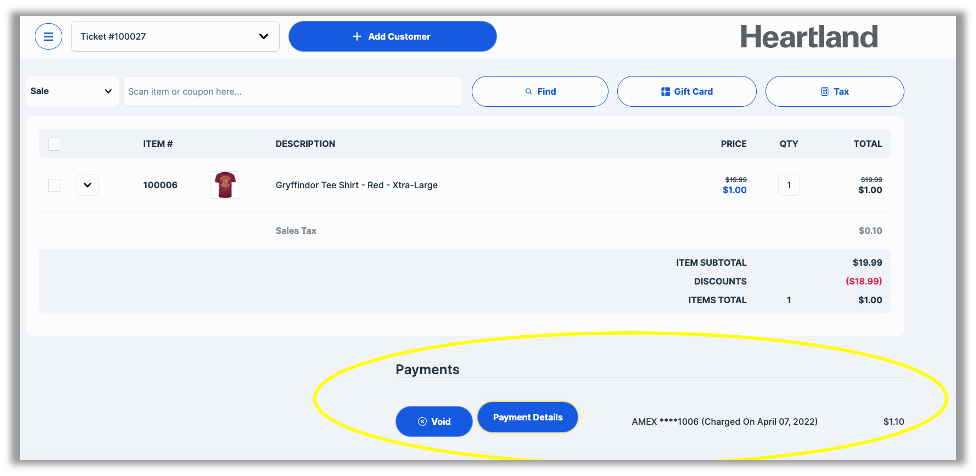
- Once you have successfully completed your test transaction, you can void the transaction by clicking the Void button.
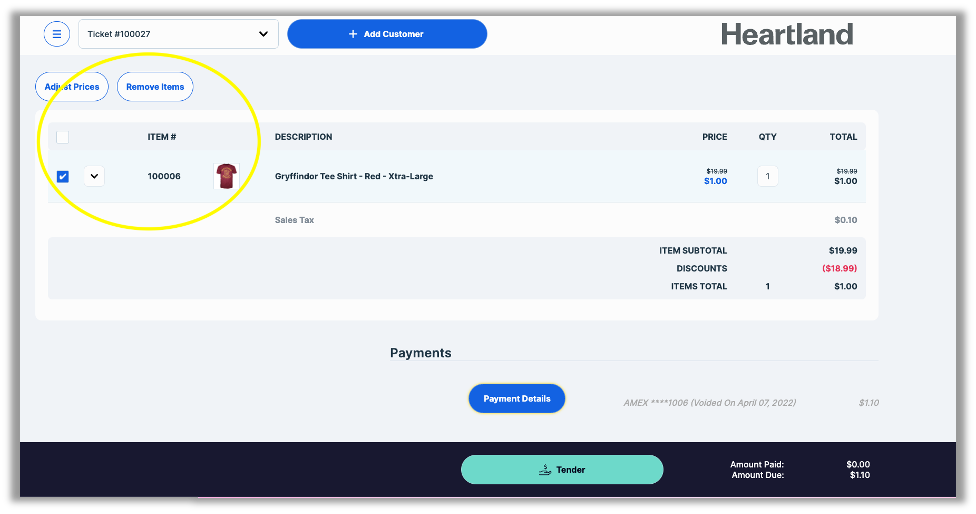
- Lastly, to remove the item from the ticket, check the box to the left of the item and then click Remove Items.