Overview
This article describes how to perform and void a credit card transaction in the POS, to test and verify that the PAX settings are configured properly.
Complete a Credit Card Transaction
- Select New Ticket.
- Select an item.
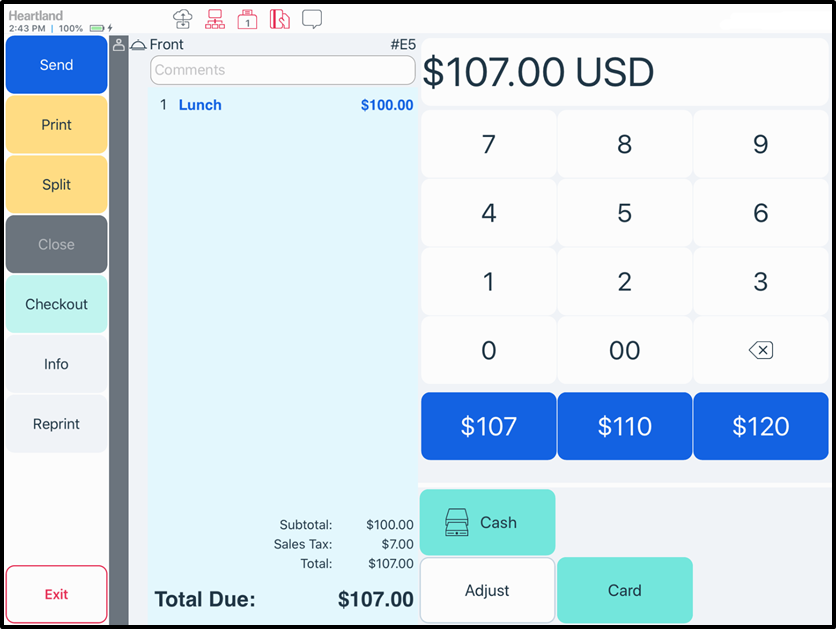
We recommend a cheap item from the menu to complete the test transaction. - Select Checkout.
- Select Card.
The credit card payment will be completed on the PAX payment terminal by inserting, swiping, or tapping your credit card.
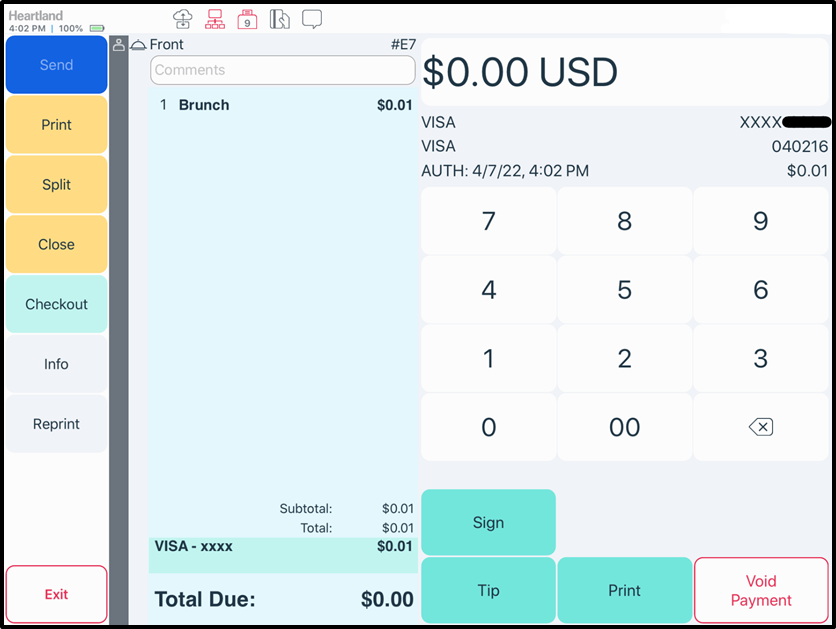
If the payment is successful, the POS will display one of the following, depending on how it is configured.
- A receipt will print from the receipt printer, if the receipt printer has been setup.
- The ticket will clear from the screen and you will be back to the New Ticket Screen
- The ticket will show the credit card information on the right hand side.
- The POS will show a screen asking for a tip and signature.
If the payment fails, you will see an error message on the POS that the payment has declined or see an error message.
Void a Credit Card Payment
Once you have performed a successful payment, you should void the payment to prevent your credit card from being charged. After voiding the payment, you should then subsequently void the ticket to remove the transaction from the site's data.
- Select the ticket, if the ticket is not still open on the screen.
- Select the payment on the ticket.
- Select Void Payment from the bottom right hand corner.
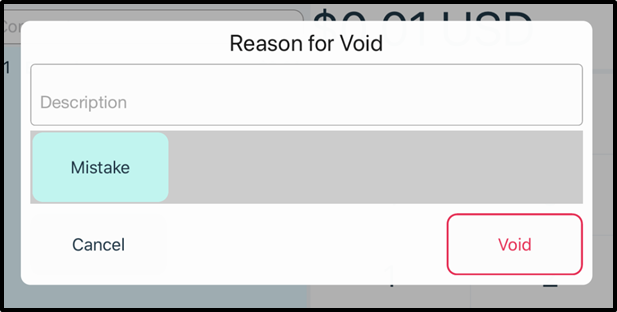
You will then be met with a pop up on the screen. - Select the Void Reason.
- Select Void.
Void a Ticket
Once you have voided the payment, you can void the ticket.
- Select the ticket that you would like to Void, if the ticket is not still open on the screen.
- Select Checkout.
- Select Void Ticket from the bottom right hand corner.
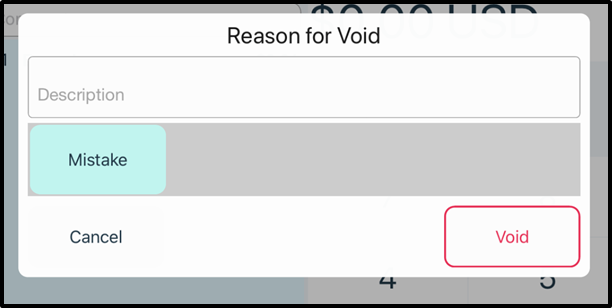
You will then be met with a pop up on the screen. - Select the Void Reason.
- Select Void.