Overview
This article describes how to install and configure Epson TM-T88v and TM-T88vi printers for a broad range of uses in Heartland Retail including:
- Full print functionality as well as receipt templates, logos, and header/footer capabilities.
- Ability to send cash drawer commands through the receipt printer to open the connected cash drawer.
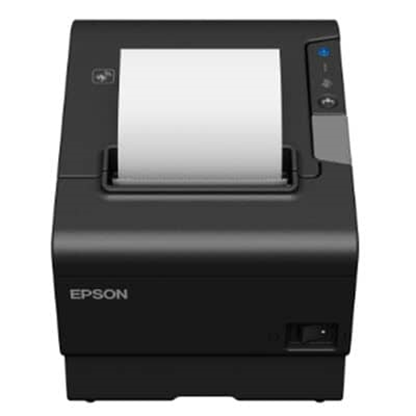
Requirements
- Merchant must be running version 6.55 or later of Heartland Retail 6.50 (including Web and iOS platforms).
- Merchant must be running version 6.55 or later of Heartland Retail Connect.
- Heartland Retail POS devices and Epson printers must connect to same network.
Ethernet Setup
- Download and install HRTL connect using these links:
- Start HRTL connect.
- Connect printer to the network and take note of its IP address.
- Access printer configuration page by entering its IP address on a browser using these credentials:
- login: epson
- password: epson
The printer should now be online and ready for configuration.
IP & SSL/TLS Configuration
Set a static IP for the printer by following these steps:
- On Authentication section, go to TCP/IP.
- Set Acquiring the IP Address to Manual.
- Set Using Automatic Private IP Addressing (APIPA) to Disable.
- Set Set IP Address Using ARP + Ping to Disable.
- Send > Reset.
Disable HTTP to HTTPS redirection by following these steps:
- On side menu go to SSL/TLS under Security section.
- Switch Automatic Redirect HTTP to HTTPS to Disable.
- Send > Reset.
- Go to "EpsonNet Config for TM-i" under TM-Intelligent
- Under Services section, go to ePOS-Print and enable it.
- On top right corner Apply & Restart.
Heartland POS Configuration
- On Heartland POS tenant, go to Point of Sale.
- Access menu on top left corner and select Settings.
- Reload devices. The Epson printer should now be listed on Receipt Printer dropdown.
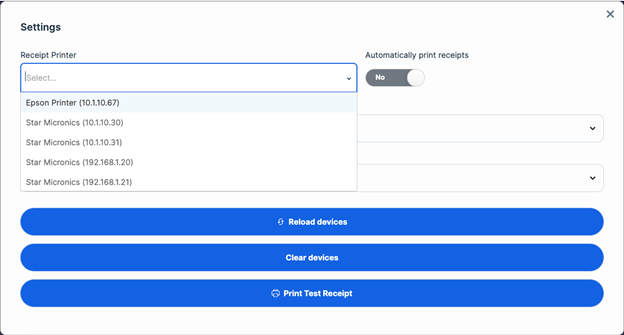
- Select the printer.
- Select Print Test Receipt to test printer.