Overview
The following release notes contains updated versions of the following files:
If you have questions regarding the updates described in this document, please contact Heartland Restaurant’s Support Department by email (hrpossupport@heartland.us ) or phone (1-833-844-HPOS).
What’s New?
The following release notes detail the updates we have included in this release.
HR-1975 “Rewards” Label on Online Ordering Login Panel
In previous versions, when a customer logged into the online ordering website, the program would display the “Earn points and rewards” label on the left side of the Login panel, even if the site was not set to use reward points. We have modified the Online Ordering website to only display the “Earn points and rewards” label in the Login panel if the site is set to use reward points.
Updates
The following release notes detail the updates we have included in this release.
HR-1467 Date Picker Displays Properly in Time Punches Screen
In previous versions, the Admin Console may have displayed the date picker panel improperly in the Time Punches Settings screen. In the Admin Console’s Main Menu, click Location Settings, then click Time Punches. In the Time Punches screen, if you created a new time punch and then added more than one break to the time punch, the Admin Console may have displayed the break’s date picker panel without controls to select an actual date.
We have corrected this, and the Admin Console now displays the date picker panel properly in the time punch screen.
HR-2121 Sorted Seats with Caption Overrides in Reprinted Ticket
In previous versions, if your site uses the Seat++ feature with seat caption overrides, you may have encountered a problem. The Seat++ feature, enabled in the Location Settings screen, sets the POS to automatically increment the numbers of seats when a server adds orders to a ticket. The Seat Caption Override feature, enabled in the Room Settings screen, sets the POS to replace the caption “Seat” with a different caption (such as “box”) when displaying seat numbers in the app or in printed slips.
In certain circumstances, if you reprinted a ticket with items added to multiple seats with a caption override, the POS may have printed the boxes out of proper order. Specifically, the POS would applied an automatically incrementing seat number to the seats with caption overrides, but the POS would ignore the seat numbers when ordering the seats in a printed ticket. To correct this, we have modified the POS to not display seat numbers in reprinted tickets. If the seats in the reprinted ticket have caption overrides, the POS will simply print the name of the seat’s caption (such as “BOX”), without a numerical increment (such as “BOX 1 of 3”).
HR-3685 POS Saves Guest Count Without Crashing
In previous versions, if your site’s POS is set to use the Verify Guest Count on Save function, you may have encountered a problem. Specifically, after entering a guest count, if you double-tapped the Save button, the POS may have “crashed” (closed abruptly without saving the guest count). We have corrected this, and now when you double-tap the Save button after entering a guest account, the POS will save the count without crashing. (You can enable or disable the Verify Guest Count on Save function in the POS Manager Functions, General Settings.)
HR-3713 Saving Changes to Time Punches
In previous versions, if you tried to edit a time punch, the Admin Console may not have saved your changes. In the Admin Console’s Main Menu, click Location Setup, then click Time Punch. In the Time Punch Settings screen, each time punch is associated with a job type.
In previous versions, under certain circumstances, if a staff member worked a shift in a certain job type, and then was later disassociated with that job type, then you tried to edit the shift’s time punch, the program may have failed to save your changes. In such cases, if you tried the save changes to such a time punch, the Admin Console would have displayed the “Save Failed” error message. We have corrected this, and now when you make changes to a time punch for a staff member no longer associated with the time punch’s job type, the Admin Console will save your changes properly.
HR-5259 Disabled Promotion Codes in Online Ordering
In previous versions, if your site uses promotion codes in the Online Ordering website, you may have encountered a problem. Specifically, if you disabled a promotion code, the Online Ordering website may have still accepted them from customers. Customers may have still been able to apply them to tickets in the Online Ordering website. In effect, the promotion codes were still enabled. We have corrected this, and now when you disable a promotion code, the Online Ordering website does not accept it.
HR-5800 Online Ordering Website Displays Proper Available Order Times
In previous versions, if your site uses Online Ordering, the website may have displayed inaccurate available order times for ASAP and first available scheduled times. This only occurred on sites that set a lead time with an increment other than 10 minutes. In such cases, the POS would improperly round the lead time, instead of just the order time. Therefore, the website would display improper time options. We have corrected this, and the POS no longer rounds the lead time, and thus displays accurate order times for ASAP and the first available scheduled times.
HR-6772 Promotion Code Applies Discounts Correctly in Online Ordering
In previous versions, if your site uses “buy one get one” promotions in the Online Ordering website, you may have encountered a problem. In certain circumstances, if a customer ordered two qualifying items with different prices, then entered a code for a “buy one get one” promotion to the ticket, the program may have applied the discount to the more expensive item, rather than the less expensive item. We have corrected this, and now when a customer entered a code for a “buy one get one” promotion to a ticket in the Online Ordering website, the program applies the discount to the less expensive item.
HR-6807 Deleting Job Types from Staff With Multiple Job Types
In previous versions, if your site has staff members associated to multiple job types, you may have been unable to delete a job type from the staff member. In the Admin Console's Main Menu, click the Location Settings, then click Staff. In the Staff Settings screen, if you select a staff member record and then tried to delete a job type from the Job Types list, the program may not have deleted the job type. We have corrected this, and now when you delete a job type from a staff member, the Admin Console will delete the job type properly.
HR-6830 POS Updating Subtotals After Voiding a Split
In previous versions, if you split a ticket, then voided the split, the POS may have failed to update the ticket’s subtotals. This may have created discrepancies in gross receipt totals in certain reports. We have corrected this, and the POS now updates subtotals properly after you void a split.
HR-7024 Online Settings Display in Payment Gateway Screen
In previous versions, if you entered a URL in the URL Subdomain box, the program may not have displayed the Online Settings area in the Payment Gateway screen. In the Admin Console’s Main Menu, click ECommerce Setup, then click Online Ordering. In the Online Ordering screen, if you enter a URL in the URL Subdomain box, the program will display the Online Settings area in the Payment Gateway screen, enabling you to enter necessary settings for the online ordering website. (To access the Payment Gateway screen, click Location Setup in the Main Menu, then click Payment Gateway.)
HR-7065 Unresponsive Tags Page Crashing Admin Console
In previous versions, if you accessed the Tags screen in the Admin Console and selected a tag, the program may have stopped responding. In the Admin Console’s Main Menu, click Account Menu, then click Tags. In the Tags screen, if you selected a tag, the program may have “frozen” (become unresponsive) while trying to load and display the tag’s settings. We have corrected this, and now when you select a tag in the Tags screen, the Admin Console displays its settings properly.
HR-7310 Total Regular Hours in Labor Summary and Payroll Summary Reports
In previous versions, if you deleted a break time in the Time Punch screen, it may have created discrepancies between the Labor Summary Report and the Payroll Summary Report. Specifically, it may have generated inaccurate totals for regular hours in one of the reports. We have corrected this, and now when you delete a time break in the Time Punch screen, the Admin Console will calculate accurate totals for regular hours in both the Labor Summary Report and Payroll Summary Report.
HR-7895 Rooms that Require Guest Names No Longer Close
In previous versions, if your site used uses the Require Guest Name feature, you may have encountered a problem. In the Admin Console’s Main Menu, click Location Setup, then click Rooms. In the Rooms screen, you can set a room to require a guest’s name by selecting the Require Guest Name check box. However, in previous versions, if a staff member tried to send or print a ticket, the POS may have “crashed” (quit and closed). We have corrected this, and now when you send or print a ticket in a room that requires a guest name, the POS does not shut down.
HR-7951 Proper Formatting in Time Clock Reports
In previous versions, the POS may have printed the Time Clock Report with improper formatting, such as double spaced rows and other improper elements. Also, if you printed the Time Clock Report from within the Admin Console and exported it to PDF format, the program may have failed to include the Job Type bar at the top of the report. We have corrected this, and the POS and Admin Console now applies proper formatting to the Time Clock Report, consistent with earlier versions.
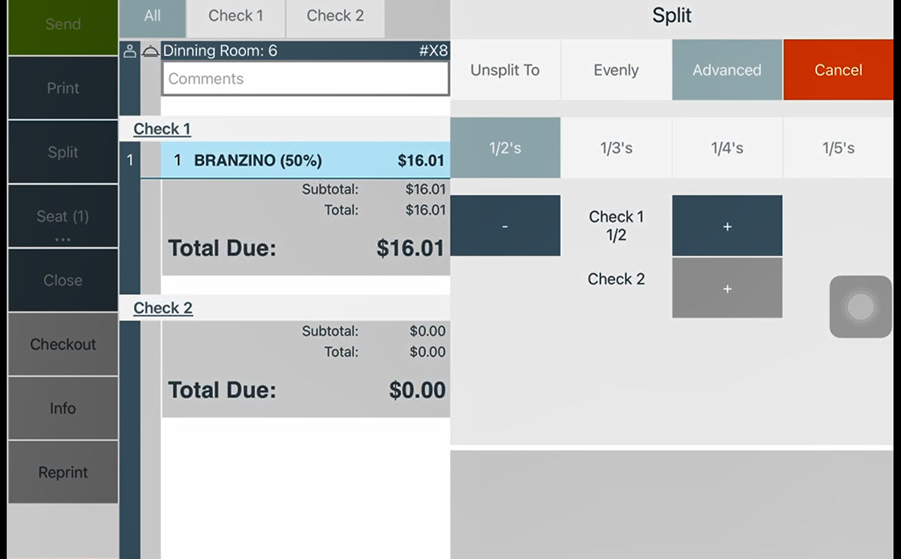
HR-7984 Selecting Checks for Advanced Splits
In previous versions, if you tried to use the Advanced Split feature to split a ticket, the POS may not have allowed you to select multiple checks for the split. For instance, you may have opened a ticket, tapped Split, then tapped Advanced, then tapped 1/2’s. After tapping 1/2’s, if you tried to select two checks, you may have been able to select the first check, but not the second check. If you tapped the + button to select a second check, the button would have been unresponsive and the POS would not select the check. We have corrected this, and now when you use the Advanced Split function to split a ticket, you can select multiple checks for the split.